Automatically tag orders when customers make changes
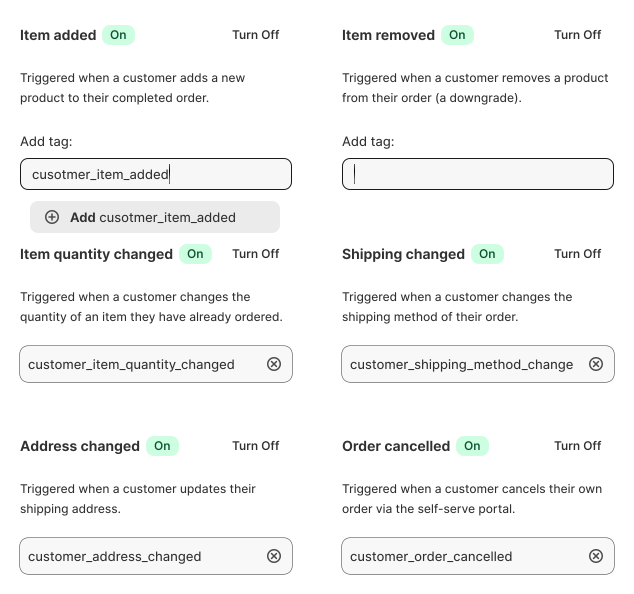
When a customer adds an item, removes a product, changes their address, updates their shipping method, or cancels an order, SelfServe automatically applies tags you define. Use those tags to trigger Shopify Flow automations, update packing slips, or route orders to your fulfillment team.

Powering post-purchase operations for Shopify Plus merchants like








Tag Events
Six trigger events, infinite workflow possibilities
Item added
Triggered when a customer adds a new product to their order. Apply a tag like `customer_item_added` to flag the order for a revised pick list.
Item removed
Triggered when a customer removes a product (a downgrade). Tag with `customer_item_removed` to alert your team to inventory returns.
Item quantity changed
Triggered when a customer adjusts the quantity of an item already in the order. Tag with `customer_item_quantity_changed` to recalculate shipping or packaging.
Shipping changed
Triggered when a customer changes the shipping method. Tag with `customer_shipping_method_changed` to update carrier allocations.
Address changed
Triggered when a customer updates their shipping address. Tag with `customer_address_changed` for address verification workflows.
Order cancelled
Triggered when a customer cancels their order via the self-service portal. Tag with `customer_order_cancelled` to trigger refund workflows or win-back email sequences.
What to do with these tags
Tags are the connective tissue between SelfServe and the rest of your Shopify operations. Here's what merchants use them for:Create custom filters on your Shopify Orders page to see all customer-modified orders at a glance. Trigger automations in Shopify Flow.
For example, send a Slack notification when an order is tagged `customer_item_added`. Generate special packing slips for orders that were modified after purchase. Route specific change types to specific fulfillment teams. Send targeted email sequences based on the type of change a customer made.
Tagging works hand-in-hand with editing rules
utomated tagging becomes even more powerful when combined with SelfServe's editing window rules. Use tags as both inputs and outputs: a tag can trigger a rule (e.g., "allow editing while tag X is present") and a customer action can apply a tag (e.g., "tag the order when a customer edits").
The post-purchase problem
Recovering revenue on auto-pilot
See what SelfServe merchants are saving on support costs and adding in upsell revenue.

Reduced support tickets by 47% in 60 days
12.4x ROI · 82 self-service edits

$8,234 in upsell revenue recovered in 90 days
34.1x ROI · 154 edits processed

Average resolution time went from 8 min to 0 min
28.7x ROI · 61 order edits
Automate your post-purchase workflows
Start Free Trial

Customer testimonials
Lorem ipsum dolor sit amet, consectetur adipiscing elit.