Expert Guide: Managing Orders Shopify 2026

For fast-growing Shopify brands, how you handle orders after the checkout button is clicked can be the difference between protecting your profit margins and watching them vanish. Inefficient order management acts like a quiet tax on your growth. What starts as a small hiccup—a customer mistyping their zip code—can quickly snowball into a major expense with failed deliveries, reshipment fees, and unhappy customers.
The True Cost of Inefficient Shopify Order Management
Most brands treat order management as a defensive game, a never-ending series of fires to put out. But seeing it this way means you're missing out on a huge opportunity. The goal isn't just to fix problems; it's to stop them before they start and even find ways to create more value for your customers and your business.
This guide will help you reframe that entire process. We're going to shift from a world of reactive, high-effort support tickets to a system of proactive, automated workflows that gives customers more control and frees up your team's time for more important work.
From Operational Drag to Growth Lever
Think about the daily grind for a typical ops team. It's a constant flood of emails: customers needing to fix a typo in their shipping address, swap a product size, or cancel an order they placed just minutes ago. Each one of these seemingly small requests kicks off a manual scramble. A support agent has to find the order, make the edit, and get the message to the warehouse—all before the package is sealed and sent out the door.
This manual process isn't just slow; it's incredibly expensive. The cost isn't just your support team's payroll, but the very real financial hit you take when mistakes happen.
A single incorrect address that slips through can be a disaster for your bottom line. You pay for the original shipping, a return-to-sender fee from the carrier, and then the cost to reship it correctly. That's triple the fulfillment cost on one order.
This is where you need to make a fundamental shift in your approach. Moving away from manual firefighting to a system of proactive control can turn this operational headache into a powerful advantage.
Here’s a quick look at how that transformation plays out. We've built this table to contrast the old, costly methods with the modern, efficient workflows we'll be building in this guide.
From Reactive Chaos to Proactive Control
| Management Area | Traditional Approach (High Cost) | Modern Approach (High Efficiency) |
|---|---|---|
| Order Edits | Manual email/chat requests and high support team workload. | Customer self-service portal with time-limited permissions. |
| Address Errors | Reactive fixes after failed deliveries and costly reshipments. | Proactive, real-time address validation at checkout or post-purchase. |
| Fulfillment Flow | Manual data entry and delayed communication with 3PLs. | Automated order tagging and direct integration with 3PL/ERP systems. |
| Post-Purchase Revenue | Limited to separate, often ignored, email campaigns. | Integrated one-click upsells on the Thank You and Order Status pages. |
Think of this guide as your practical playbook for making this happen. You'll get the exact steps to set up self-service options, automate your fulfillment queues, and turn the post-purchase experience into a new source of revenue. The aim is to build a resilient, scalable system for managing orders on Shopify that doesn't just cut costs—it actively strengthens your brand.
Building Your Self-Service Editing and Cancellation Workflow
Giving customers control over their orders doesn't mean you have to lose control of your operations. The secret is building a smart, rules-based system that offers your customers convenience while protecting your fulfillment process from chaos. It's all about moving away from putting out fires manually and toward a proactive, self-service model.
This flowchart paints a clear picture of that shift—from a reactive state of fixing order errors to a proactive environment where you control the fixes from the start.
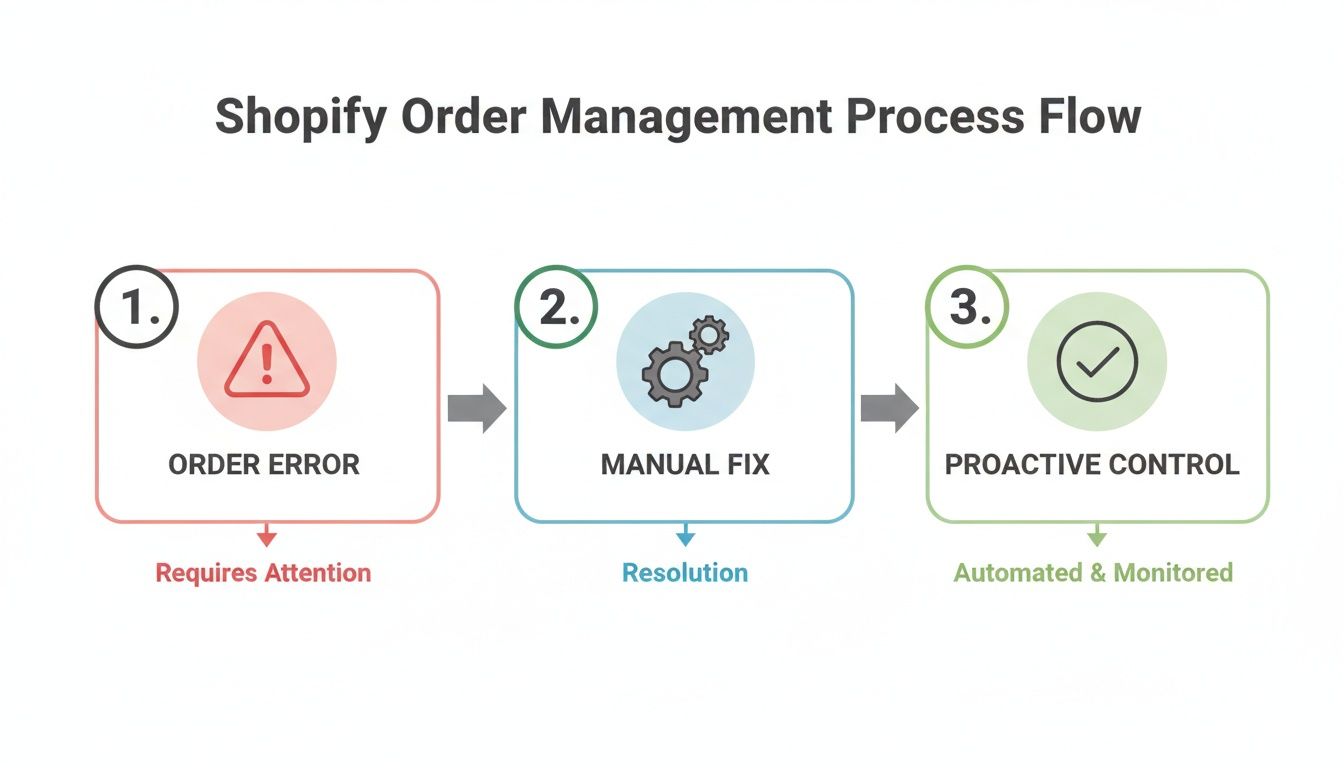
As you can see, having this kind of automated control in place stops costly manual fixes that burn through resources and cause shipping delays.
Defining Your Strategic Editing Windows
First things first, you need to establish a clear order editing window. This is simply the amount of time a customer has to make changes after they've placed an order. Figuring out the right length for this window is critical, and it really comes down to how fast you fulfill orders.
- For fast fulfillment (1-2 hours): I’d recommend a tight window, somewhere around 60-90 minutes. This is just enough time for a customer to spot a typo in their address without throwing a wrench into your pick-and-pack cycle.
- For standard fulfillment (24+ hours): You have more breathing room. A more generous window of 4-6 hours works well, adding flexibility for the customer without causing headaches for your team.
The goal here is to automatically lock the order down the moment it gets sent to your warehouse or 3PL. Using a tool with a precise timer is the only reliable way to enforce this cutoff and ensure a clean handoff every single time.
My Two Cents: Your editing window must be tied directly to your fulfillment latency. Syncing your editing cutoff with your 3PL's order intake process is the single most important rule to follow. Get this wrong, and you're inviting inventory and shipping errors.
Setting Granular Permissions for Changes
Let's be honest, not all order edits are created equal. A customer fixing a typo in their street name? That's a win for everybody. A customer changing their shipping address from California to Canada without you recalculating shipping costs? That's a direct hit to your profit margin.
This is where setting granular permissions becomes non-negotiable. A solid system for managing orders on Shopify allows you to define exactly what customers can and can't change. Based on my experience, a good setup looks something like this:
- Allow: Minor shipping address corrections (e.g., adding an apartment number, fixing a street name typo).
- Allow: Updates to contact info, like an email or phone number.
- Block: Any changes to the billing address to prevent potential fraud.
- Flag for Review: Major address changes, like switching states or countries, which will almost certainly affect shipping costs and taxes.
By setting these rules, you empower customers to solve the simple problems themselves—which make up the vast majority of requests—while protecting your business from costly mistakes. You can see how to put these rules in place by exploring solutions for customer-led order editing.
Creating a Safe Cancellation and Approval Queue
If you ask any ops manager about their biggest fear, a customer canceling an order that's already been packed and labeled is probably high on the list. This is where a manual cancellation queue with an approval step is an absolute lifesaver.
Instead of a cancellation request being processed instantly, it should land in a pending queue for your team to review. This gives your team a final checkpoint to approve or deny the request based on its actual, real-time fulfillment status.
This "human-in-the-loop" approach strikes the perfect balance. You can slash your inbound customer service workload by up to 90% but still retain 100% final control over your inventory and fulfillment pipeline. It stops shipped orders from being accidentally canceled, keeps your inventory counts accurate, and gives your team the final say before any stock is returned to the shelf or a refund is issued.
Automating Your Fulfillment Process to Reduce Human Error
A great self-service portal is your first line of defense, but the real magic for your ops team happens when you automate what comes after a customer makes a change. Once an order edit or cancellation gets the green light, that info needs to hit your fulfillment team or 3PL partner instantly and without errors. This is where automation stops being a "nice to have" and becomes the engine that lets you scale.
Relying on manual data entry, frantic emails, or last-minute Slack DMs to the warehouse is a recipe for expensive mistakes. The secret to truly mastering your Shopify order management is building a system where data flows on its own, cutting out the risk of human error.

Use Automated Tagging for Instant Clarity
One of the easiest yet most powerful automations you can set up is automated order tagging. Think of tags as digital sticky notes that give your fulfillment team a heads-up without them ever having to dig through support tickets or email chains.
Let's say a customer uses your portal to fix a typo in their shipping address. A simple workflow can automatically apply a tag like Address Edited to that order in Shopify. That little tag is a massive signal for your team.
Here are a few practical tags you can automate right away:
Address Edited: A clear flag for your team to double-check the shipping label before it heads out.Upsell Added: Tells the warehouse packers they need to add another item to the box.Partial Refund: Alerts the finance team that a money-related change happened on this order.Cancellation Approved: Signals that this order needs to be pulled from the fulfillment queue and its inventory restocked.
These tags provide crucial information at a glance, making sure every order is handled correctly based on its latest status.
Stop Failed Deliveries with Real-Time Address Validation
A mistyped address is probably one of the most common—and costly—headaches in ecommerce. It causes failed deliveries, racks up expensive reshipment fees, and leaves you with unhappy customers. The best fix is to stop the error before it even happens.
This is where real-time address validation comes in. By using a service like Google Maps, you can set up your system to help customers get it right. As they type their address, whether at checkout or in a post-purchase portal, the form autocompletes with a verified, deliverable address.
This one small feature has a massive impact. It doesn't just make things easier for the customer; it practically wipes out an entire category of support tickets and operational costs tied to bad addresses. It's a purely proactive move that saves you money on every single order.
The sheer scale of Shopify shows why this is so critical. With the platform handling $92 billion in Gross Merchandise Volume (GMV) in a single quarter and its servers managing peaks of 80 million requests, you can't afford manual fixes. Proactive tools like address validation and automated workflows are non-negotiable for any brand operating at scale.
Syncing Directly with Your 3PL and ERP
For any high-volume store, especially those on Shopify Plus, direct integration between Shopify and your 3PL or Enterprise Resource Planning (ERP) system is the final piece of the automation puzzle. This connection creates a single, reliable source of truth for all your order data.
When an order gets edited or an upsell is added through a tool like SelfServe, a direct API connection makes sure that new information is pushed to your logistics partner immediately. This seamless data sync speeds up the entire pick-pack-ship process. There’s no waiting, no manual file uploads, and zero risk of the team working off an outdated order list.
This is the kind of integration that separates brands that scale smoothly from those that get crushed by their own growth. It makes the entire process of managing orders on Shopify far more efficient and resilient. If you want to get into the nitty-gritty, you can check out our guide on how to fulfill orders on Shopify for more of the technical details.
Turning Post-Purchase Clicks Into Revenue
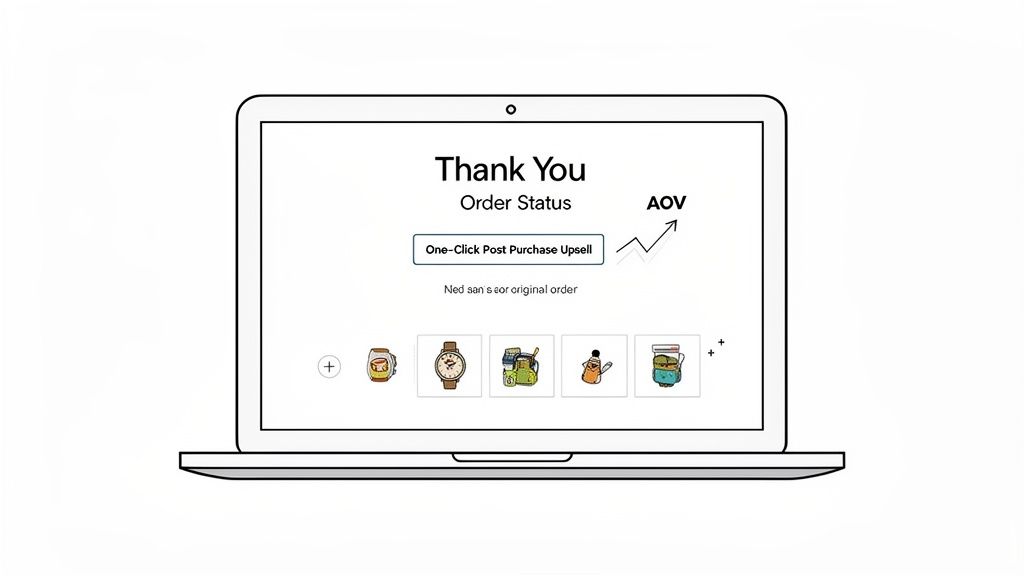
So, the customer just clicked "Buy." For many stores, that's the end of the interaction. But if you're treating the Thank You and Order Status pages as just a digital receipt, you're leaving money on the table. A lot of it.
Think of these pages as prime real estate. Your customer is still in a buying mindset, they trust you, and their wallet is already out. This is your single best opportunity to increase that order's value, and it starts with a smart post-purchase upsell strategy.
The Magic of the One-Click Upsell
A post-purchase upsell is an offer you make after the customer has paid but before you’ve shipped their order. The beauty of this is that they've already entered their payment and shipping info. Adding another item is as simple as one click—no fumbling with credit card numbers or re-entering an address.
It’s a completely frictionless experience at the absolute peak of their buying intent. They’ve just committed to your brand, so offering a relevant, complementary product feels less like a sales pitch and more like a helpful suggestion. This isn't just theory; it's a proven way to pump up the value of every single order that comes through your store.
When you get your post-purchase experience right, you’re not just providing good service. You are directly cranking up your Average Order Value (AOV).
In the world of Shopify, where merchants have collectively surpassed $1 trillion in sales, every dollar in AOV counts. The typical AOV hovers around $92, but the real goal is to break into the top tier. The top 10% of stores boast an AOV over $326. This is where tools designed for Shopify Plus, like SelfServe, really prove their worth by embedding upsell modules directly onto the Thank You and Order Status pages, turning a simple confirmation into a revenue engine.
Building an Upsell Strategy That Actually Works
A good upsell strategy isn't about just tossing random products at people and hoping something sticks. You have to be thoughtful. The goal is to present an offer so logical and relevant that the customer wonders why they didn't think of it themselves.
From my experience, these tactics get the best results:
- Offer the Perfect Partner: Did they just buy a new camera? Offer a memory card or a protective case. Selling a popular skincare serum? The matching moisturizer is a no-brainer.
- Create Can't-Miss Bundles: Package a few related items together and knock a bit off the total price. Think "The Ultimate Starter Kit" or a "Complete Morning Routine" bundle.
- Present a Simple Upgrade: If they bought the standard version of your product, offer the premium model for a small price bump. Highlight what makes the upgrade worth it.
You also need to set some ground rules. It's smart to exclude certain products—like low-margin or heavy items—from your upsell offers to protect your profitability and avoid logistical headaches. For a deeper look at the nuts and bolts, check out our guide on creating a winning Shopify post-purchase upsell strategy.
Tailoring the Experience for a Global Audience
If you sell internationally, a one-size-fits-all approach will fall flat. To create a genuinely seamless experience, your upsells have to speak your customer's language—literally. If someone just shopped your site in French, the post-purchase offer better show up in French, too.
Modern upsell apps can handle this automatically. They detect the shopper's language and serve the entire offer—from the product description to the "Add to Order" button—in their native tongue. It's a small touch that shows you respect your global customers, and it makes a huge difference in conversion rates.
To keep that momentum going, you can also use actionable post-purchase email examples to turn routine follow-ups into new opportunities, further personalizing the journey and building a stronger relationship with your customers.
Troubleshooting Common Order Management Challenges
No matter how dialed-in your automations are, you're going to run into some tricky situations with Shopify orders. A solid system can handle the vast majority of your workflow, but let's be real—operational hiccups are part of the game. This is your playbook for when things don't go according to plan.
Think of this as the advice I'd give a fellow ops manager over coffee. We'll walk through the most common headaches and give you practical steps to fix them, all while keeping your customers happy and your warehouse humming.
Handling Edits on Already Fulfilled Orders
This is the classic "uh-oh" moment for anyone in operations. A customer just edited their order, but the original is already in the hands of your fulfillment team—picked, packed, and maybe even on a truck.
The second you spot this, your first move is to get your fulfillment center on the phone. You need a direct line to someone who can physically halt that shipment if it hasn't left the building. If the package is already with the carrier, it's time to pivot to customer communication.
Be upfront and explain what happened. Let them know their original order is on its way and you're already working on a solution for their requested change. From there, you have a couple of options:
- For an item swap: You'll likely have to ship the correct item out in a new package. To get the wrong item back, you can provide a pre-paid return label.
- For an address change: You can try a package intercept with the carrier (like UPS My Choice or FedEx Delivery Manager). Honestly, success rates vary, and there are fees involved. If it fails, the package will probably get returned to you, and you'll have to reship it to the correct address.
Of course, the best strategy here is prevention. Your best defense is a bulletproof system that locks an order the moment it's sent to your 3PL for fulfillment.
Managing Partial Refunds and Item Swaps
This one gets messy fast. When a customer swaps an item for another of a different value or just removes something from their cart post-purchase, you have to handle the money and the inventory correctly.
Picture this: a customer swaps a $50 t-shirt for a $40 one. Your system absolutely needs to trigger a $10 partial refund automatically. Doing this by hand is not only slow but also a recipe for mistakes. A good order management app will calculate the difference and process the refund on the spot.
The real trick is keeping your inventory counts accurate. The best practice is to have your system treat the change as two separate actions: a cancellation of the original item and the addition of the new one. This ensures your stock levels for both products are updated in real-time, preventing you from selling something you don't actually have.
I also highly recommend setting up a manual approval queue for these types of edits. It gives your team a quick, final checkpoint to review the financial and inventory impact before the system pushes the refund and updates the 3PL.
Best Practices for Customer Communication
When an order changes, silence is not golden. Clear communication is the only way to prevent a flood of follow-up support tickets from confused customers. They shouldn't have to wonder if their request actually went through.
Automated email confirmations are your absolute best friend here. Set them up to fire off the instant a change is successfully made.
- Address Edited: The confirmation should clearly show both the old and new addresses. This gives the customer a chance to catch any typos.
- Item Swapped: The email should detail exactly which item was removed, which was added, and any price difference or refund amount.
- Order Canceled: A simple confirmation that the order is canceled, along with a clear timeline of when they can expect their full refund to hit their account.
These notifications offer immediate peace of mind and create a clear paper trail for everyone. This kind of proactive communication cuts down on those "Did you get my change?" emails, freeing up your support team for more complex issues. It's also smart to regularly review your support tickets—if you see the same questions about order edits popping up, you've found a gap in your communication that needs fixing.
Your Shopify Order Management Questions, Answered
Even with a solid workflow, managing Shopify orders brings up tricky situations. When you're in the weeds, you need fast, practical answers. I've been there. Let's walk through some of the most common questions I hear from operations managers and get you the clear, actionable advice you need to solve these problems on the fly.
Think of this as your field guide to navigating the post-purchase journey and building a process that's not just efficient, but also keeps your customers happy.
How Long Should My Order Editing Window Be?
This is a classic question, and the answer isn't a simple number—it's all about syncing with your fulfillment rhythm. The goal is to give customers a chance to fix their mistakes without throwing a wrench into your warehouse operations.
For most stores, a 1-2 hour window is a great starting point. That’s typically enough time for a customer to catch a typo in their shipping address or realize they ordered the wrong size.
If your fulfillment process is a bit slower—say, you batch orders and send them to your 3PL every 24 hours—you can definitely be more flexible. In that case, stretching the window to 4-6 hours is perfectly fine.
Here’s the golden rule: Your editing window must close before your orders are sent to your fulfillment partner. The best way to manage this is with an app that uses a precise timer, automatically locking the order when time is up. This is your best defense against costly fulfillment errors.
Can I Stop Customers From Changing to a More Expensive Shipping Address?
Yes, but you need more than a basic editing tool to do it right. This is a classic trap where you can lose money fast. A simple editor might let a customer nonchalantly switch their address from a domestic one to an international one, leaving you to foot the surprisingly large bill for the shipping difference.
While most advanced tools won't outright block the change, they can be configured to flag the order for your team to review manually. This gives you a chance to catch the change and contact the customer for the additional shipping payment.
The most practical setup I’ve seen involves setting smart permissions:
- Allow small fixes: Let customers self-correct typos in a street name or add a missing apartment number.
- Require support for big changes: Force any major edits, like changing the state or country, to go through your support team.
This approach protects your profit margins while still empowering customers to fix their own simple errors without needing to create a support ticket.
What Is the Best Way to Handle an Item Swap?
Trying to handle item swaps manually is a recipe for disaster. It’s slow, incredibly error-prone, and almost always messes up your inventory counts and financial reports. I’ve seen it happen too many times.
By far, the best approach is to use an automated system that manages the entire exchange cleanly. When a customer wants to swap an item, the process should automatically handle everything in the background: the original item is canceled, a partial refund or store credit is issued for any price difference, and the new item is added to the order.
This ensures both your inventory and your books stay perfectly accurate. For any edit that involves a partial cancellation, it’s also a good idea to have a manual approval step. This gives your team one last look to make sure the order hasn’t already been picked in the warehouse, preventing a logistical nightmare.
How Can I Measure the ROI of Better Order Management?
To really see the return on investment from fine-tuning your order management, you need to look beyond just one number. A few key metrics will paint a clear picture of the impact on both your operations and your bottom line.
Start by tracking the drop in support tickets related to order edits, address changes, and cancellations. From there, you can calculate the direct cost savings from reduced agent time. Then, look at the new revenue you're generating from post-purchase upsells on your Thank You and Order Status pages—that’s pure profit.
Don’t forget to measure the decrease in costs from failed deliveries by tracking your address error rate. Every reshipment fee and piece of lost inventory you avoid adds up. Finally, watch your Customer Satisfaction (CSAT) scores. A smooth, self-service experience leads to happier customers, which means better retention and a higher lifetime value.
When you need to scale your operational capabilities beyond day-to-day order tasks, looking into specialized Shopify services can provide the expert support you need.
Ready to take control of your post-purchase experience? SelfServe helps you slash support tickets, stop shipping errors, and boost your average order value with powerful upsells. See how it works and start your free trial at https://getselfserve.com.