Mastering Shopify's Change Email Address Notification
Let's get real for a minute—outdated customer emails are a sneaky drain on your profits. When a customer uses a wrong or old email, they miss order updates. That single mistake almost always leads to a support ticket that was completely avoidable. This isn't just a small annoyance; it's a direct blow to your team's workload and your store's bottom line.
Why Outdated Customer Emails Are a Bigger Deal Than You Think

The problem of bad contact information runs deeper than most merchants realize. Here's a number that always gets my attention: nearly 30% of email subscribers change their primary email address every single year. Think about that. For a busy Shopify store, that churn isn't just a statistic; it’s a constant operational risk.
When a customer checks out with an old email, the entire post-purchase experience crumbles. They never get the order confirmation. No shipping updates. No delivery notification. The result? A worried customer flooding your support inbox, wondering where their order is.
The Black Friday Nightmare Scenario
I've seen this play out time and time again, especially during peak season. Picture this: it’s Black Friday. A customer is rushing to grab a deal and accidentally auto-fills an old Hotmail account they haven’t touched in years. The payment goes through, but the order confirmation email bounces right back.
A day passes with no updates. They start to worry. By the second day, they're convinced they've been scammed and fire off an urgent, panicked ticket to your support team. Now, your crew—already buried under a mountain of holiday requests—has to drop everything, hunt for the order using a name or address, and manually change the email address notification for that one customer.
This single typo sets off a costly chain reaction:
- Inflated Support Load: Your team is tied up fixing a preventable data-entry error instead of handling real issues.
- Poor Customer Experience: The customer’s initial shopping high quickly sours into anxiety and frustration.
- Risk of Negative Reviews: A bumpy post-purchase journey is one of the fastest ways to earn a one-star review.
- Lost Future Business: A frustrated customer is far less likely to shop with you again.
The real problem isn't just a typo. It's a complete breakdown in the communication channel you've invested so much time and money to build. Every "wrong email" ticket is a red flag for a flawed process.
You've worked hard building a great marketing list—and our guide on building an email list that actually buys from you can certainly help with that. But if you can't even get the transactional emails right, you're damaging the customer relationship at its most critical moment. Tackling this common but expensive problem is the first step toward a smoother, more profitable operation.
Optimizing Your Native Shopify Notification Settings
Before you even think about paying for an app, let's talk about the tools already built right into your Shopify admin. Many merchants overlook the power of the native notification system, but getting this foundation right is the single most important thing you can do for a scalable workflow.
Your starting point is the Notifications page in your Shopify settings. This is where you’ll find the "Staff order notifications" section, which controls who on your team gets pinged the moment a new order hits.
Configuring Recipient Lists
When a sale comes through, Shopify can automatically fire off an email to your team. You have two main ways to handle this: add individual staff emails or route everything to a shared inbox like orders@yourstore.com. Honestly, I’ve seen both work and fail, so it really depends on your team's size and structure.
Sending alerts to individual emails works well for small, clearly defined teams. For instance, the notification can go straight to your fulfillment manager and your lead support agent. The problem is, this gets messy fast. As people change roles or leave the company, you'll be stuck constantly updating that list in Shopify.
A distribution list or shared inbox (fulfillment@yourstore.com) is much easier to manage as you scale. New team member? Just add them to the Google Group or shared inbox. Someone leaves? Remove them there. You never have to touch your Shopify settings. The trade-off is the classic "somebody else will get it" problem, where an order might sit because everyone assumes another person is on it.
My go-to recommendation is a hybrid model. Set up a main distribution list like fulfillment@yourstore.com as the primary recipient, but also add one or two key managers as individual recipients. This way, the team gets the alert, and leadership has oversight to ensure nothing falls through the cracks.
Connecting Internal and External Notifications
Think of these internal alerts as the first domino. When your team gets that change email address notification or a new order alert, their response time directly impacts what the customer sees.
A slow internal handoff means a delay in packing the order, which means the customer is left waiting longer for that "Your order has shipped!" email. To keep the entire post-purchase experience feeling smooth and professional, you need to tighten up your internal process.
Ask yourself these questions about your current setup:
- Speed: How long does it really take for someone on your team to see and act on a new order notification?
- Clarity: Is there any ambiguity about who owns that new order? Does everyone know their role?
- Accuracy: Are the right people getting these alerts? Or is your designer getting spammed with fulfillment requests?
Nailing these native settings means your team can operate efficiently. When a customer inevitably asks to change their email address or asks for an order update, your team will be ready to respond quickly instead of scrambling to figure out what's going on.
Let's be honest: manually fielding every customer request to change an email address is a huge time-sink. It's a constant, low-level drain on your support team that just doesn't scale.
But what if you didn't have to handle those tickets at all? What if customers could fix their own typos and update their old email addresses moments after placing an order? That’s where a self-service approach can make a world of difference.
By giving customers a way to manage their own contact details—securely and within limits you set—you can free up your team for the complex issues that actually need a human touch.
How to Set Up Permission Windows
The key to making this work is setting smart permission windows. You're not just handing over the keys to the castle. Instead, you're giving customers a small window of opportunity to make corrections.
For example, you could let customers edit their email or shipping address for the first 60 minutes after they check out. This is the sweet spot. It gives them plenty of time to catch a "gmial.com" typo before the order gets locked in for fulfillment.
This simple change can have a massive impact on your support queue. Instead of your team digging through orders to update records, the system handles it for you. What was once a common support headache becomes a quick, seamless fix for the customer. You can see how this fits into the bigger picture in our guide to Shopify customer accounts.
Here’s a look at how an order typically flows from the customer to your fulfillment team.
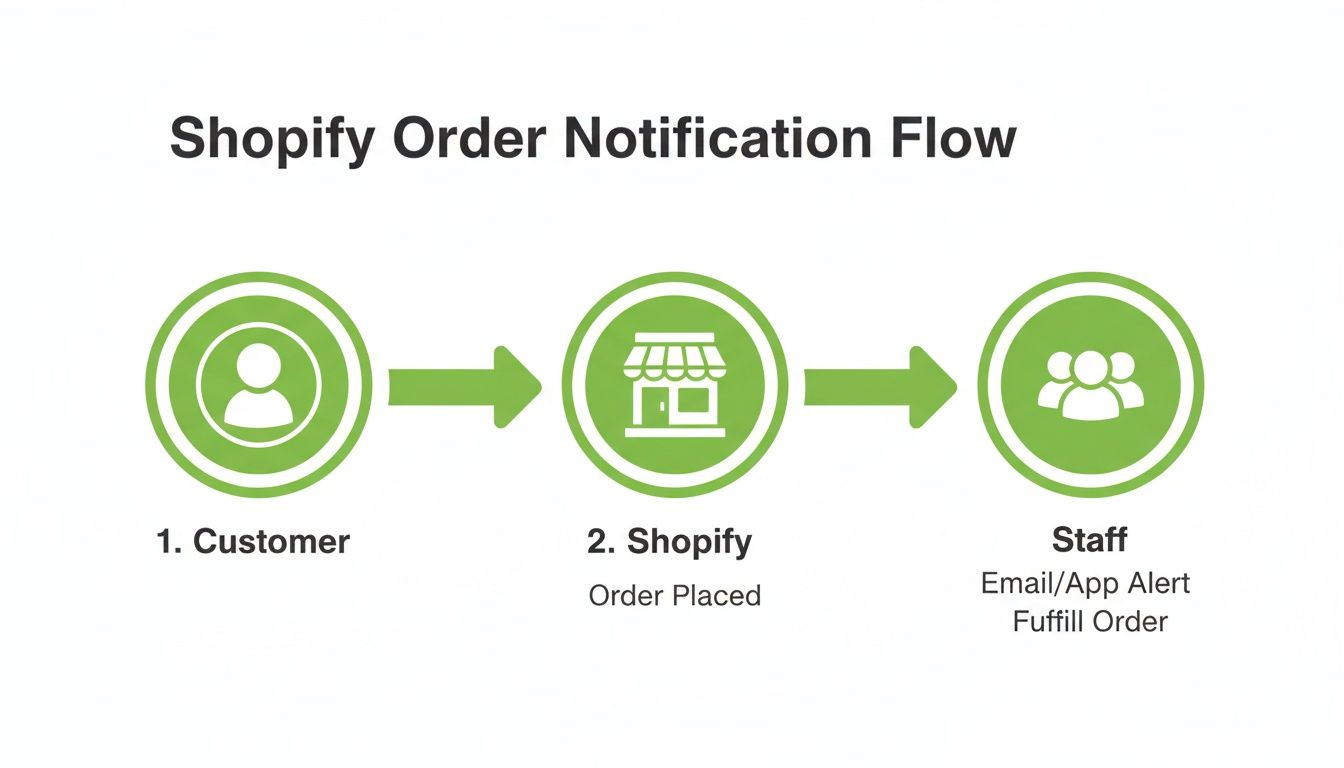
When you let customers jump in and correct their own mistakes, you ensure that the right information gets to your team from the very beginning.
The Hidden Power of Automated Validation
Beyond just saving time, a good self-service tool brings another powerful benefit: real-time data validation. When a customer updates their email, the best tools will use auto-complete and format checks to stop new typos from ever happening.
This is a bigger deal than it sounds. It’s proactive quality control that helps protect your email deliverability rates.
That immediate feedback is crucial. We live in an on-demand world, and it turns out that a staggering 17% of American online shoppers expect to be able to change their contact details instantly, without having to wait for a support agent. With high email churn rates, this can quickly become a nightmare for stores with any real volume.
A self-service widget directly meets this modern customer expectation. You aren't just solving a problem; you're providing a better, more user-focused experience that builds trust right when it matters most—just after they've given you their money.
The best part? These tools are designed to be dropped right onto your store’s Thank You and Order Status pages, so they’re incredibly easy for customers to find and use. A simple, well-placed "Edit contact/shipping info" button can deflect a support ticket before it's even created, giving customers the control they want.
Fine-Tuning Your Notification Strategy: Best Practices
Getting your notification system right is more than just a one-and-done setup. It's about creating a communication experience that feels seamless and trustworthy. Thinking beyond single-point fixes means building a complete flow that covers every customer touchpoint, from the moment they click "buy" to the final delivery notification. This isn't just about solving problems—it's about polishing your brand's professional image with every email you send.
It all starts with your email templates. Your customers are busy; they don't have time to decode confusing system messages. Every notification, especially something as critical as a change email address notification, needs to be direct, clear, and reassuring. A simple, "We've successfully updated your email address" builds far more confidence than a generic, jargon-filled alert.
Speak Your Customer's Language
For anyone selling internationally, communicating in your customer's native language is a must. A huge part of a smooth post-purchase experience is making sure your notifications aren't literally lost in translation. This is where modern tools give you a serious edge.
An app like SelfServe can automatically detect a shopper's browser language and show all the post-purchase options and notifications to match. This isn't just a "nice-to-have" feature. It's fundamental for building trust with a global audience. Think about it: a customer in Germany who updates their contact info and immediately receives a confirmation in German feels understood and valued. It’s a small touch that leaves a lasting positive impression.
This level of detail becomes critical when you look at the reality of email churn. The digital world is always in flux, and research suggests nearly 30% of subscribers change their primary email address every year. This is a massive friction point for e-commerce, especially for high-volume Shopify Plus stores in the US and UK. During peak seasons like Black Friday, bounced notifications from old email addresses can swell support ticket volume by a staggering 25-40%. You can explore more about these email trends and their business impact to see the full picture.
Manual vs. Automated: A Quick Comparison
When you're dealing with a high volume of these email changes, the operational cost of handling them manually adds up fast. It drains your support team's time and introduces a real risk of human error. Here’s a look at how a manual process stacks up against an automated, self-service solution.
Notification Strategy Comparison: Manual vs. Automated
The data is pretty clear. Automation doesn't just save you time and money; it directly improves the customer experience by empowering shoppers and eliminating frustrating delays.
The Ultimate Testing Checklist
Once you’ve refined your templates and set up your systems, you have to test everything from start to finish. Just hitting the "send test" button isn't nearly enough. You need to put yourself in your customer's shoes and walk through the entire journey to be certain every email lands in the inbox, not the spam folder.
A rock-solid testing plan should always include these steps:
- Trigger Verification: Place a real test order. Did the initial order confirmation fire off correctly and immediately?
- Self-Service Simulation: Use your customer portal or self-service tool to change the contact email. Did the confirmation alert go to the new address?
- Spam Filter Check: Send your test emails to different major clients like Gmail, Outlook, and Yahoo. You want to ensure your messages aren't getting flagged as spam.
- Link Validation: Click every single link in your notification emails. Check the "View Your Order" button, tracking links, and any promotional links to make sure they all work and go to the right place.
Don't think of this as just a way to cut down on support tickets. Proactively managing your notification flow is about owning your brand’s story. You're ensuring every customer interaction is smooth, professional, and reassuring. That attention to detail is what separates the good brands from the great ones.
Turn Notification Touchpoints Into Revenue
Alright, let's move beyond just fixing problems and start thinking about profit. The moments right after a customer clicks "buy" are pure gold. Your Thank You and Order Status pages aren't just dead-end confirmations; they are some of the most valuable real estate on your entire site.
Think about the customer's mindset for a second. They just fixed an email typo or updated their address. They're feeling relieved, engaged, and are actively paying attention. This is the perfect window to show them something they’ll love.
Capitalizing on High-Engagement Moments
The second a customer lands on your post-purchase page—whether to check a tracking number or update their info—you have their complete attention. Turning a simple change email address notification into a legitimate sales opportunity is a surprisingly powerful way to bump up your Average Order Value (AOV).
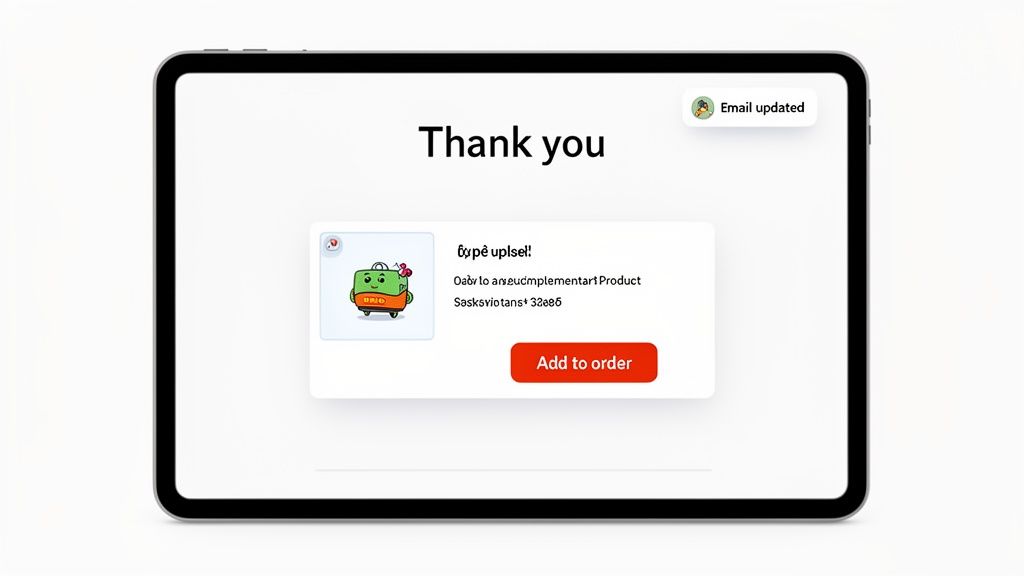
Instead of a boring "Your email has been updated" message, you can present a curated upsell. For instance, a customer who just bought a new camera might see an offer for a memory card or a camera bag they can add to their order with one click.
When a customer is on your Order Status page, they are in a buying mindset. They've already trusted you with a purchase, making them far more receptive to a relevant add-on than a visitor who is just browsing. This is your chance to deepen the relationship.
This approach transforms a purely functional, and frankly dry, interaction into a profitable one. You're not just solving a minor issue; you’re genuinely improving their shopping experience with smart suggestions. It's a classic win-win: they discover a great product they might have missed, and you see an immediate lift in your order value. You can see how this fits into a broader strategy in our guide to building a self-service customer portal.
Implementing One-Click Post-Purchase Upsells
The real magic happens when you make the process completely seamless. With an app like SelfServe, you can drop modules directly onto your Order Status page that let customers add items to their existing order with a single click. No re-entering credit card details. No filling out shipping forms again.
Here are a few ways I’ve seen this work wonders:
- Complementary Products: A customer buys a skincare set. You immediately offer them a bottle of your best-selling sunscreen or a silk pillowcase.
- Limited-Time Bundles: After they buy a single item, show them an exclusive bundle that includes related products at a small, tempting discount.
- Popular Accessories: Someone purchases a new bicycle. The upsell could be a helmet, a water bottle holder, or a bike lock—the essentials they'll need anyway.
This strategy is so effective because it’s both contextual and incredibly convenient. The offers are directly related to what they just bought, so they feel relevant, not pushy. By removing all that friction, you dramatically increase the odds of conversion, turning what started as a simple email update into a brand new sale.
Common Questions About Email Address Notifications
Even with a slick post-purchase setup, a few common questions always seem to pop up around managing change email address notifications. It’s a tricky balance between giving customers an easy out when they make a typo and keeping your own operations secure and streamlined.
These are the real-world questions I hear directly from high-volume merchants trying to cut down on friction. Getting a handle on these scenarios will help you build a much more resilient and customer-friendly experience.
Can Customers Change Their Email After An Order Is Fulfilled?
This is a question I get all the time. The short answer? You're in control, and my strong recommendation is to lock things down once an order is sent to your fulfillment center or 3PL. That simple rule is your best defense against costly shipping errors and confusing communication trails.
With a tool like SelfServe, you can set firm rules for when customers can make edits. For instance:
- You could offer a 60-minute window right after purchase where customers have free rein to edit their details.
- Once that time is up, the system can automatically lock edits, securing the order information for your fulfillment partners.
This gives customers a chance to catch their own mistakes (which they appreciate) while protecting your operational workflow from last-minute chaos.
How Do I Notify My Team When A Customer Changes Their Email?
The last thing you want is for a customer self-service option to create more manual work for your team. A good system should handle this automatically. When a customer updates their email through a self-service portal, the app can instantly tag the order right inside your Shopify admin. A simple tag like "customer-updated-email" works perfectly.
This automation is all about creating a single source of truth. By tagging the order directly in Shopify, every team member—from support to fulfillment—sees the most up-to-date information without having to check other systems or inboxes.
Once the tag is there, you have a couple of smart options. You can build a saved view in your Shopify Orders screen for that specific tag, which your team can check periodically. If you need something more immediate, you can use a tool like Shopify Flow to trigger an internal email or fire off a Slack notification straight to your customer support channel.
Does Self-Service For Email Changes Increase Fraud Risk?
It’s natural to worry about fraud, but the risk here is far more manageable than you might think. From what I've seen, the primary reason a customer changes their email is an honest one: they typed it wrong and just want to get their order updates. Any bad actor is almost always more interested in redirecting the physical package, not the email notifications.
Modern self-service apps build in layers of security to keep this risk incredibly low:
- Secure Access: Customers can only make changes through the tokenized Order Status Page, which is only accessible via the unique link sent to the original email address.
- Merchant Control: You have the final say on what can be changed. You can easily limit edits to only the email address, keeping the shipping and billing details completely locked down.
Honestly, the huge benefits you get from fewer support tickets and a happier customer base almost always outweigh the minimal, controllable risk involved.
Ready to stop wasting time on manual email updates and start boosting your AOV? SelfServe empowers your customers to fix their own mistakes while you stay in control. Get your 30-day free trial on the Shopify App Store and see the difference it makes.