
Shopify Change Order of Products: Every Method Explained

You're halfway through a collection refresh, the promotion starts tomorrow, and the product you want customers to see first is buried below older stock. You drag it upward in Shopify, check the storefront, and then discover that “change order of products” can mean something else entirely: changing the line items inside an order a customer has already placed.
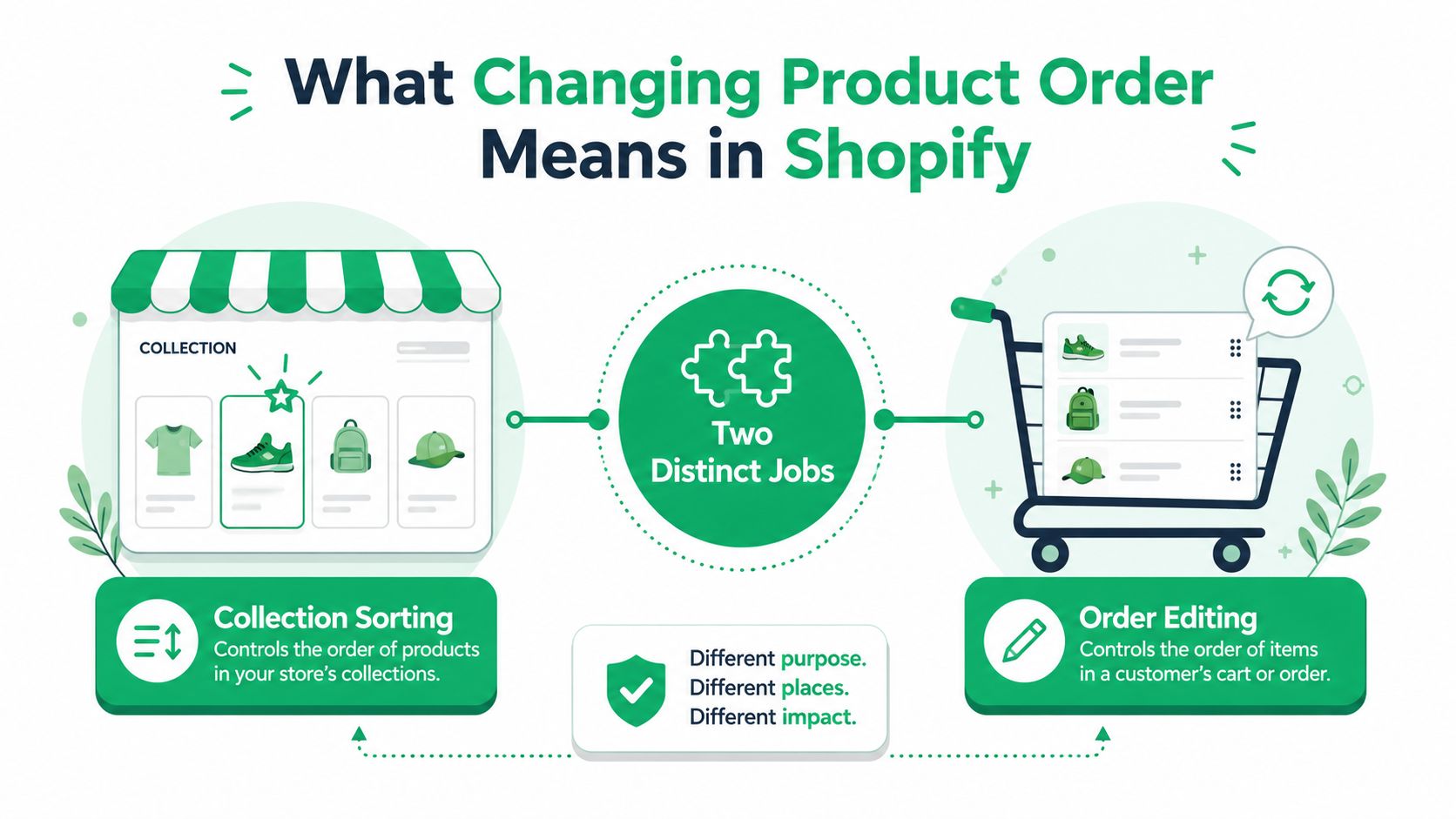
Those are separate operational jobs. Collection sorting controls how products appear for shoppers, while order editing changes an existing customer transaction. The right workflow depends on which problem you're solving, how often the catalog changes, and how much control you need to retain.
What Changing Product Order Means in Shopify
A seasonal launch can expose the difference quickly. A hero product may need the first position, a complementary accessory can follow it, and clearance items may belong near the bottom. That sequence changes what shoppers see in a collection. It does not rewrite orders that customers already placed.
Shopify gives merchants several ways to control collection order, including manual positioning, rule-based sorting, and workflows that set positions through the API. These options affect catalog presentation. Post-purchase order editing is a separate operation, changing quantities, variants, discounts, line items, or shipping details within an existing transaction when that order qualifies.
Storefront order versus order line items
Collection sorting answers, “Which product should appear first in this collection?” Merchants use it for featured products, new arrivals, best sellers, seasonal rotations, and other merchandising priorities.
Order editing answers, “What should be inside this customer's existing order?” It applies when a shopper wants to switch a variant, adjust quantity, add or remove an item, or change a shipping line, subject to the order's editing rules.
Catalog changes and order history remain separate. Changing a product's title, price, weight, or other catalog data does not rewrite the corresponding details stored in an existing order. Treat the order record as a snapshot of the transaction at creation, then use the order-editing workflow when the transaction itself must change.
The appropriate method depends on operating scale and change frequency. Manual sorting suits a focused collection that changes occasionally. Automated rules or API-driven ordering reduce repetitive work when products enter, leave, or regularly change position. Customer-facing editing addresses a different operational need, helping resolve post-purchase changes before they become support tickets. Shopify's documentation on product information in edited orders explains the platform's handling of product details during order edits.
Manual Collection Sorting in the Shopify Admin
For a small or carefully curated collection, Shopify's native manual workflow is usually the fastest option. Open Products, select Collections, and choose the collection you want to merchandise. In the collection settings, change Default sort to Manually. Shopify then lets you control the sequence directly, as documented in its collection layout and sorting instructions.
Once manual sorting is active, drag products into position. You can also use the Move menu to send an item to the beginning, the end, or a specific position in the collection. That's useful when you need to place a campaign product near the top without manually moving every item around it.
A reliable workflow for merchandising
Suppose you're preparing a seasonal collection. Place the main promotional product first, then products that complete the purchase, then the broader range. A high-margin accessory might belong near the hero product, while discontinued or low-stock items may need to sit lower, even if they were previously popular.
Don't treat the drag-and-drop action as complete until the change is saved. Independent Shopify community guidance notes that merchants should select Manually, move products with drag-and-drop or a bulk action, and save when the Save button is active. If the button isn't active, there may be no unsaved change to apply. If it is active and you leave without saving, the storefront may retain the previous order.
Use this workflow alongside a broader guide to organizing Shopify product categories and navigation menus when the issue extends beyond one collection.
After publishing a new arrangement, check the live collection rather than relying only on the admin preview. Confirm that the intended product appears first, unavailable products behave as expected, and mobile shoppers see a sensible opening sequence. If you're also improving collection imagery or merchandising copy, resources on how to boost engagement with AI tools can help support the visual side of the experience.
Manual sorting is the right choice when the collection has a clear editorial intent and someone reviews it deliberately. It becomes fragile when new products, inventory changes, and seasonal rules constantly invalidate the positions you set by hand.
Choosing Between Automated Sort Options
Manual ordering gives you precision, but Shopify's predefined collection sorting options are better when the order should follow a repeatable rule. The available choices include most relevant, best selling, title, price, created date, and manual order, according to Shopify's collection merchandising documentation.
Each option answers a different shopper question. Best selling can put proven products first when social proof matters. Created date fits new-arrival collections where freshness is the primary promise. Price can support a value-led collection, while title sorting is useful when shoppers expect an alphabetical catalog.
Match the sort to the collection job
| Sort option | Best collection type | Maintenance effort |
|---|---|---|
| Most relevant | Broad collections where Shopify's relevance logic is acceptable | Low |
| Best selling | Core ranges built around proven demand | Low |
| Title | Alphabetical or reference-oriented catalogs | Low |
| Price | Value-led or price-tiered collections | Low |
| Created date | New arrivals and recently launched products | Low |
| Manual order | Editorial, seasonal, or campaign collections | High |
The table describes operational fit, not a guaranteed commercial outcome. Changing the order may improve discovery when it puts the right products in front of the right audience, but the ordering itself isn't proof of higher conversion or revenue. Treat it as a merchandising hypothesis and evaluate the result using your own store's business reporting.
Sorting and filtering also solve different problems. Sorting changes the sequence of products that remain visible. Filtering narrows the product set first, such as showing only a size, color, or product type. A collection can use both, but a shopper shouldn't need a long, confusing sort menu to find the relevant choice.
Where native sorting stops
Shopify doesn't natively sort collections by behavioral metrics such as product views or clicks. If your rule is “show products with the strongest recent engagement,” you'll need custom logic or an app that can access the relevant data and apply ranking rules.
That introduces a trade-off. A built-in sort is easier to maintain and less dependent on an outside system, but it may be too blunt for advanced merchandising. An app or custom workflow can use more signals, yet it adds configuration, testing, and another operational dependency.
For most stores, start with the simplest rule that reflects the collection's purpose. Use manual order for deliberate campaigns, best selling for demand-led ranges, and created date for new arrivals. Move beyond native options only when you can explain the rule clearly and maintain the data behind it.
When Manual Sorting Breaks Down and What to Do Next
Manual sorting fails when the catalog changes faster than the team can review it. A seasonal collection may need repeated rotations, new arrivals may constantly push older products down, and a large collection can become difficult to reason about when every position reflects a previous campaign decision.
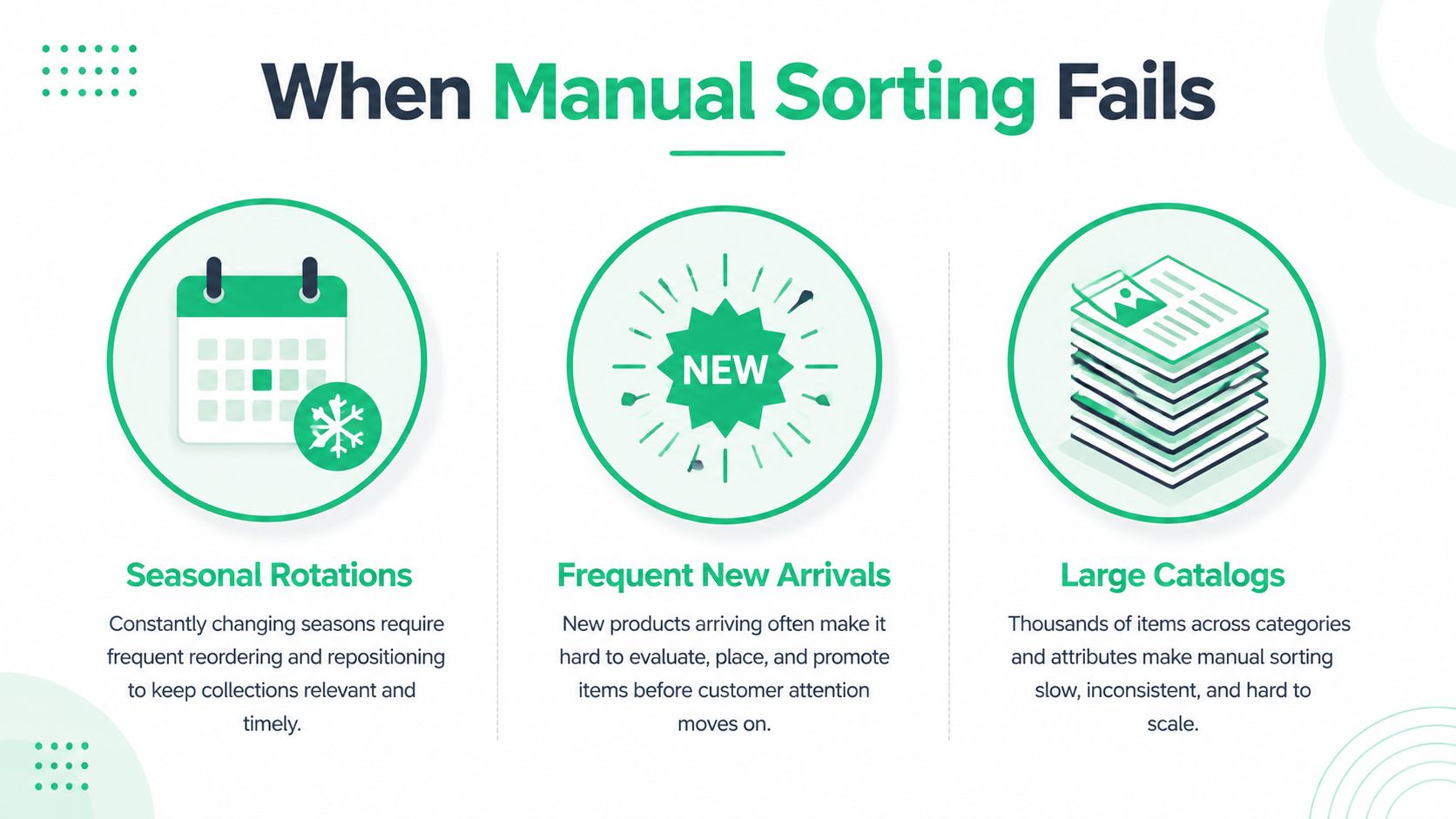
The problem isn't that drag-and-drop is difficult. The problem is that manual positions don't explain themselves. A new product arrives, inventory changes, a campaign ends, or a merchandising manager leaves, and the team has to reconstruct why the current order exists.
Use the admin product list for diagnosis
Shopify's admin product list gives you a different set of sorting dimensions, including created date, updated date, inventory, vendor, product type, and publishing status, as described in Shopify's product search and filtering documentation. These tools help you inspect the catalog and identify products that need attention, but they aren't the same as collection merchandising rules.
For example, sorting the admin list by inventory can reveal products that shouldn't lead a campaign collection because availability is constrained. Sorting by created date can help identify recent launches before you decide whether they deserve a featured position. The admin list helps you manage product data. The collection sort controls the shopper-facing sequence.
Practical rule: If staff must repeatedly repair the same collection after every catalog update, the store needs a rule, not another manual adjustment.
Choose the next level deliberately
Use manual sorting when one person can review the collection and the merchandising intent remains stable. Consider an app when you need behavioral ranking, automated inventory-aware rules, or scheduled merchandising that Shopify's native criteria don't provide.
For larger collections, Shopify's API supports reordering products through a job-based process, which is designed for operations that don't fit comfortably into repeated manual actions. That approach requires development work, testing, and safeguards. It's appropriate when the ordering logic belongs in a repeatable system, not when a team needs to feature one product for a short campaign.
A useful trigger is operational rather than numerical: graduate from manual sorting when product positions change frequently, when several people maintain the same collections, or when a missed refresh has a visible commercial cost. Before automating, write the rule in plain language. “Prioritize available new arrivals, then best sellers, then the remaining range” is testable. “Make the collection feel better” isn't.
Editing Products Inside Customer Orders
A customer asking to change an existing purchase is asking you to edit the order record, not rearrange a collection. The decision is operational: make the change before fulfillment, payment handling, or warehouse processing makes it difficult or impossible.
Shopify's order-editing workflow supports several post-purchase changes. Merchants can add a variant, add or remove discounts, add a custom line item, change line-item quantity, remove a line item, and modify shipping lines. The workflow applies to orders placed after January 1, 2019, and excludes archived orders, as documented in Shopify order-editing guidance from Loop Returns.
Use a controlled sequence: identify the order, confirm eligibility, apply the permitted change, then review totals, shipping details, and fulfillment effects before saving. Governance determines what staff or customers may change. A customer might swap a variant but be blocked from changing a discounted product, or update an address only during a defined window.
Why self-serve editing changes the workload
Independent Shopify order-editing research reports that 92.2% of post-purchase edits are completed by the customer without a support agent, while 7.8% escalate to support. The research source should be documented in your operating materials before these figures guide staffing decisions. The practical model is clear: expose safe changes to customers, show the editable window, and route exceptions to staff instead of turning every request into a ticket.
A customer-facing portal can support product swaps, quantity changes, and other approved edits while the merchant sets restrictions. Apps such as SelfServe's order-editing feature are built for this controlled workflow and may include editable windows, address validation, and post-purchase upsell modules.
Shopify limits app access by default to orders from the last 60 days unless the app requests broader access. That boundary affects implementation and testing. A workflow that succeeds with a recent order may fail when staff search for older records, so test both cases and document the expected scope.
Customer self-service works when the rules are visible. Hide the edit window or allow ambiguous changes, and the portal moves confusion from support inboxes to fulfillment operations.
Before enabling the flow, test variant swaps, removed items, discounts, shipping changes, and orders outside the permitted scope. Confirm how edited orders are tagged, how fulfillment apps receive updates, and which exceptions require staff approval.
Troubleshooting Permissions and Merchandising Best Practices
When a product won't move, start with the collection settings rather than repeatedly dragging it. Confirm that Default sort is set to Manually, check whether the Save control is active, and then reload the live collection to verify the result. If staff can view products but can't edit collections or orders, review their Shopify permissions and the access model used by any connected app.
Archived orders are another hard stop for order editing. Orders outside an app's default access window can also create confusing test results, especially when the merchant expects an app to search the entire order history. Test with an eligible recent order first, then document the boundaries for support and operations teams.
Treat order as merchandising input
A product's position should reflect the collection's purpose, not the last request someone made in Slack. Keep sort menus short and buyer-centered. If shoppers need “best selling,” “new arrivals,” or “price,” expose the choices that help them decide. Don't add every possible ordering method just because the platform supports it.
Manual featured ordering deserves a review cadence. Revisit it when a campaign changes, when inventory becomes constrained, or when the collection gains meaningful new products. For search visibility and broader catalog structure, a practical Boocoo ecommerce SEO guide can complement collection-level merchandising work, but SEO improvements won't replace a clear shopper-facing order.
Use permission-based access so the person managing collection order can make the required changes without giving every staff member unrestricted control. A permission-based access control guide is useful when you're separating customer permissions, support permissions, and operational approval paths.
Before a seasonal refresh, run this short check:
- Confirm collection settings: Verify the intended sort mode and manual positions.
- Check access: Make sure the responsible staff and apps have the permissions they need.
- Test the storefront: Review desktop and mobile collection views, including unavailable products.
- Review editing windows: Confirm which customer order changes are allowed and when.
- Record the rule: Write down why the order exists so the next update isn't guesswork.
The right answer to “shopify change order of products” depends on the object you're changing. Use manual or native sorting for focused storefront merchandising, rule-based or API workflows when catalog operations demand repeatability, and controlled self-serve editing when customers need to change existing orders.
SelfServe gives Shopify merchants a controlled post-purchase editing flow where customers can manage permitted order changes within defined windows, while merchants set restrictions and approval paths. If you're reducing support handling around product swaps, address changes, or related order updates, visit SelfServe to review the workflow.