How to Cancel an Order in Shopify: The Complete Guide
Your support queue is full of the same message: “Please cancel my order.” Some requests are easy. Some arrived after the order hit the warehouse. Some involve one item that shipped and two that didn’t. One has already been refunded by an agent, but the 3PL still packed it.
That’s when a simple admin action turns into an operations problem.
If you’re looking for how to cancel an order in Shopify, the basic clicks are easy to learn. The hard part is preventing the downstream mess: bad inventory, duplicate refunds, shipping a canceled order, confusing the customer, and forcing your team to clean up avoidable errors all week.
Why Order Cancellation Is More Than Just a Refund
Most Shopify guides treat cancellation like a short checklist. Open order. Click cancel. Issue refund. Move on. That works for straightforward, unfulfilled orders. It falls apart the moment fulfillment, warehouse sync, or customer communication gets involved.
For high-volume stores, cancellations sit at the intersection of inventory accuracy, payment reconciliation, support operations, and customer trust. If the team handles them inconsistently, small mistakes multiply fast. A canceled order that isn’t restocked can create an inventory hole. A refund without a fulfillment stop can still result in a shipment. A partially fulfilled order can’t be handled like a clean cancellation at all.
The biggest gap in most tutorials is what happens after the “easy” cases. Existing Shopify tutorials focus heavily on merchants canceling unfulfilled orders, but they leave a major gap around fulfilled and partially fulfilled orders, where the UI blocks direct cancellation. That gap increases support tickets by 20-30% on average for DTC brands with 3PL integrations, according to this discussion of post-fulfillment cancellation limits.
What operators should actually watch
A cancellation process needs to answer four questions every time:
- Has anything shipped yet: If yes, you may be in refund or return territory, not cancellation.
- Has inventory been corrected: If no, stock counts drift.
- Has the customer been told exactly what happened: Silence creates chargebacks and repeat tickets.
- Did the request reveal a bigger problem: Wrong sizes, missed discount codes, and address errors usually point to a weak post-purchase flow.
That last point matters more than commonly understood. If refund pressure is rising, it helps to track patterns with tools for measuring customer refund rates so you can see whether cancellation volume is a symptom of product, fulfillment, or checkout friction.
A cancellation request is often the first visible sign that the store’s post-purchase experience is underbuilt.
If your team also handles returns and refunds separately, this guide on managing returns and refunds smoothly on Shopify is useful context, because the line between cancellation and return gets blurry fast once fulfillment starts.
The Standard Workflow Cancelling Unfulfilled Orders
For a clean, unfulfilled order, Shopify’s native workflow is still the right place to start. The trick is treating the cancellation modal like a control panel, not a formality.
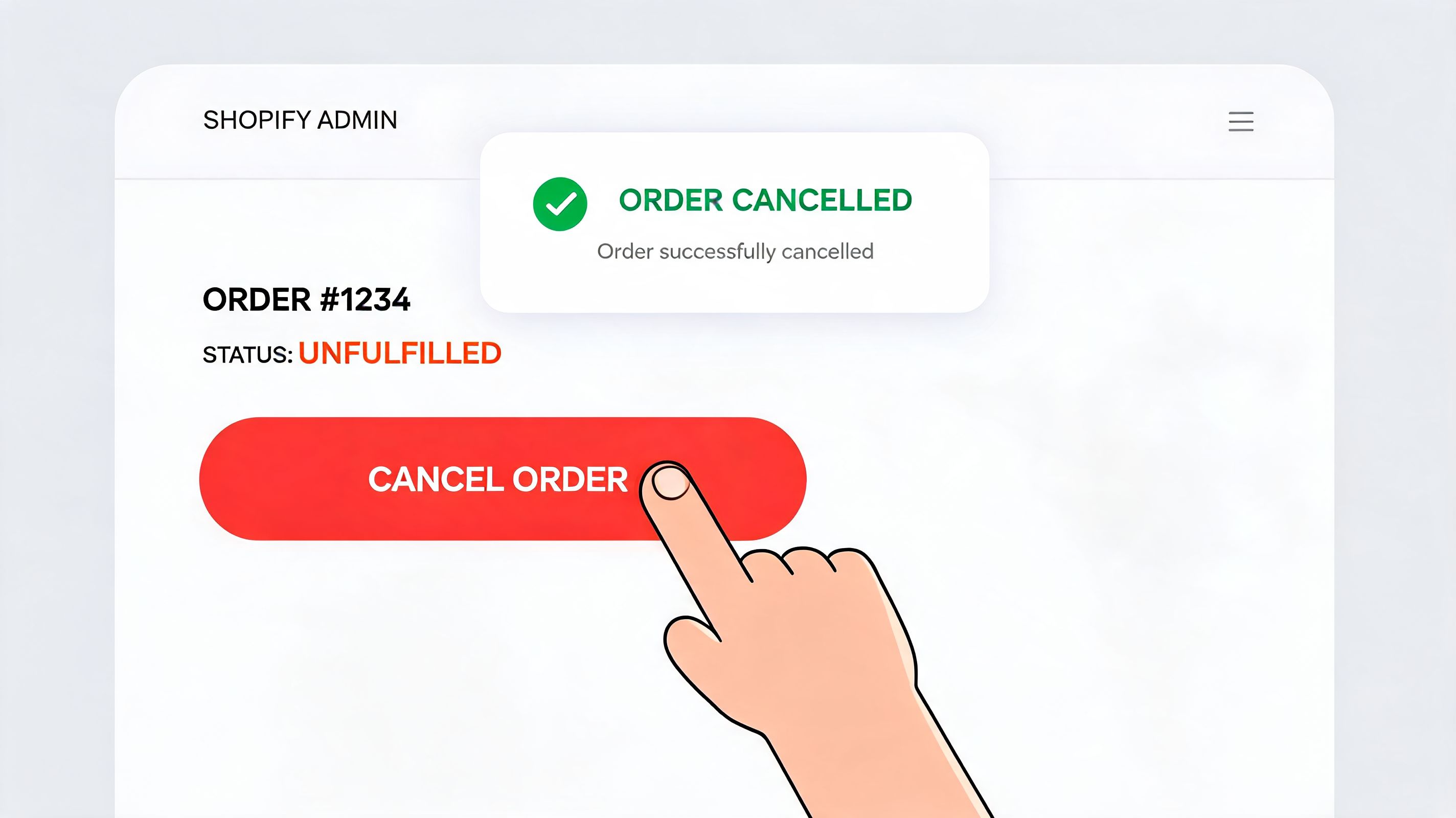
For Shopify Plus merchants, the standard expert workflow is Orders > select order > More actions > Cancel order. In that flow, forgetting to select Restock is a common error that leads to 5-10% ghost inventory discrepancies, and stores using Shopify Flow automations can reduce manual cancellations by 70% and cut related support tickets by 40%, based on this Shopify cancellation workflow breakdown.
Start with status, not with the refund button
Before anyone clicks anything, confirm the order is unfulfilled. Don’t rely on memory, Slack messages, or a warehouse assumption. Check the order timeline and fulfillment status in Shopify Admin.
If the order is still untouched, the workflow is simple:
- Go to Orders in Shopify Admin.
- Open the order.
- Click More actions.
- Select Cancel order.
That part is basic. The decisions inside the modal are where teams either stay clean or create rework.
What each cancellation option actually means
Here’s the operational version of the modal, not the beginner version.
| Option in Shopify | What it controls | What can go wrong |
|---|---|---|
| Refund payment | Sends money back now or later, depending on your choice | Agents may assume “cancelled” also means “refunded” when it doesn’t |
| Restock items | Returns inventory to available stock | If missed, stock can stay artificially low |
| Cancellation reason | Adds internal context | Bad reason hygiene ruins reporting |
| Customer notification | Sends the confirmation email | If skipped, customers often ask again what happened |
The restock checkbox is essential for tracked inventory unless you have a very specific reason not to put units back. I’ve seen teams move too fast here, especially during ticket spikes. They cancel correctly, refund correctly, then miss restock and wonder why bestsellers start showing weird availability later.
Practical rule: If the order never physically left your control, your team should verify the restock choice before confirming the cancel.
You should also use cancellation reasons consistently. “Customer requested,” “fraud concern,” and “inventory unavailable” shouldn’t all be dumped into random notes. If you want to optimize your e-commerce operations, cancellation data has to be usable later by support, finance, and ops.
The point where automation helps
Many high-volume teams mature their process. Instead of asking agents to remember every condition, they use Shopify Flow to route and tag orders before cancellation happens.
A simple internal pattern looks like this:
- Urgent manual review: Orders tagged for fraud, VIP handling, or warehouse exceptions get reviewed first.
- Standard pre-fulfillment cancel: Orders in a safe window can follow the normal admin path.
- No-cancel edge cases: Orders already handed to a partner or in a special fulfillment state get escalated instead of canceled blindly.
That doesn’t replace judgment. It removes repetitive decision-making.
A quick screen walkthrough can help if you’re training a new lead or documenting SOPs for agents:
What good cancellation handling looks like
A strong cancellation on an unfulfilled order should leave no loose ends:
- The order is canceled in Shopify
- The payment outcome is clear
- Inventory is corrected
- The customer gets a confirmation
- Internal notes explain why it happened
If any one of those is missing, the ticket may be “closed” in support, but the work isn’t done.
Navigating Complex Scenarios Partially Fulfilled Orders
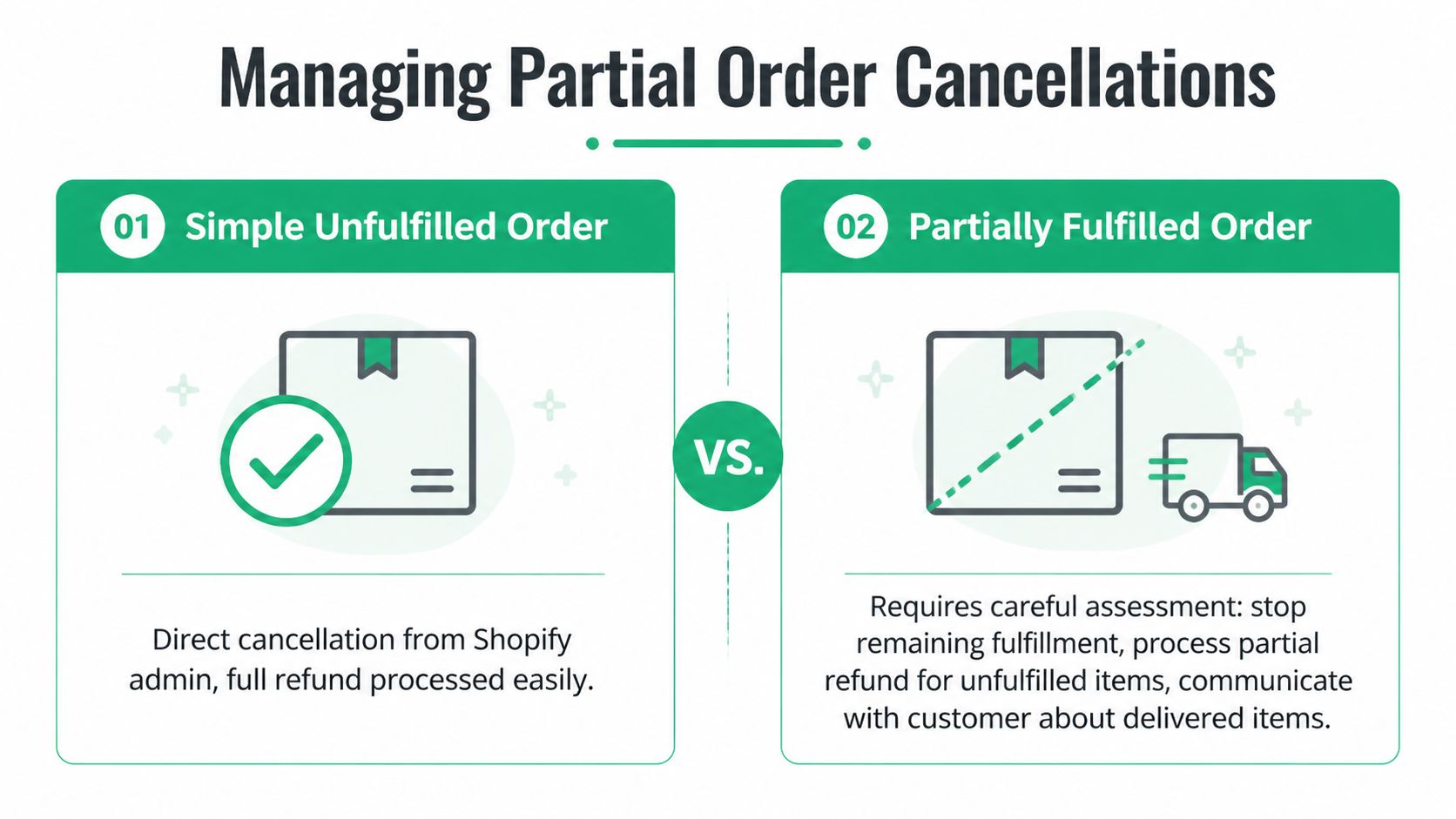
Partially fulfilled orders often present a challenge. A partially fulfilled order is not just a smaller version of a normal cancellation. It’s a split-state order. Some of it is already in motion or delivered, and some of it isn’t.
That’s why Shopify blocks the clean cancel behavior people expect. Once fulfillment starts, the issue shifts from “cancel the order” to “which parts can still be stopped, refunded, or restocked without breaking reporting and fulfillment records.”
A practical example
A customer orders three items. Two are already shipped. One is still waiting on stock. The customer wants to cancel the remaining item only.
In that case, your team should think in this order:
- What line items are still unfulfilled
- Whether an open fulfillment request must be stopped first
- What refund amount applies only to the unfulfilled portion
- Whether those canceled units should go back into stock
You’re not canceling the whole commercial relationship. You’re cleaning up one unresolved part of it.
How to handle the workflow cleanly
For Shopify Plus setups, advanced cancellation for partially fulfilled orders often requires hybrid manual-API handling. The system automatically prorates refunds, but results depend on selectively restocking and canceling existing fulfillment requests. Manual handling has a 75% success rate compared with 92% for automated systems, and partial cancels can spike chargebacks by 12% if notifications are skipped, according to this guide to partial order cancellation workflows.
A workable team process usually looks like this:
Stop what hasn’t shipped yet
First, identify the unfulfilled line items. Don’t assume the warehouse will infer your intent from the refund. They won’t.
If there’s an active fulfillment request sitting with an app or partner, cancel that request before finalizing your internal resolution. Otherwise, you can refund the customer and still watch the item ship later.
Refund only the unresolved portion
Shopify will prorate the refund logic for the part you’re removing. That’s useful, but the team still needs to verify that the refund matches the unfulfilled goods, not the full order.
This matters most when shipping, discounts, or bundled offers are involved. A careless partial cancellation can lead to over-refunding, under-refunding, or confusing the customer about what they’re still receiving.
If one item shipped and one didn’t, the customer needs a message that separates those outcomes clearly. One order can now have two truths at the same time.
Restock selectively, not automatically
Many SOPs frequently err at this stage. On partial cancellations, restocking has to match the exact line items that won’t ship. If a team blindly restocks everything, inventory gets inflated. If they skip restock entirely, inventory falls behind reality.
Use a simple review like this:
| Question | If yes | If no |
|---|---|---|
| Is the line item still physically in your control | Restock it if the item is saleable | Don’t restock yet |
| Did the fulfillment partner already pick it | Confirm physical return to stock first | Safe to restock in Shopify |
| Was the item part of a custom or non-returnable process | Follow your exception path | Use standard restock logic |
Customer communication matters more here
Partially fulfilled orders create confusion because customers think in terms of “my order,” while your systems think in terms of line items, refund states, and fulfillment records.
So your outbound message should say, in plain language:
- which item was canceled
- which item is still shipping or already shipped
- what refund was processed
- what happens next if a package is already on the way
That message prevents repeat contacts and reduces the odds of a chargeback driven by misunderstanding rather than actual merchant error.
Syncing Cancellations with 3PLs and Automation
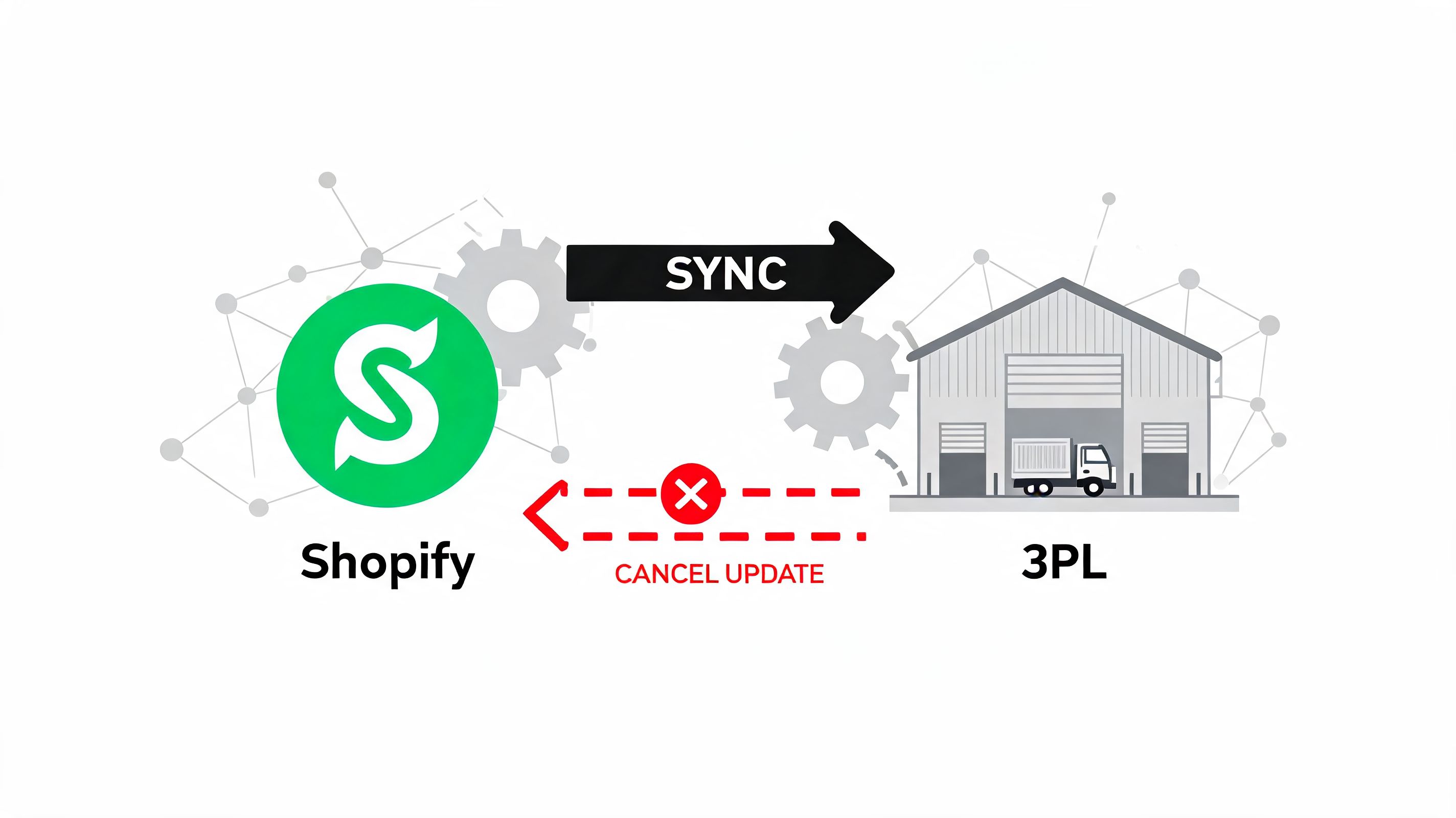
If you use a 3PL, a cancellation inside Shopify doesn’t automatically mean the warehouse stopped moving. That’s the root of most expensive cancellation mistakes.
The problem isn’t the refund itself. The problem is system timing. Support cancels the order. Finance sees the refund. The customer gets a confirmation. Meanwhile, the 3PL still has a valid fulfillment instruction because the cancel event never reached the right place in time, or the partner requires a separate approval step.
Where the process usually breaks
Most stores don’t have a pure Shopify problem. They have a coordination problem between:
- Shopify Admin
- fulfillment apps
- warehouse systems
- ERPs
- support tooling
That’s why operators need to think less about “cancel order” and more about cancel intent propagation. Every downstream system has to receive the same answer before a box leaves the building.
For multi-supplier merchants, Shopify’s Collective fulfillment app automatically cancels orders 14 days after payment collection if they remain unshipped, and retailers can submit cancellation requests programmatically through the fulfillmentOrderSubmitCancellationRequest GraphQL mutation. These measures address the historical issue where unfulfilled orders tied up 10-15% of merchant inventory in pre-2023 workflows, according to Shopify’s Collective cancellation documentation.
What a scalable setup looks like
The simplest useful setup is a layered one:
Shopify Flow for routing
Use Flow to tag incoming cancellation requests, apply holds where appropriate, and direct exceptions to the right queue. Flow is good at orchestration. It is not your warehouse brain, but it can keep people from acting on stale information.
API requests for fulfillment-level actions
When a fulfillment service controls the shipment state, API-based cancellation requests are often the cleanest path. The key point for team leads is that an order cancellation and a fulfillment cancellation request are not always the same action.
If your team works with external systems that need reliable event handoff, tools that connect Spur to Shopify are an example of the kind of integration layer operators evaluate when they need cleaner data movement between platforms.
Webhooks and confirmations
A cancellation workflow isn’t complete when the request is sent. It’s complete when the external partner accepts, rejects, or times out that request and your team can see the outcome.
Don’t close a cancellation ticket just because Shopify says canceled. Close it when the fulfillment path is also closed.
Why this matters in real operations
If you refund first and confirm later, you can create the worst version of the problem: the customer gets money back and still receives the order. Then finance, support, and warehouse all own a piece of the cleanup.
That’s why stores with more complex fulfillment setups usually need more than native admin clicks. They need documented cancellation states, explicit warehouse stop points, and a post-purchase stack that respects those boundaries. If you’re evaluating that broader stack, this overview of third-party logistics software is a helpful starting point for framing the integration side of the problem.
Streamlining Workflows with Customer Self-Service
The biggest improvement most stores can make isn’t teaching agents to cancel faster. It’s reducing how many cancellation emails hit the team in the first place.
Shopify doesn’t natively let customers cancel their own orders. That restriction contributes up to 15% of post-purchase support tickets, and community demand for self-service tools is strong. Those apps can cut ticket volume by 25-50% for high-AOV brands, and 40% of Shopify stores adopted post-purchase apps in the last year, according to this Shopify community discussion on customer self-cancellation.

Why self-service works better than inbox triage
A customer who entered the wrong address or picked the wrong size often doesn’t really want to cancel. They want control. When the only option is “email support and wait,” cancellation becomes the blunt instrument they use to fix a smaller problem.
A self-service portal changes that dynamic by letting the merchant define:
- what can be changed
- how long changes are allowed
- when requests need approval
- which orders are locked because fulfillment is too far along
That turns cancellation from a support burden into a governed workflow.
What to allow and what to gate
Not every store should give customers a one-click cancel on every order. That’s usually too loose for high-volume operations.
A better model is conditional self-service:
| Customer action | Usually safe for self-service | Usually needs review |
|---|---|---|
| Address correction | Yes, within a defined window | If warehouse pick has started |
| Contact detail updates | Yes | Rarely |
| Full cancellation | Sometimes | If payment, fraud, or fulfillment status is sensitive |
| Partial item removal | Depends on bundles and promotions | Often |
Tools with approval queues matter. Merchants can let customers initiate the request without giving away full operational control.
The strategic upside most teams miss
Customer self-service isn’t only about cost reduction. It also creates a better chance to intercept avoidable cancellations.
According to Revize’s 2026 guide, stores using a cancel-or-edit interception strategy can save up to 50% of lost sales, with up to 50% of interception users opting to edit rather than cancel. The same source notes that manual cancellation requests often take 24-48 hours to process and see 40-60% churn when customers buy elsewhere in the meantime, while self-serve apps can reduce support workload by 40%. That analysis is detailed in Revize’s customer-managed Shopify cancellation guide.
That is the fundamental shift. Instead of treating every cancellation request as a lost order, you create a path where the customer can fix the order, not abandon it.
One option in this category is SelfServe, which gives merchants rule-based customer changes, manual cancellation approval queues, multilingual order management, and post-purchase controls through a self-service customer portal.
The strongest cancellation workflow is the one that turns “cancel my order” into “I fixed my order myself.”
Building a Resilient Post-Purchase Workflow
The basic answer to how to cancel an order in Shopify is still simple for unfulfilled orders. The durable answer is not. Once partial fulfillment, 3PLs, and customer expectations enter the picture, cancellation becomes a system design issue.
Strong teams don’t treat cancellations as isolated support tickets. They build a post-purchase workflow that connects Shopify, fulfillment, inventory, finance, and customer messaging. That’s what keeps canceled orders from turning into ghost stock, duplicate work, and preventable refunds. The stores that stay calm during cancellation spikes are usually the ones that moved from reactive clicks to controlled automation.
If your team wants fewer cancellation tickets, cleaner approval flows, and more control over what customers can change after checkout, SelfServe is worth evaluating. It gives Shopify merchants a structured way to handle edits and cancellations before those requests become support chaos.