How to Change Shipping Price on Shopify (2026 Guide)
A carrier announces a surcharge, your 3PL changes its contract, or a wholesale buyer spots a shipping fee that no longer matches the quote. Meanwhile, customers are still checking out against yesterday's rates. The practical question isn't only how to change shipping price on Shopify. It's which price you're changing, where that change applies, and whether the order already exists.
Shopify gives you three distinct paths. You can edit checkout rates in Settings > Shipping and delivery, adjust the shipping fee on one placed order, or let customers request post-purchase changes through an order-editing app. Mixing those workflows is how teams accidentally change future checkouts when they meant to correct one invoice, or promise customers a shipping upgrade that the admin can't deliver automatically.
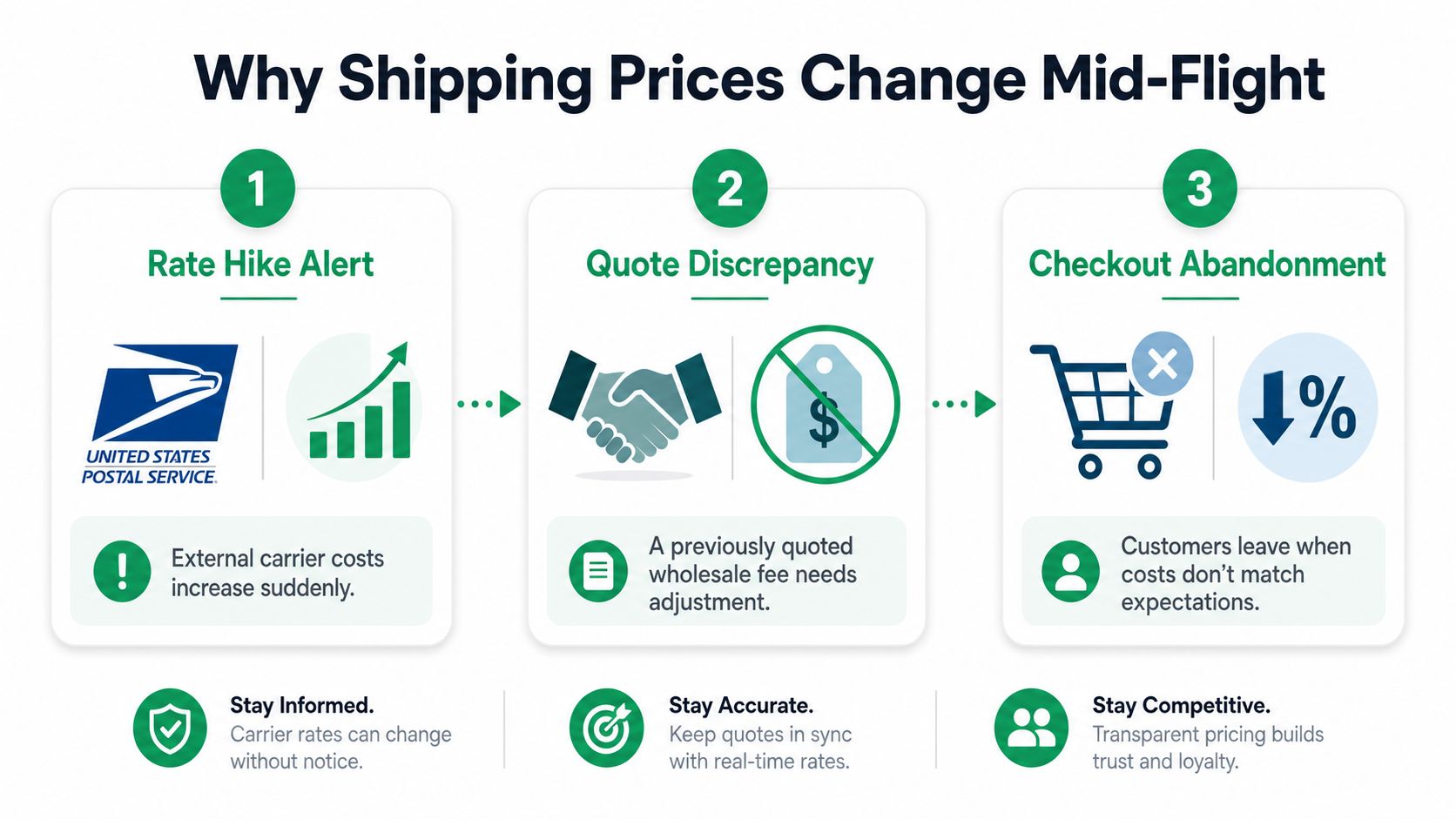
Why Shipping Prices Change Mid-Flight for Shopify Merchants
A DTC apparel team usually notices the problem at checkout first. A carrier updates its pricing, a fulfillment partner passes through a surcharge, and the store's once-reasonable flat rate suddenly feels expensive to shoppers. A wholesale manager faces the opposite issue, a quoted shipping fee needs to change before invoicing, but the order has already been created.
Those events come from normal operating changes, including carrier surcharges, dimensional-weight recalculations, last-mile adjustments, and 3PL renegotiations. The exact trigger varies, but the operational decision stays the same: are you changing a rate for future checkouts, or correcting a fee on an existing order?
The three workflows
Future checkout rates live in Shopify's shipping profiles and zones. Shopify manages them from Settings > Shipping and delivery, where merchants can create shipping zones, add options, and edit rates directly in a profile. Its core models include flat rates, free shipping, and carrier-calculated rates from carriers such as UPS or FedEx. Shopify's shipping-rate documentation recommends reviewing automatically generated rates before launch, because the displayed price should reflect the business rather than remain an untouched default.
One existing order is a separate workflow. Shopify documents shipping-fee edits under the order itself, through Orders > Edit, rather than through the checkout-rate settings. That distinction matters for support teams handling a single address correction, negotiated wholesale adjustment, or manual service upgrade. Shopify's guide to editing order shipping fees separates post-purchase adjustments from rates shown to new buyers.
Customer-led changes sit downstream of both. The admin is useful for controlled merchant edits, but it doesn't turn every shipping adjustment into a self-service customer action. Once tickets become frequent, a post-purchase app can give shoppers a controlled way to request a different service or correct delivery details while the merchant keeps permissions and timing under control.
Practical rule: Change the shipping profile when the problem affects future orders. Edit the order when the problem affects one purchase. Use a customer-facing workflow when support volume makes manual handling the bottleneck.
Editing Shipping Rates and Profiles in Shopify Admin
Start in Settings > Shipping and delivery. In the Shipping section, open the relevant profile, then select the zone and use Add shipping option, Edit zone, or Edit shipping option to change the rate. Shopify's current setup guidance describes this profile-and-zone path in its shipping-rate setup instructions.
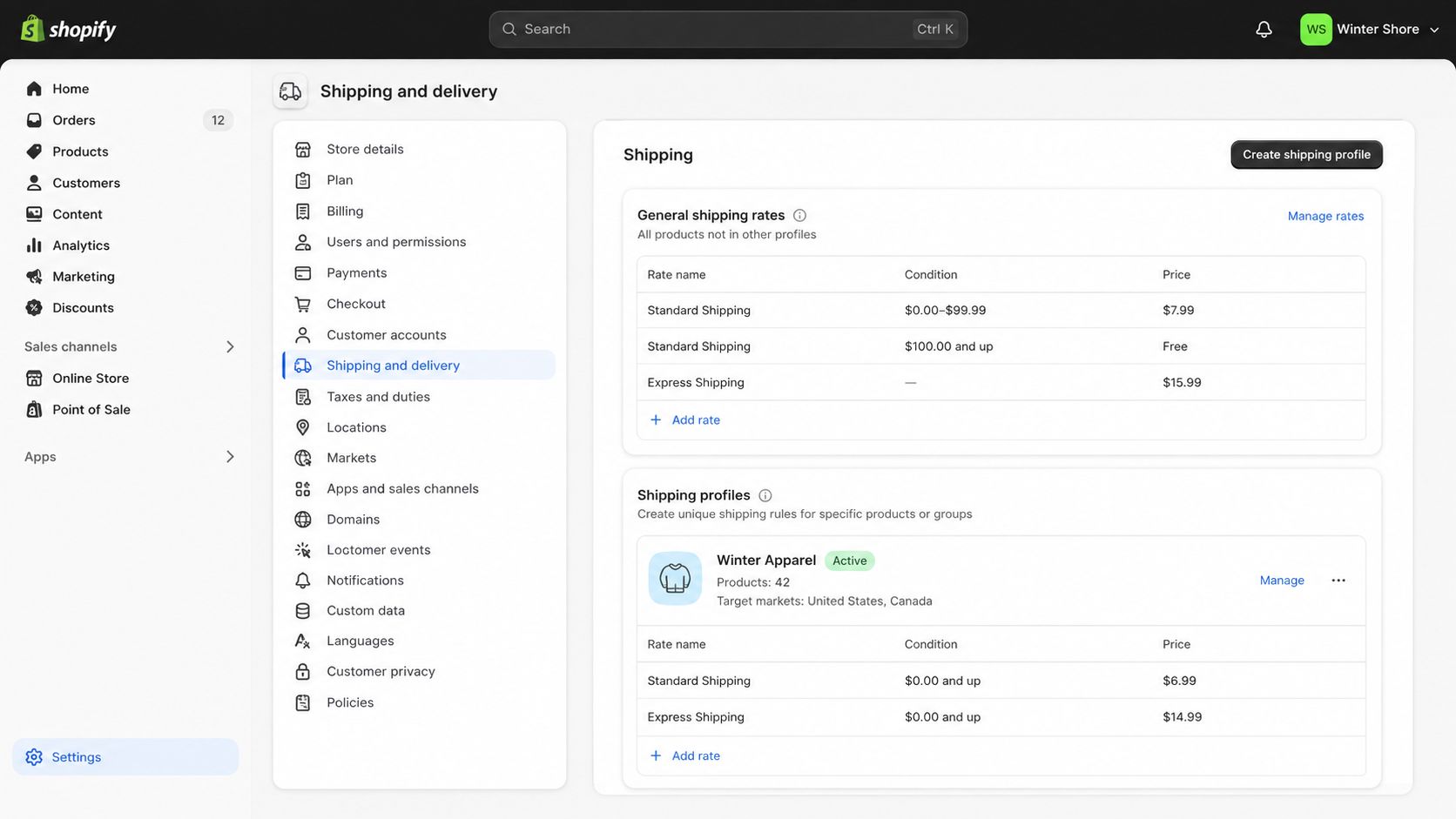
Profiles, zones, and conditions
A shipping profile determines which products and fulfillment locations use a set of rules. The general profile is appropriate when most of the catalog ships under the same logic. A custom profile makes more sense for products with different weights, packaging, origins, or carrier requirements.
A shipping zone groups destinations that share rates. A rate condition then controls when a customer sees that option, usually by order price or total weight. Shopify supports both price-based and weight-based conditions, so you can create a free-shipping threshold or tiered rates by zone.
For a worked example, replace a US flat rate with weight tiers:
- Open the relevant profile under Settings > Shipping and delivery.
- Open the US shipping zone and choose Edit shipping option.
- Remove or modify the flat-rate option.
- Choose a weight-based condition when adding the replacement rate.
- Add separate ranges ending at 1 lb, 5 lb, and 10 lb, then assign the business-approved charge to each range.
- Save the option and test a cart in each range.
Those breakpoints are only an example of the rule structure. Use your actual packaging and carrier economics rather than copying a rate from another store. If a product needs different treatment, assign it to a custom profile from the product or variant's shipping settings, then verify that the intended fulfillment location is included.
A new country can be added to an existing zone, or you can create a separate zone for Canada or Mexico and apply an appropriate rate model. Don't assume every unassigned destination will behave as intended. Review the fallback configuration, including any Rest of the world pricing, before publishing.
Here's a visual walkthrough of the admin flow:
The admin handles structured rules well, but it isn't a universal pricing engine. Per-customer overrides, bespoke surcharges tied to unusual cart logic, and advanced conditional free-shipping behavior may require custom carrier logic or an app. Shopify's fulfillment setup documentation also makes clear that carrier-calculated rates depend on accurate destination and fulfillment-origin data. If those inputs are wrong, a live rate can still be wrong.
Changing the Shipping Fee on an Existing Order
Changing a checkout rate won't rewrite an order that's already been placed. Open Orders, select the order, and use Edit or the edit control beside the shipping line. Shopify's documented workflow lets you add or remove a shipping fee inside the order, which is quite different from changing the rates customers see at checkout.
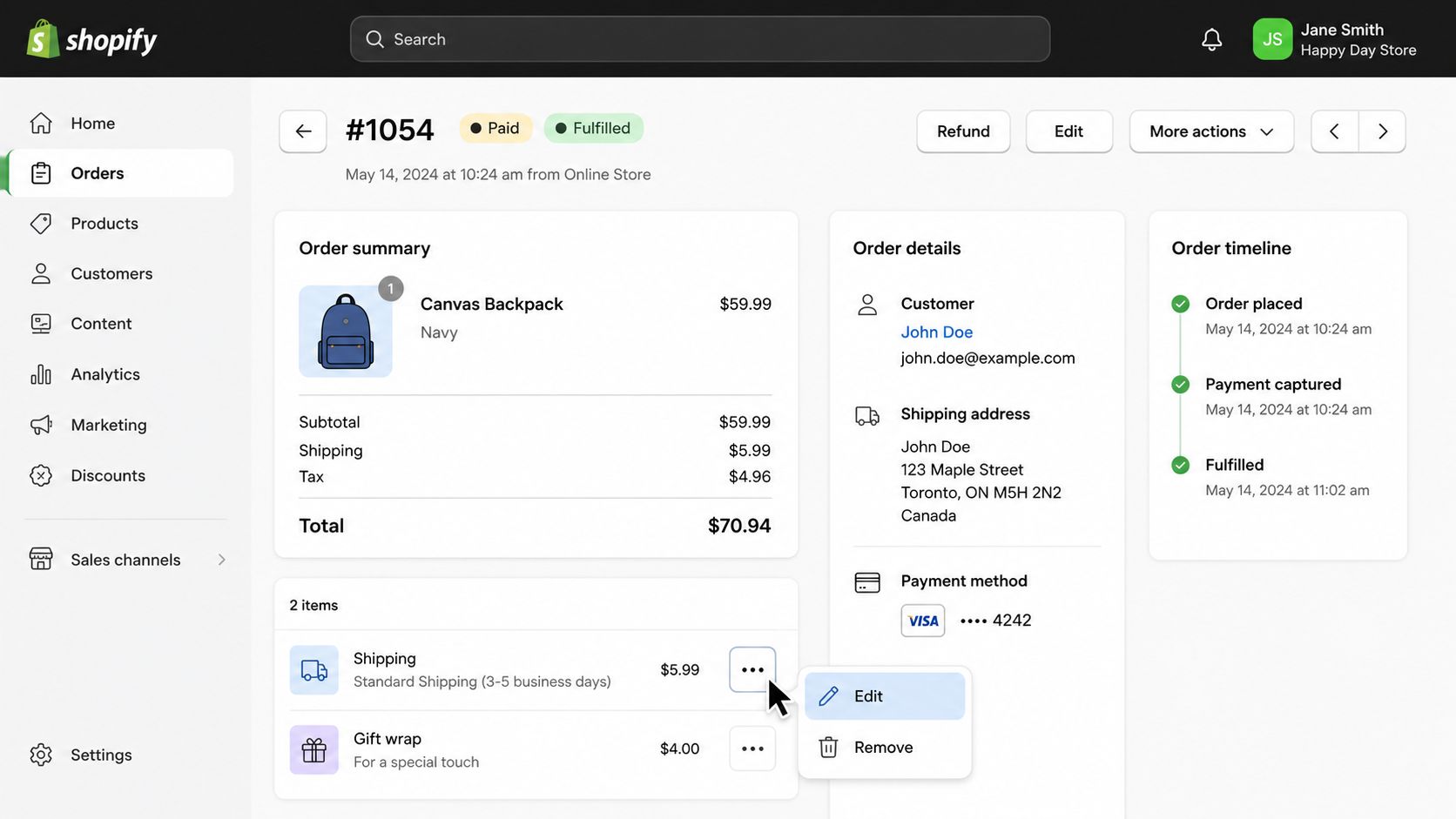
Depending on the order state and available options, choose a configured shipping rate or enter a custom amount. A configured option keeps the adjustment aligned with your existing shipping logic. A custom amount is more practical for a negotiated wholesale correction, a goodwill adjustment, or a manual difference between the original service and the one the customer now wants.
The edit control may be unavailable once fulfillment activity has started or the order has moved into an external workflow. If the order is already locked for editing, document the reason in the order timeline, refund or adjust the original shipping line where appropriate, and create the replacement manual charge through the workflow your finance and fulfillment teams use. Do not change the amount without leaving an audit trail.
Operational safeguard: Treat every manual shipping edit as both a customer-service action and a bookkeeping event. Your team should be able to explain the original fee, the adjustment, and who approved it.
For teams reviewing the broader accounting impact, COGS and inventory bookkeeping basics provides useful context for keeping operational adjustments connected to financial records. Shopify Plus merchants can also use draft-order workflows and staff permissions such as Edit Order where those controls fit their process, but the customer communication problem remains. Shopify doesn't automatically send a dedicated prompt asking the buyer to approve an admin-made shipping change.
If your support team needs a repeatable customer-facing process rather than a manual admin correction, review Shopify order editing workflows as a separate layer. It addresses a different problem from changing rates in the admin.
Flat Rates vs Carrier-Calculated vs Post-Purchase Apps
These approaches solve different operational failures. A flat rate prioritizes predictability, a carrier-calculated rate prioritizes checkout accuracy, and a post-purchase app addresses changes that happen after the buyer has already paid.
| Approach | Setup Effort | Rate Accuracy | Post-Purchase Edits | Best For |
|---|---|---|---|---|
| Flat rates | Low | Predictable, but broad | No | Simple catalogs and stable shipping costs |
| Carrier-calculated rates | Moderate to high | More responsive to destination and order details | No | Multi-zone catalogs and margin-sensitive fulfillment |
| Post-purchase apps | App-dependent | Recalculates the selected change when supported | Yes | Customer-led service, address, or shipping changes |
Flat rates
Flat rates are easy to explain and easy to operate. You choose a price in the relevant profile and zone, and customers see the same charge whenever that option applies. That simplicity can protect the checkout experience, but it can also hide margin leakage when a heavy or distant order costs more to fulfill than the selected rate.
Flat pricing works best when product weights, packaging, and destinations are reasonably consistent. It becomes harder to defend when the catalog includes oversized items, multiple warehouses, or international destinations with materially different carrier costs.
Carrier-calculated rates
Carrier-calculated rates use order details and destination data to return live options from supported carriers. Shopify describes these rates as being determined in real time by carriers such as UPS or FedEx, but accuracy still depends on product weights, package data, the shipping address, and the fulfillment origin.
They protect against the false confidence of one universal price, yet they expose shoppers to carrier changes and surcharges. They also don't solve an order that has already been placed. For technical teams, Shopify supports custom carrier logic through a CarrierService app that receives a checkout rate request and returns JSON rates for display.
Post-purchase apps
A post-purchase layer handles a different moment. It can let a customer request a service change or correct an address after checkout, then apply the relevant price difference through the order-editing workflow. For teams evaluating the wider connection between commerce systems and operational tools, this guide to e-commerce integration offers useful background.
Most mature stores don't choose one approach exclusively. They use profiles and conditional rates for checkout, carrier calculations where the catalog needs precision, and an order-editing layer for exceptions that would otherwise become support tickets. This overview of Shopify shipping apps can help frame that final category.
Letting Customers Edit Shipping After Checkout
A customer notices after checkout that the selected delivery service will arrive too late, or spots a missing apartment number in the address. That request can require an agent to verify the order, calculate the price difference, update the record, notify the warehouse, and explain the result. A customer-facing edit flow keeps that exception out of the support queue while preserving merchant control.
A post-purchase widget gives the shopper a secure order link or lookup page. They choose an eligible shipping method, submit the request, and the system applies the difference under the merchant's configured rules. For teams evaluating a customer order-editing feature, the important distinction is that this workflow changes an existing order after checkout. It does not replace the shipping rates configured in Shopify admin.
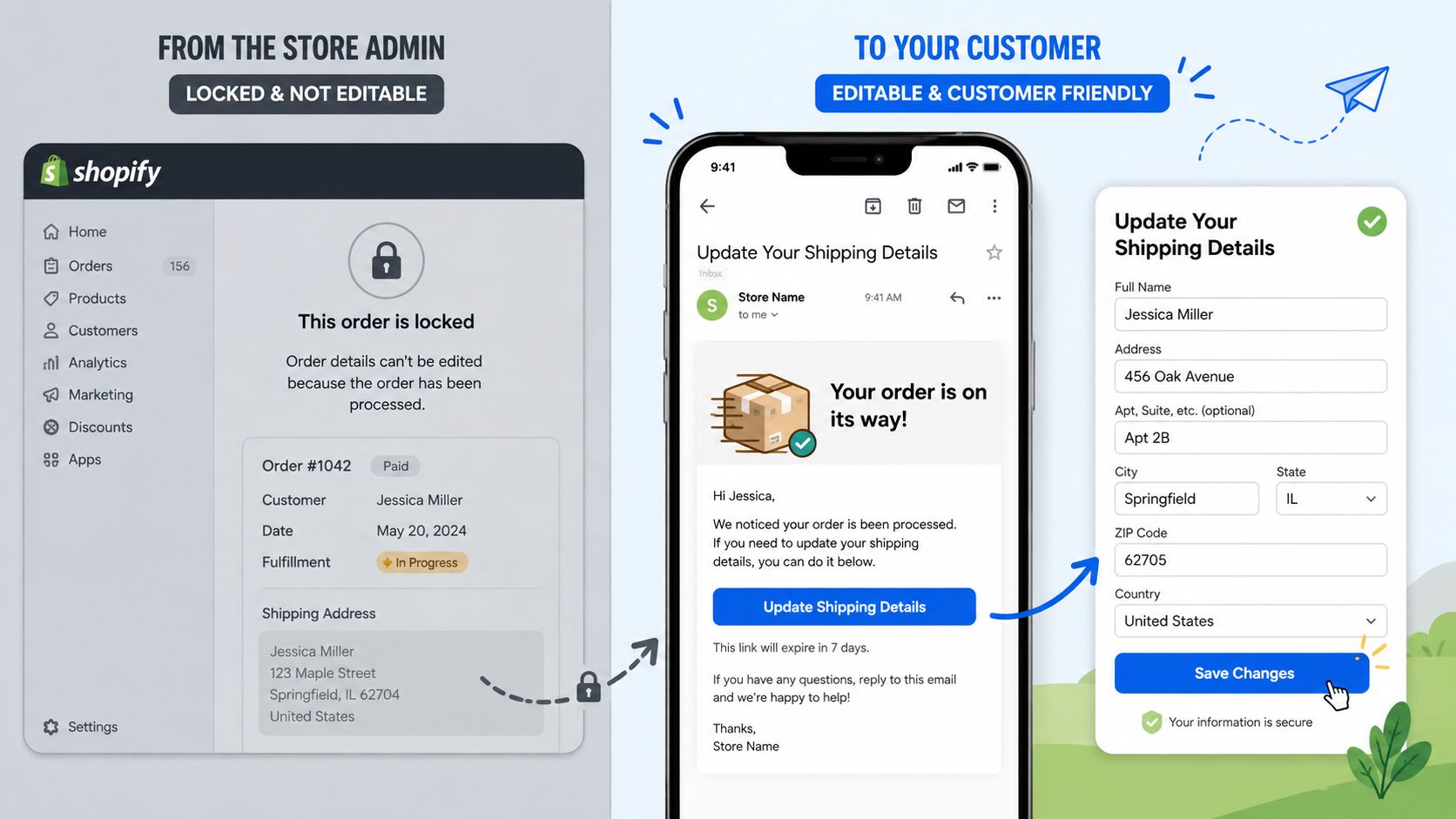
Where the control belongs
Self-service needs clear boundaries. Set which order statuses qualify, how long edits remain available, which shipping methods customers may select, and whether the shopper pays or receives the difference. Tie those rules to fulfillment timing. Once the warehouse has packed or handed off a parcel, a service change may be operationally unsafe even if the order is technically editable.
Address edits need their own validation. Customers can supply the correct apartment, unit, or postcode through a structured form, while the merchant limits changes after fulfillment begins. Validation reduces transcription errors, but it does not remove the need for fraud and fulfillment checks.
Make the path easy to find
Place the entry point in the order confirmation email, order status page, or branded order lookup page. The objective is a controlled exception process, not unlimited changes. Eligibility rules and an audit trail should make each request clear to the customer, support team, and fulfillment operation.
SelfServe provides a customer order-editing portal that can support shipping and contact-detail changes within merchant-defined permissions. Shipping recalculation can follow eligible order edits. Before enabling it broadly, verify its status rules, fulfillment handoff, payment behavior, and 3PL compatibility against the store's actual workflow.
Troubleshooting Common Shipping Price Errors
When a rate looks wrong, trace the checkout inputs in order. Shipping prices can be affected by profiles, zones, product data, package settings, fulfillment locations, and carrier responses, so changing the displayed price first can hide the actual fault.
Check the product path first
Open the product or variant record and confirm its assigned shipping profile. An oversized-goods profile will use its own rates even when the destination matches the general profile. Check the fulfillment location connected to that profile before editing a rate.
Review the shipping zone next. Confirm that the destination country is included, the intended region does not appear in another zone, and a fallback zone is not catching the order. Shopify's shipping-rate setup documentation explains how zones and rate conditions work together when a rate is missing or broader than expected.
Validate the package inputs
Carrier-calculated prices reflect the data Shopify sends with the request. Under Settings > Shipping and delivery, verify product weights, package dimensions, packaging defaults, and the fulfillment origin. A small weight error can place an order in another carrier bracket, while missing dimensions can produce an incorrect oversized-shipment quote.
Run a controlled checkout using a known product, destination, and package. Change one input at a time, then compare the result. This isolates whether the mismatch comes from the profile, zone, condition, package data, or carrier response.
A one-sentence test log helps: record the cart, destination, inputs changed, rate returned, and time of the test.
Investigate custom services last
If a carrier app returns no option, compare its request and response with Shopify's CarrierService requirements. A changed service identifier, malformed response, or unavailable origin can stop rates from appearing. Confirm that the service receives valid checkout data and returns the expected rate structure before rebuilding the shipping profile.
For an existing order, a greyed-out edit control usually points to an order-state restriction. Check whether fulfillment has started and whether the order has been exported to an external system. Then use the documented adjustment process and record the change. A checkout-rate correction cannot be forced onto every placed order.
Best Practices for Shopify Plus and High-Volume Stores
High-volume teams need shipping governance, not emergency edits. Assign profiles and zones to a named operations group, review them after carrier or 3PL changes, and test representative carts before release. Shopify's profile model supports product and destination segmentation, so avoid routing the entire catalog through one global rate.
Plus teams can connect admin settings with draft-order approval, scoped staff permissions, checkout extensions, Shopify Functions, and 3PL label workflows. Use draft orders when a shipping change needs review before payment or fulfillment. Limit who can edit profiles and rates, and use Functions when shipping logic must reflect product, customer, or order conditions that profiles cannot express cleanly.
Document the approval owner, effective time, and fulfillment handoff for each change. A controlled post-purchase workflow should pass customer edits into the same queue your operations team monitors.
If customers often request a new shipping method or address correction, SelfServe provides a post-purchase editing path while your team sets eligibility and timing. Visit SelfServe to assess how it fits with existing Shopify profiles and fulfillment processes.