Address Autocomplete Shopify: Setup and Integration Guide
A customer reaches the Shopify checkout from a phone, sees several address fields, and starts typing. The street name is long, the keyboard is awkward, and the shopper isn't sure whether the apartment belongs in the first or second line. Some customers leave. Others submit an address with a missing unit number or a spelling error, leaving your fulfillment team to repair the order after payment.
That's the practical reason address autocomplete for Shopify matters. It reduces the amount customers must type, but it doesn't replace address verification. A reliable checkout captures a likely address quickly, then checks whether the selected address is complete and usable for delivery.
Why Address Autocomplete Matters for Shopify Stores
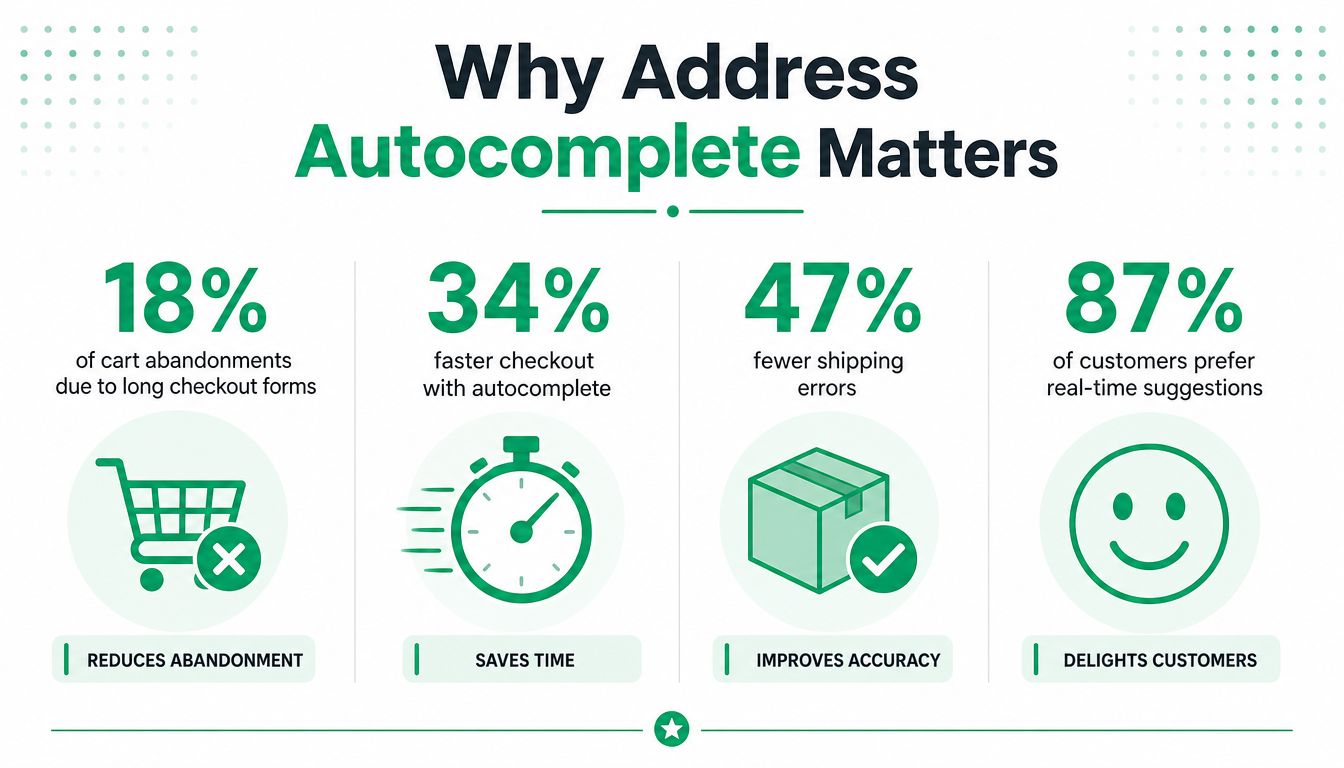
Address entry creates two separate operational risks. First, a long or awkward form can interrupt a purchase when the customer is already ready to pay. Second, a customer can complete checkout successfully and still provide an address your carrier can't deliver to. Those problems look different in analytics, but they often begin with the same weak input experience.
Google's ecommerce checkout guidance says Place Autocomplete can speed up address entry and reduce input errors. Its recommended workflow is to capture the address with autocomplete, confirm it with Address Validation, and display the resulting location so the shopper can verify it before submitting the order. See the practical address lookup guidance for Shopify stores for the operational implications of that workflow.
Autocomplete and validation solve different problems
Autocomplete is a suggestion layer. The shopper begins entering an address, sees matching options, and selects one. Shopify or an app can then populate structured fields such as city, region, postal code, and country. This reduces keystrokes and limits free-text variation.
Validation is a verification layer. It checks the selected or entered address against address data and identifies problems such as missing information, formatting issues, or likely delivery failures. A suggestion can look correct while still lacking an apartment, suite, or other detail required by the carrier.
That distinction affects your workflow. If you use autocomplete without validation, you may improve form speed while allowing bad delivery data through. If you validate only after the order reaches your operations team, customers still experience the original checkout friction and your staff inherits the cleanup.
Practical rule: Treat autocomplete as the fastest path to a structured address, not as proof that the address is deliverable.
The business impact reaches beyond conversion. Incorrect addresses create manual review, customer contacts, shipment changes, reshipping decisions, and refund conversations. Shopify's checkout guidance and validation documentation point toward an earlier intervention, where the customer can correct the address while the order is still being created.
Google introduced a next-generation Autocomplete product with Address Validation in preview on February 21, 2024, specifically positioning it for ecommerce checkout flows that need faster address entry and fewer cart drop-offs. That milestone reflects a broader change in how merchants should think about the feature. Address autocomplete has moved from a decorative checkout enhancement into a layer of shipping-data infrastructure.
Enabling Shopify's Built-In Address Autocomplete
Start with Shopify's native feature before adding an app. It requires less maintenance, avoids an additional checkout dependency, and is often enough for a store whose primary customers are in Shopify's supported markets.
Open the Shopify admin and follow the checkout configuration path:
- Go to Settings.
- Select Checkout.
- In the relevant checkout configuration, choose Customize.
- Open the settings panel in the Checkout and Accounts Editor.
- Find Address autocompletion.
- Turn on the address autocompletion setting.
- Save the configuration.
The exact labels and placement can change as Shopify moves features through the checkout and accounts editor, so verify the setting in the configuration customers use. Don't assume that a previous theme setting or an older checkout customization controls the current experience.
Configure the experience around the customer's actual address
Native autocomplete is available only in specific countries, and Shopify's address validation coverage follows a different, limited country set. Review the Shopify address collection preferences before you treat native autocomplete as a global solution.
The normal customer experience starts when the shopper types into the primary address field. Suggestions appear as the entry develops, and selecting one can populate the remaining structured fields. Keep apartment, suite, unit, and other secondary details available for manual entry. Over-automating those fields can create incomplete data when the address provider doesn't know the customer's precise delivery point.
Shopify also applies address validation through several order workflows. It runs automatically for online orders and can trigger for API-created orders, draft orders, shipping-label creation, and customer profile updates. Shopify distinguishes between warnings and errors. Warnings signal a possible issue that may deserve review, while errors indicate a problem likely to cause delayed or failed delivery and prevent the address from being marked valid.
Test the setting with a real checkout session rather than relying on the admin toggle. Use an address in a supported market, select a suggestion, inspect every populated field, and then test an address that needs an apartment or suite. Confirm that your shipping and fulfillment systems receive the structured data in the format they expect.
A short implementation walkthrough can help your team compare the admin setting with the live customer path:
Native Shopify autocomplete is usually sufficient when your checkout is standard, your main markets are supported, and your fulfillment workflow already handles Shopify's validation outcomes. Escalate only when testing exposes a coverage, control, or workflow gap.
When to Use Third-Party Apps Instead of Native Features
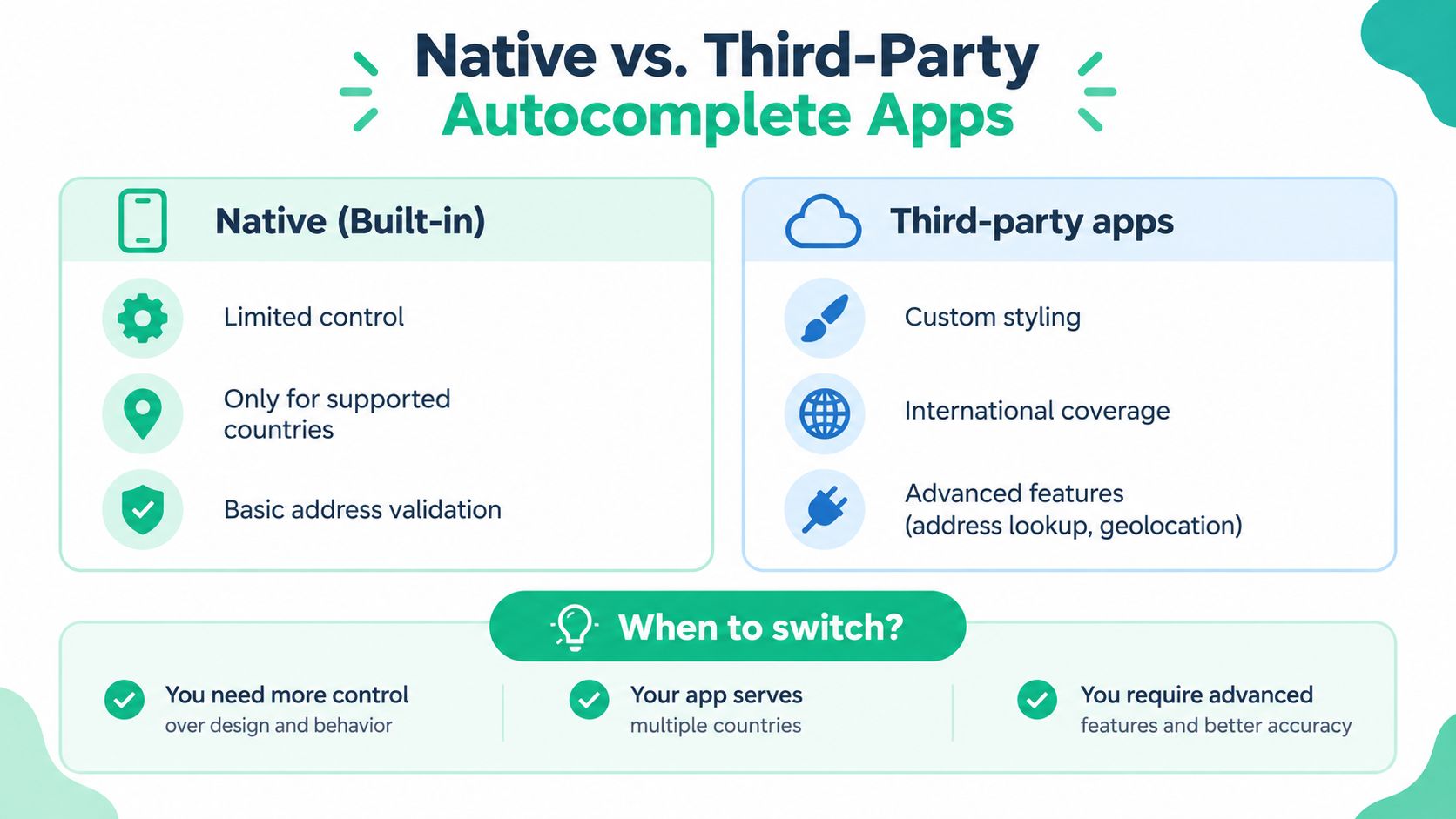
The native feature is the sensible starting point, but it isn't automatically the right endpoint. International merchants often discover that autocomplete coverage and validation coverage don't match. A store can offer shipping to a country where Shopify's built-in suggestions are limited or unavailable, forcing customers back to manual entry.
That creates a decision based on operating requirements, not app enthusiasm. Native Shopify features minimize setup and maintenance. Third-party tools can add broader coverage, additional address surfaces, post-purchase editing, multilingual behavior, or deeper connections to fulfillment processes, but they introduce another vendor and another point of failure.
Use native functionality when the operating model is simple
Native autocomplete is a strong fit when:
- Market coverage aligns: Your priority shipping destinations fall within Shopify's supported autocomplete and validation coverage.
- Checkout customization is limited: You use the standard checkout and don't need custom behavior for billing, accounts, pickup, or unusual address formats.
- Operations already fit Shopify: Your team can act on warnings and errors inside the existing order lifecycle.
- Maintenance matters most: You want fewer scripts, settings, API credentials, and compatibility questions.
A third-party app becomes more reasonable when your order volume makes address correction a regular support task, or when customers need to update shipping details after payment but before fulfillment. SelfServe is one option that combines post-purchase order editing with Google Maps-powered address autocomplete and validation, allowing merchants to control what customers can change before fulfillment. Review the Shopify address validation API workflow when deciding whether your requirement is checkout-only or extends into order operations.
| Feature | Shopify Native | Third-Party Apps |
|---|---|---|
| Setup | Built into Shopify checkout configuration | App installation and configuration |
| Geographic behavior | Available only in specific supported markets | Depends on the provider and connected data source |
| Checkout control | Standard Shopify behavior | May support additional logic and interfaces |
| Validation | Shopify's own warnings and errors across supported workflows | May add provider-specific validation and correction |
| Post-purchase editing | Not the core native autocomplete function | Can support order-editing workflows, depending on the app |
| Maintenance | Lower operational overhead | More dependencies, testing, and vendor management |
Make the decision with a failure-cost lens
Don't choose based only on whether a dropdown appears. Compare the customer's experience in each shipping market, then compare the resulting data with what your warehouse, carrier, and customer service teams need.
Native functionality is usually enough for a domestic store with conventional addresses. A global store with unsupported markets, multiple storefronts, or frequent post-purchase changes may need a third-party layer. The trade-off is worthwhile only if the added coverage and workflow control solve a documented problem.
Integrating Google Maps Autocomplete with Shopify
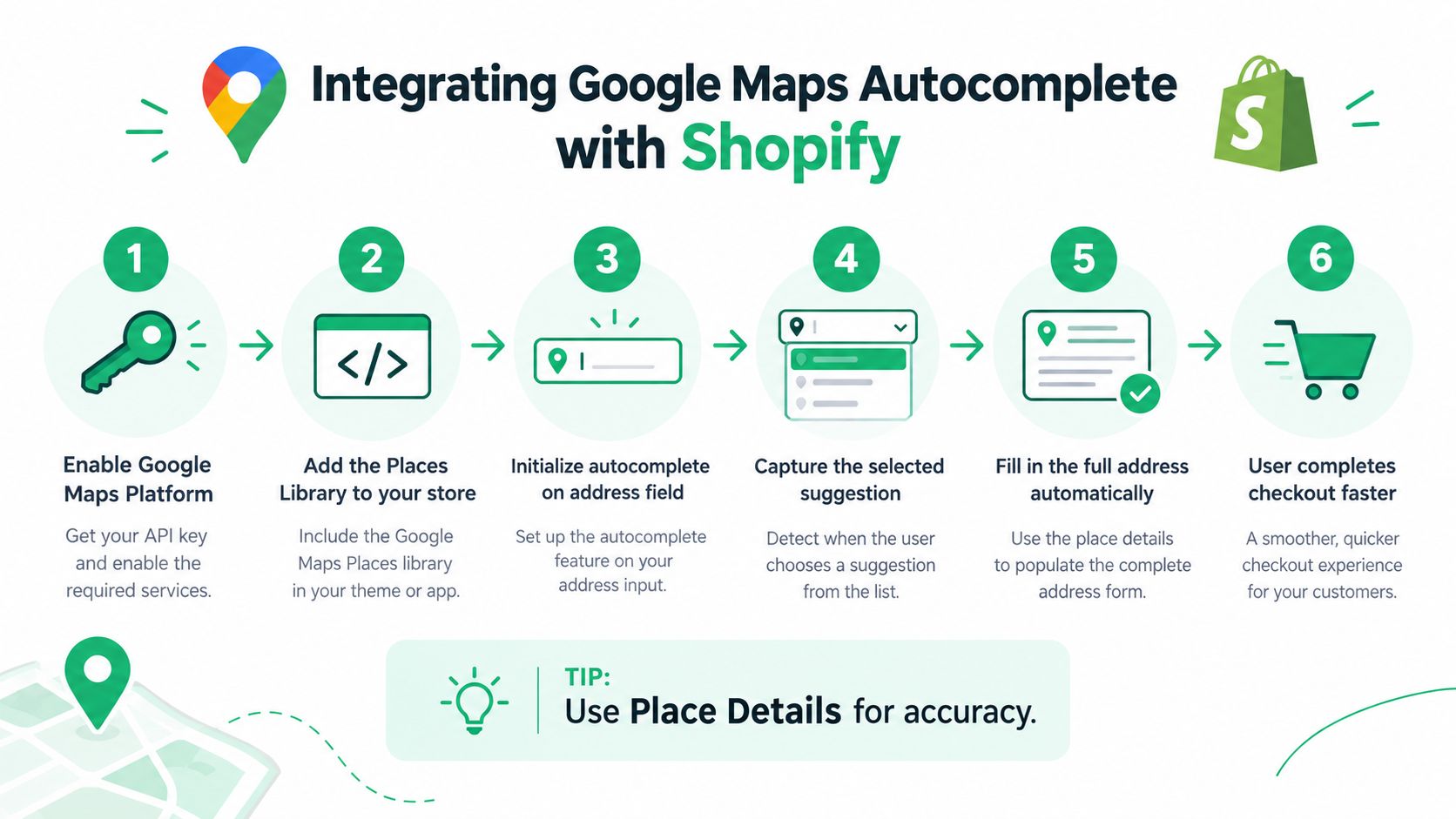
A custom Shopify integration should follow a clear separation between suggestion and verification. Google's recommended pattern captures the address with Place Autocomplete first, then confirms it with the Address Validation API. That sequence reduces typing during entry and catches deliverability issues before order submission.
Build the integration in controlled stages
Begin in Google Cloud with a dedicated project for the integration. Enable the Google Maps Platform services your implementation requires, create an API key, and restrict that key to the domains and APIs that need access. Store configuration outside customer-visible content, and give your development and operations teams a clear owner for usage monitoring.
Then connect the Shopify surface you control. A theme-based form can attach autocomplete to an address input, while a custom app or Shopify Plus checkout extension may be more appropriate for checkout-specific logic. Don't inject a general autocomplete script into every text input. The address line one field should trigger suggestions, while address line two remains available for unit or delivery details.
The event flow should be deliberate:
- The customer types into the primary address field.
- Place Autocomplete returns suggestions.
- The customer selects a suggestion.
- Your integration captures the selected place or address components.
- Structured fields are populated, including country and postal information where available.
- Address Validation checks the completed address.
- The interface displays any required correction before submission.
Google's ecommerce checkout address validation guidance documents this two-step model. The implementation should preserve customer control, especially when the provider returns a partial match or cannot identify an apartment, suite, or local delivery detail.
Avoid the most common technical mistake
Autocomplete doesn't guarantee deliverability. It predicts likely matches, but the customer can still select an incomplete address or omit a required secondary detail. Your validation response needs to distinguish between a clean result, a correctable issue, and a blocking problem.
Use structured components rather than storing only the visible suggestion string. Your fulfillment system may need country codes, region names, postal codes, and a normalized street representation. Log failures without exposing unnecessary customer data, and test the integration when Shopify changes checkout surfaces or extension behavior.
Google's shopping-cart guidance says address autocomplete can shorten checkout by up to 64%, while industry coverage citing Chrome Dev Summit research says autocomplete can make users complete forms about 30% faster. Those figures describe potential speed improvements, not a guarantee for your store. Measure your own checkout completion, address correction rate, and support workload after implementation.
The Google Maps address autocomplete implementation overview can help your team assess whether a custom integration is justified or whether Shopify's native behavior already meets the requirement.
Handling International Addresses and Unsupported Markets
International checkout exposes the limits of assumptions. A feature that behaves smoothly for a domestic customer may provide fewer suggestions, different field behavior, or no useful prediction in another market. Shopify states that default address autocompletion is available only in specific countries, while address validation supports a different limited set and returns fewer suggestions for unsupported markets.
Shopify's own changelog identifies continued improvements for a subset of major markets, including the United States, Australia, Canada, the Netherlands, and France. That doesn't mean every international order outside those markets fails, but it does mean merchants should treat coverage as a market-by-market operational question rather than a universal checkout capability.
Separate coverage from address-format assumptions
Countries don't share one address template. Some use postal codes consistently, some place the postal code in a different position, and some addresses depend more heavily on locality, building, district, or regional descriptions. Street numbers, apartment conventions, and transliteration can also vary.
For supported markets, test the full journey from suggestion to order payload. For unsupported markets, preserve a clear manual-entry path instead of forcing customers to select an inaccurate suggestion. Validation should identify missing or suspicious information without rejecting legitimate local formats because they don't resemble a domestic address.
A useful operating model has three paths:
- Supported and confidently matched: Populate structured fields and allow the customer to confirm.
- Supported but incomplete: Ask for the missing unit, suite, or locality detail before submission.
- Unsupported or ambiguous: Keep manual entry available, provide clear field labels, and route the order through the appropriate validation or review process.
Measure the gap by destination
Review performance by country or region, not only at the store level. Compare checkout completion, address-related error messages, post-purchase corrections, carrier exceptions, returned shipments, and support contacts across your main destinations. A global average can hide a serious problem in one market.
If unsupported markets generate repeated corrections, a third-party address database or validation layer may justify its cost. If they represent occasional orders with low operational risk, a well-labeled manual form and a fulfillment review queue may be more practical. The right answer depends on the cost of a failed delivery, the value of the order, and the amount of staff time required to repair the data.
Testing and Troubleshooting Your Implementation
Test address autocomplete as an end-to-end fulfillment input, not merely as a dropdown. A suggestion appearing on screen doesn't prove that Shopify stored the right components, that validation handled them correctly, or that your warehouse received the expected fields.
Use a test matrix covering:
- Devices: Run the checkout on desktop and mobile, including the devices your analytics show customers use most.
- Browsers: Test your primary browsers and a private browsing session to expose cached scripts or extension conflicts.
- Markets: Use addresses from supported and unsupported countries, with ordinary streets, apartments, suites, and incomplete entries.
- Checkout paths: Test online orders, accelerated payment paths where applicable, and any custom checkout or account address form.
- Fulfillment output: Inspect the resulting order data, shipping label inputs, and downstream warehouse fields.
If suggestions don't appear, check the address field first. Confirm that autocomplete is enabled in the active checkout configuration, then verify that the country is within the relevant Shopify coverage. In a custom implementation, inspect browser errors, API responses, key restrictions, enabled services, and usage limits.
A partial street-number problem often reflects the difference between a suggestion provider and a validation system. Let the customer continue entering the address when no useful suggestion appears, and don't block legitimate manual entry solely because the dropdown is empty. If a selected address produces a validation error, show the customer which information needs attention and preserve what they've already entered.
Regional inconsistency needs its own investigation. Compare storefront markets, checkout configurations, installed extensions, and recent platform changes before replacing the native feature. A third-party app may solve coverage, but it can also introduce duplicate fields, conflicting scripts, or a new failure mode.
Production check: Monitor address corrections and support contacts alongside checkout completion. A faster form that sends incomplete orders to fulfillment isn't a successful implementation.
Record a baseline before making changes, then review the same operational indicators after launch. Keep a small set of known test addresses for regression testing, document which markets rely on native behavior, and assign ownership for app or API configuration. That governance prevents a regional rollout change from becoming a surprise support incident.
SelfServe gives Shopify and Shopify Plus merchants a controlled way to let customers edit shipping and contact details after purchase, with real-time Google Maps address autocomplete and validation tied to the order workflow. If unsupported-market coverage or post-purchase corrections are creating avoidable work, visit SelfServe to evaluate whether its address and order-editing tools fit your operation.