Google Maps Address Autocomplete: A Practical Guide
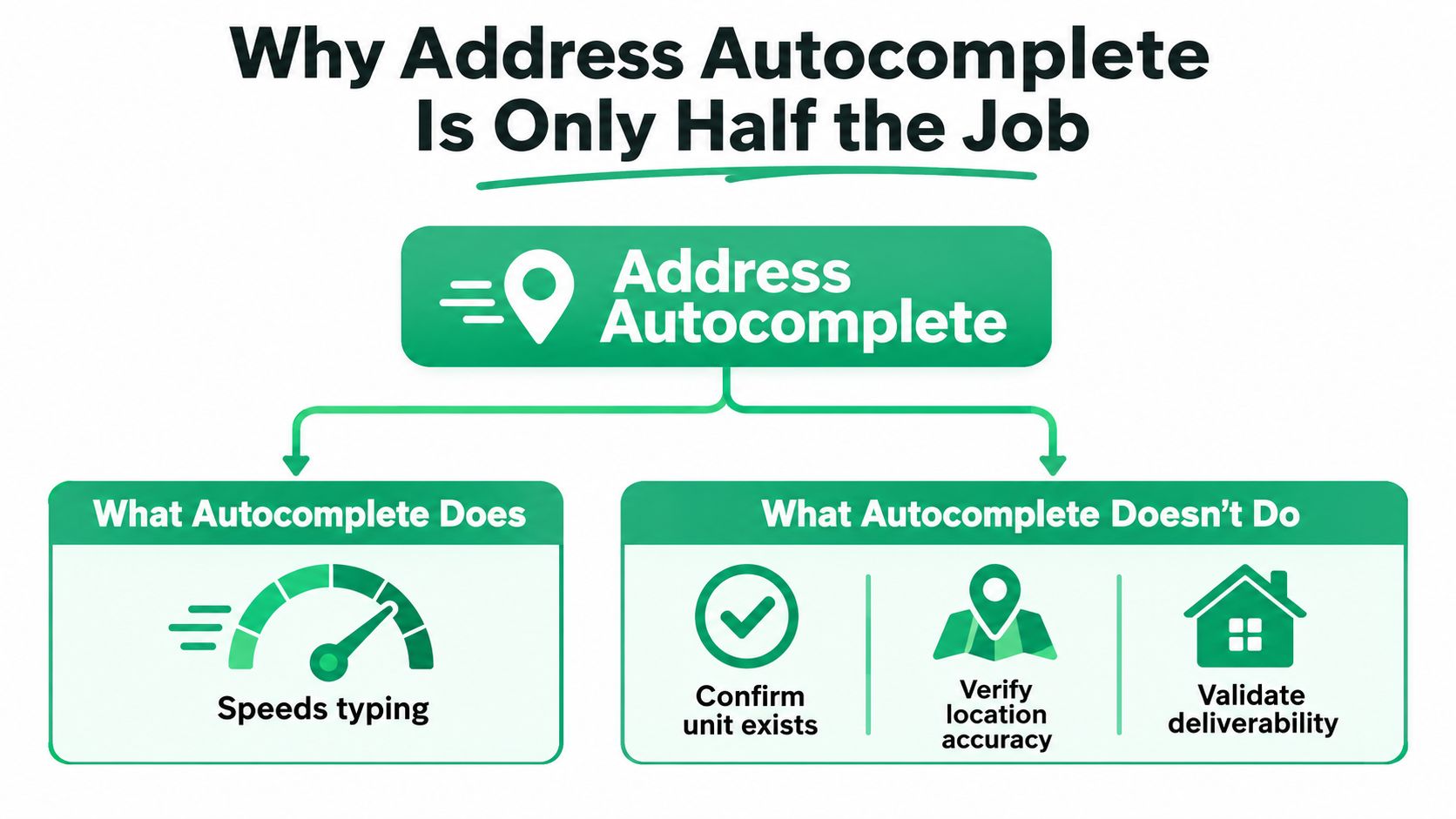
A shopper has already typed their street address three times, the apartment number is still wrong, and the order just landed in your support queue because the carrier couldn't deliver it. That's the part many businesses discover after launch. Google Maps address autocomplete helps people type faster, but it doesn't, by itself, tell you whether the unit exists, whether the postcode matches the street, or whether the address is deliverable.
That distinction matters in Shopify because the address field isn't just a checkout convenience. It's also part of post-purchase edits, replacement orders, chargeback cleanup, and the back-and-forth between merchants, support, and 3PLs. Google's own docs separate Autocomplete, which speeds entry, from Address Validation, which comes after to confirm deliverability, and that's the right mental model for any serious implementation. Google also positions its new autocomplete stack as a global prediction system, with over 50 million daily updates and coverage in more than 250 countries and territories in a dataset Google describes as “one of the most accurate and comprehensive models of the world” (Google Maps Platform blog).
Why Address Autocomplete Is Only Half the Job
The most expensive address bug usually isn't a typo. It's a shopper who picked a suggestion that looked right, but the downstream carrier rejected it because the unit number was incomplete, the postal district didn't line up, or the place was only partially matched. Autocomplete helped the shopper finish the form faster, but your warehouse still had to deal with the failed delivery.
Why the first draft is not the final address
Google's autocomplete is built to predict likely matches while someone types, including full words, substrings, place names, addresses, and plus codes (Google Maps Platform blog). That makes it excellent for reducing friction at the point of entry. It doesn't make it the source of truth.
Practical rule: treat the selected suggestion as a starting point, not a shipping decision.
For checkout, that's the difference between a smoother form and a deliverability problem hiding in plain sight. For post-purchase order editing, the gap is even more obvious, because the shopper may come back days later and change an address after the order is already in motion. At that point, the same Places flow has to work under tighter rules, because the consequences of a bad edit are no longer theoretical.
Where Shopify teams get caught
I've seen teams stop after the suggestion list works in the browser. They wire the text field to Google, show a dropdown, and assume the job is done. Then the fulfillment team notices that saved addresses are messy, support starts handling “please update my apartment” tickets, and the reship cost shows up in finance before anyone fixes the form logic.
That's why autocomplete belongs in a two-stage pipeline. First, it speeds capture. Then validation decides whether the address can move forward. The best integrations make that separation explicit instead of pretending the search suggestion is already a verified destination.
Setting Up and Hardening Your API Key
A Google Maps address autocomplete rollout starts with project hygiene, not UI code. If the key is open, the app is exposed. If billing is loose, one scraped client can create a painful surprise, which is why the key should be tied to a specific Google Cloud project, restricted to the APIs you use, and locked to the places it can run.

Lock the project before you build
Start with a dedicated Google Cloud project for the app or store. Enable the Places API (New) and the Address Validation API only if you need both parts of the flow. Then attach a billing account and set budget controls so usage gets reviewed before it becomes a support incident.
The key itself needs two kinds of restriction. Application restrictions narrow where the key can be used, which is what protects you from arbitrary reuse. API restrictions narrow which Google services the key can call, which keeps a compromised key from roaming across unrelated APIs.
Keep the key out of the storefront
For Shopify work, don't bury the key in Liquid and hope nobody sees it. Put it in environment variables on the app side, and call Google from controlled server or app contexts where possible. That's especially important for post-purchase widgets, because the storefront surface is not the place to expose credentials that can be reused elsewhere.
A restricted key is not a nice-to-have. It's the difference between a contained implementation and an open invitation for misuse.
If your app has multiple environments, keep separate keys for local development, staging, and production. That makes it easier to spot accidental traffic, and it helps you test whether a permission problem is really a permissions problem instead of a theme bug. The setup is boring on purpose. That's a good sign.
Choosing the Right Places Autocomplete Endpoint
Google's newer autocomplete stack gives you two practical paths and one legacy path that can waste time during migration. For a Shopify checkout extension, a theme app embed, or a post-purchase widget, the right choice depends less on style and more on where the code runs and how much control you need over filtering, validation, and billing behavior.
| Endpoint | Best for | Country filter | Migration risk |
|---|---|---|---|
| PlaceAutocompleteElement | Browser-rendered checkout or theme UI | Yes, when configured in the UI layer | Lower for new builds, higher if you're replacing legacy widgets |
| places.googleapis.com/v1/places:autocomplete | Server-to-server flows, post-purchase widgets, controlled app logic | Yes, through request parameters and implementation logic | Lower if you're starting fresh, good for controlled migrations |
| Legacy Autocomplete / AutocompleteService | Older codebases that already depend on it | Yes, but tied to older patterns | Higher, because Google's newer guidance points developers elsewhere |
When the modern element fits
Use PlaceAutocompleteElement when the user is already in a browser surface and you want Google's newer UI component to handle the suggestion experience. It fits checkout extensions and storefront experiences where the frontend can own the interaction without too much custom plumbing. If you need a faster path off old widget examples, this is usually where to look first.
When the HTTP endpoint fits better
Use the v1 HTTP POST endpoint, places.googleapis.com/v1/places:autocomplete, when the app logic matters more than the widget. That's the better fit for a custom post-purchase editor, an order change drawer, or a workflow that wants to keep prediction handling inside the app rather than inside a browser component. It also gives you a cleaner path when the frontend surface is unusual, such as a thank-you-page widget or a controlled admin-like interface.
Why the legacy widget is a migration risk
The legacy Autocomplete and AutocompleteService patterns show up in a lot of tutorials because they've been around for years. The problem is that older examples hide the current API shape, and newer Google guidance points developers toward the modern element and newer methods instead. If you're starting fresh, don't build around a pattern you may have to unwind later.
If you want a checkout reference that aligns with Google's current direction, the ecommerce validation architecture page is worth reading alongside the implementation details in SelfServe's address validation guide.
The Fix, Confirm, and Accept Validation Flow
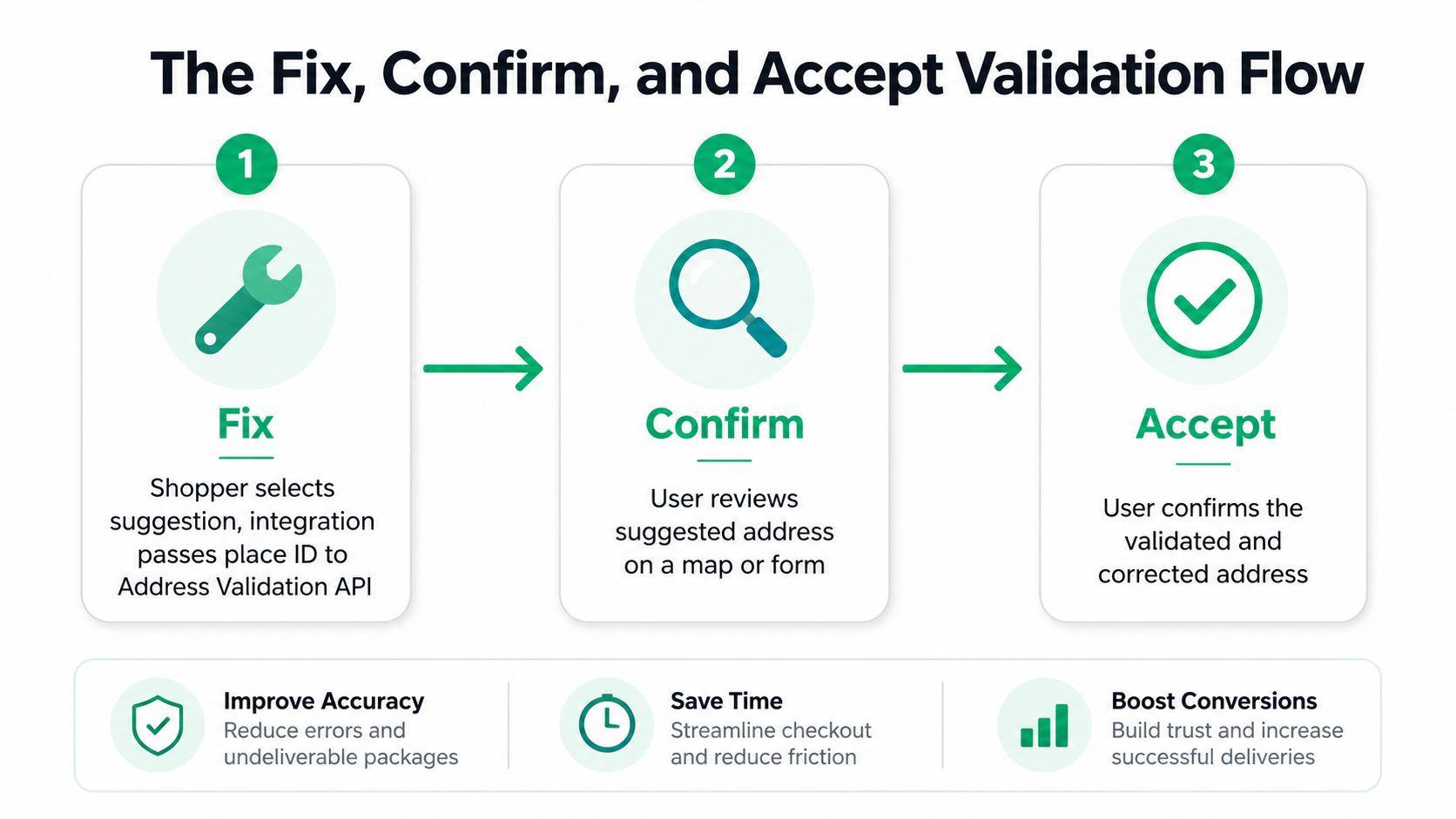
Google's recommended ecommerce pattern is not “autocomplete and ship.” It's autocomplete first, then validation, then a final confirmation view that makes the shopper own the result. That pattern matters because the Places prediction and the deliverability decision are solving different problems.
Fix means the system changed something
When the shopper selects a prediction, pass the selected place ID into the Address Validation API. If the validated output changes the input, that's a Fix outcome. The merchant should not automatically save it and move on. The shopper needs to see what changed before the order is submitted or the edit is accepted.
Confirm means the address parses cleanly, but the shopper should still review it
A Confirm outcome is the middle ground. The validation service has standardized the address, identified its components, and returned a version that looks coherent, but the UI should still show the parsed address on a map or in a review form. That keeps the shopper involved, especially when apartment numbers or regional formatting can be ambiguous.
Accept means you can move on
Accept is the cleanest result. The validated address matches closely enough that the merchant can ship it as-is. In a checkout flow, that means fewer interruptions. In a post-purchase edit flow, it means the order update can proceed with less manual review. The point is not to force every address through extra friction. The point is to route exceptions intelligently.
For a deeper view of how validation pairs with autocomplete in merchant workflows, the logic in this validation article from SelfServe maps cleanly to the same Fix, Confirm, and Accept pattern. The useful habit is simple. Store the selected place ID, validate it, then present the validated result back to the shopper before you treat it as final.
Wiring Autocomplete Into Checkout and Post-Purchase Widgets
A good implementation feels invisible to the shopper and strict to the developer. The user types a few characters, picks a suggestion, and the address fields fill in cleanly. Under the hood, the app has already limited the country scope, tracked the session, and captured the selected place ID instead of trusting the visible text alone.
Build the request around the interaction, not the field
For live input, send the prediction request only when the shopper is actively editing the address. Restrict the request to the countries your store serves, because that keeps the list relevant and reduces noise. Then capture the returned place ID, not just the display string, because the ID is the stable anchor for validation and component parsing.
The visible prediction is for humans. The place ID is for your app.
That same pattern works in post-purchase flows, but the trigger changes. A SelfServe-style widget should not call Places the moment the page loads. It should call Places when the shopper opens the edit drawer or starts changing the shipping address, which keeps the interaction tied to real intent instead of passive page views.
Map the parsed components into Shopify fields
Once validation returns structured address data, map the components to the shipping fields Shopify expects. Don't dump everything into a single string and hope the carrier can interpret it later. Use the parsed parts to populate street, city, region, postal code, and country in a way your fulfillment stack can consume.
The shipping form shouldn't be treated like a text blob. It's an operational record.
Keep the session alive long enough to matter
The same session should cover the typing sequence and the selected result. That matters both for billing and for keeping related requests grouped correctly, especially in a post-purchase drawer where the shopper may pause before selecting a suggestion. If you split one edit into multiple interactions, you create avoidable request churn and make the integration harder to reason about.
Debounce the input, handle mobile keyboards carefully, and render the component in a way that won't break when Shopify themes change their markup. That combination is less flashy than a fancy map, but it's what keeps the widget stable when real customers use it on real devices.
Billing, Session Tokens, and Migration Risk
Teams lose money as a result. The mistake is usually not the API call itself, but the absence of session discipline. This turns one user interaction into a string of billable requests that should've been grouped.
Monitor the requests that actually move the bill
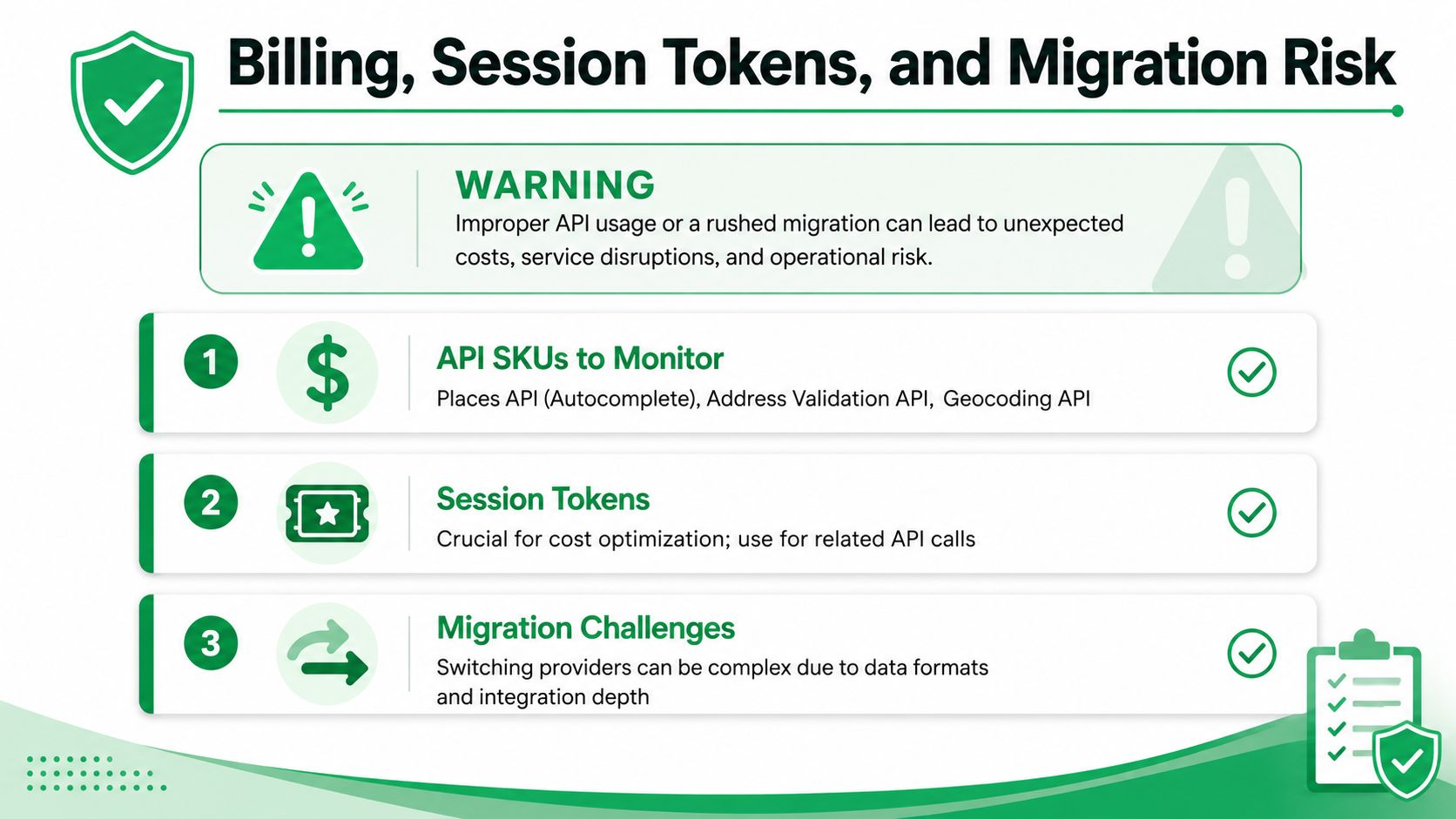
Google's newer Places documentation calls out autocomplete behavior, session tokens, and the downstream geocoding or place-ID selection path as the pieces that matter for cost control (Places autocomplete documentation). If the implementation fires on every keystroke without a proper session token, the usage pattern becomes noisy fast.
A healthy setup groups related keystrokes into a single user session, then terminates that session when the shopper selects a result or abandons the interaction. If a teammate forgot to terminate it, the request pattern usually looks repetitive and strangely open-ended. That's the symptom to look for in logs, not just a bigger bill at month end.
Session tokens are a design choice, not a cleanup task
Use the token from the first keystroke through the final selection. Don't create a new token for each input change. Don't keep one alive across unrelated actions. The whole point is to tell Google, and your own billing review, that these requests belong to one address entry event.
The migration problem is real
Teams maintaining older Shopify apps are often stuck between code that works and code that Google is steering developers away from. The newer ecosystem around PlaceAutocompleteElement and the v1 autocomplete endpoint is the direction to plan for, while legacy widget examples can be misleading for brand-new projects. Community reports in 2025 have also noted that older APIs are no longer available to new customers, which is why migration work should happen before a forced rewrite lands in the middle of a release.
If you need a concrete example of how autocomplete and validation fit together in a merchant workflow, Google Maps address validation guidance from SelfServe shows the same sequence from a product angle rather than a pure developer angle. That's useful because implementation risk usually comes from mismatched assumptions, not from syntax.
UX, Privacy, and the Right Way to Fall Back
Autocomplete is an input control, not a promise. If the API fails, the region is restricted, or the shopper is offline, the form still needs a defensible path to completion. That means treating Google as the helper layer, not the only way the address can be collected.
Keep the saved value tied to the place ID
The displayed suggestion can change, but the place ID is what anchors the address to a stable lookup. Saving only the visible text creates problems when the prediction and the validated result don't line up. The safer pattern is to save the validated output derived from the selected place, then let the shopper review it before submission.
Have a fallback that doesn't punish the customer
If autocomplete can't load, fall back to a normal address form with clear labels and no clever behavior. That's better than freezing the checkout or hiding the field behind an error state that the shopper can't interpret. A graceful fallback is still a checkout conversion tool, even if it's less elegant than live predictions.
Handle attribution and privacy honestly
Google Maps attribution needs to be visible where the autocomplete experience is shown, not tucked away somewhere a shopper won't notice. The privacy policy should also explain that keystrokes sent into the address field may be transmitted to Google for prediction and validation purposes. That's basic transparency, not legal theatre.
For teams that extend navigation or location workflows beyond checkout, a resource like venue navigation beyond Google Maps is a useful reminder that location UX has many layers. The right pattern changes when the use case changes, but the principle stays the same, don't pretend an input helper is a finished decision engine.
If you're wiring this into a Shopify app and want the same validation pipeline to cover checkout edits, thank-you-page changes, and support-assisted address fixes, SelfServe gives merchants a post-purchase editing flow with Google Maps address validation and autocomplete built in. It's a practical fit when you want shoppers to correct shipping details without sending every change through support.