Shopify App Installation Made Simple from Click to Live
You installed a Shopify app, approved the permissions, saw the success screen, and then nothing showed up on the storefront. That's the moment most merchants assume the app is buggy.
Usually, it isn't.
Most Shopify app installation problems happen after the install itself. The OAuth step succeeds, Shopify confirms the app is connected, and the merchant closes the tab before enabling the theme embed, assigning the checkout extension, or finishing the first setup inside the app. The result is a clean install with no visible output.
That confusion gets worse because the Shopify App Store is crowded. As of 30 June 2026, the store had 23,538 live public apps, 981,772 total reviews, and an average rating of 4.66 stars for apps with five or more reviews, according to ShopAppDB's Shopify App Store statistics. In a catalog that large, merchants need a practical install process, not just another “click add app” guide.
The Two-Step Reality Behind Every Shopify App Installation
A merchant installs a reviews app, approves access, opens the storefront, and sees nothing. In most cases, the app did install. The second half just never happened.
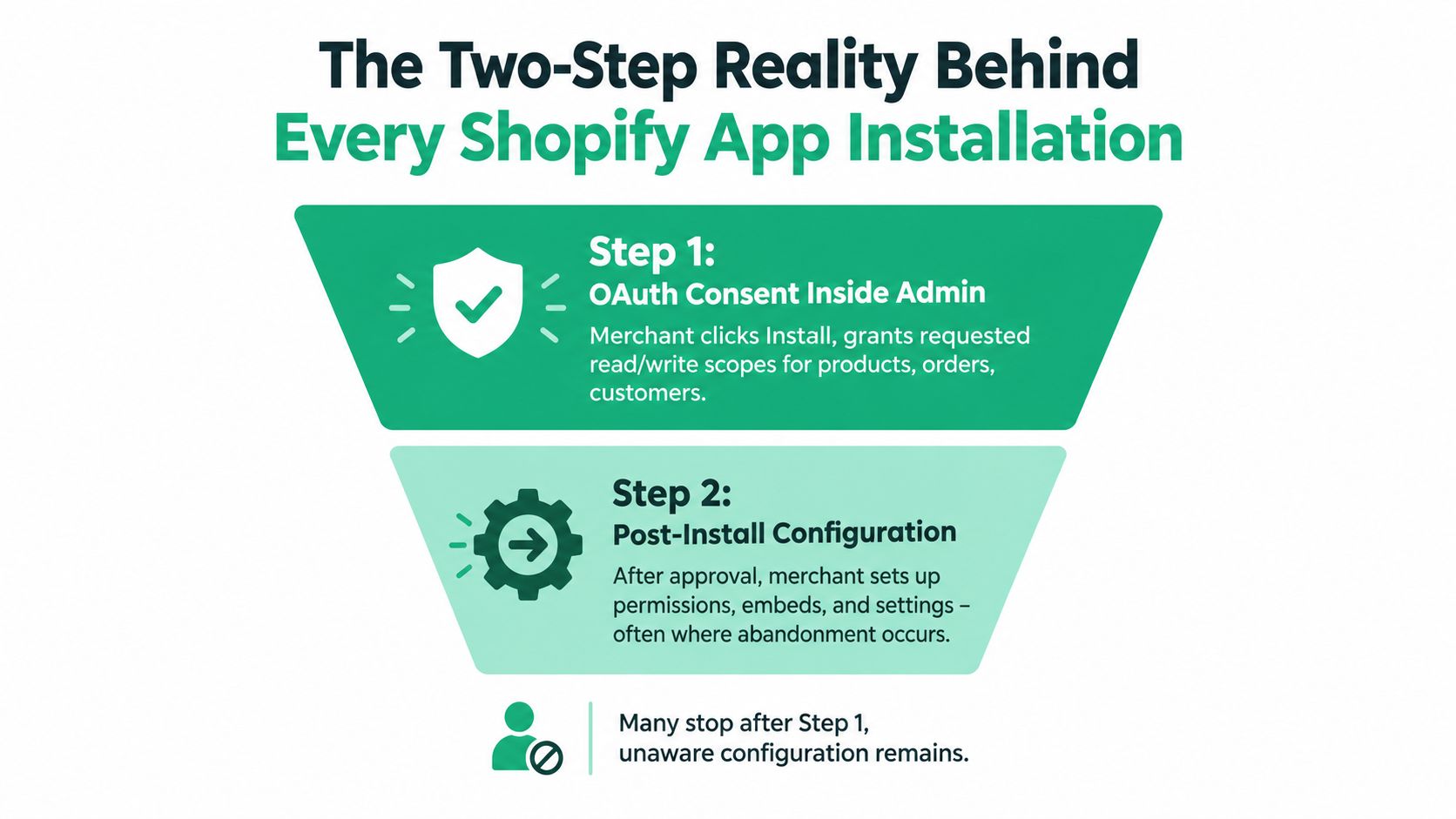
After hundreds of installs, the pattern is consistent. Shopify app installation works like a two-step funnel. Step one is OAuth. Step two is activation inside the part of Shopify where the app renders or runs. Merchants often stop after the approval screen, then blame the app when no widget, badge, upsell, or block appears.
Step one is permission approval
The first step happens in Shopify admin. You click Install app, review the requested scopes, and approve access. That gives the app permission to read or write the store data it needs.
This step matters, but it does not make the app visible to shoppers.
A successful OAuth install usually means the connection is valid. It does not confirm the storefront element is turned on, the checkout extension is placed, or the app's first-run setup is complete. That gap is why so many installs look broken even when the app is connected correctly.
Step two is activation
For theme-based apps, Shopify leaves app embed blocks off by default after installation, so someone has to turn them on in Online Store > Themes > Customize > Theme settings > App embeds, as documented in Shopify's theme app extension configuration guide.
That click path is where installs fail.
A common example is a floating widget app for reviews, search, wishlists, or accessibility. OAuth succeeds, the app dashboard loads, and the storefront still looks unchanged until the merchant opens the theme customizer and flips the app embed toggle from off to on. Some apps use a post-install link that jumps straight into the editor, which helps, but the toggle still needs to be saved.
Practical rule: Treat OAuth approval and activation as two separate checkpoints. If you only verify the install screen, you have not verified the app is live.
The activation step depends on the app type:
- Storefront apps usually need an app embed turned on or an app block added to a template section.
- Checkout apps need to be added in the checkout editor, because storefront app blocks and embeds do not render on checkout pages.
- Back-office apps often need catalog mapping, shipping rules, sync settings, or user-level configuration before they do anything useful.
- Post-purchase tools may need offer placement, display rules, and copy configured before customers ever see them.
When an app "doesn't work" right after install, the problem is often simple. The app is connected, but the second step never got finished.
Pre-Install Checklist Most Merchants Skip
A bad install often starts before anyone clicks Add app.
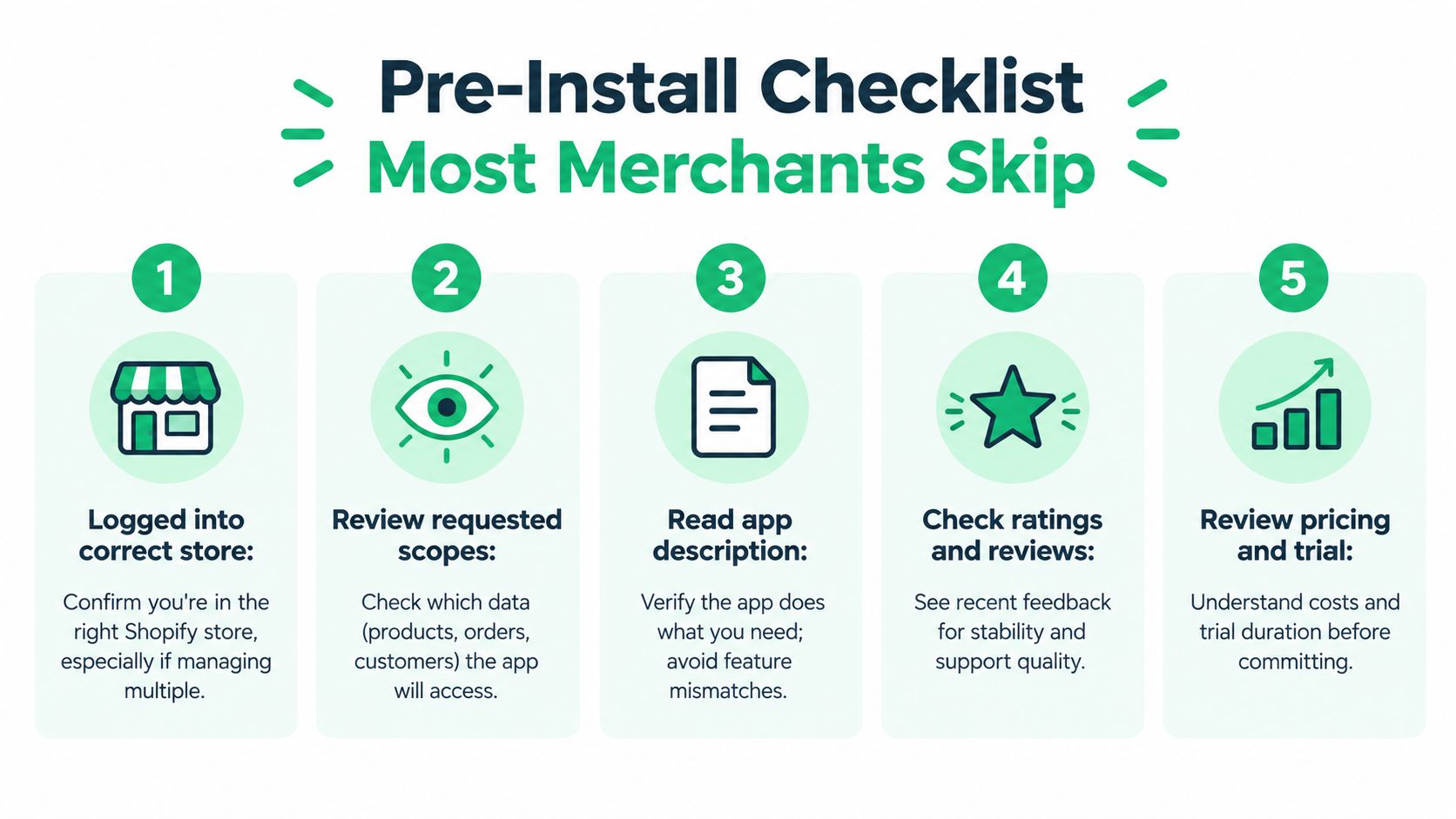
I treat app installation like a two-step funnel. First, Shopify approves the connection. Second, the app has to be activated where it runs. The checklist below is about catching the stores that are likely to fail on step two before they ever start.
Five checks worth doing before you click install
- Confirm you're in the right store admin. Teams that manage multiple Shopify stores get this wrong all the time. If the wrong admin session is open, the app gets installed to the wrong store and cleanup takes longer than the install itself.
- Check whether your theme supports the app's activation method. If the app relies on an app embed or app block, confirm you're working on an Online Store 2.0 theme and know which live theme will need the change. A common failure pattern is installing into one store, then enabling the feature on a draft theme nobody published.
- Review requested scopes with the use case in mind. Product, order, customer, theme, and discount access can all be reasonable. What matters is whether the permissions match the job. If they do not, stop and verify with the app vendor before approving.
- Read the app listing for implementation details, not just features. Check whether the app works through theme embeds, app blocks, checkout UI extensions, Shopify Flow, or back-office sync settings. That tells you what the second step will be after OAuth, which is the part merchants skip.
- Review pricing, trial terms, and plan defaults. Some apps drop merchants into a trial on a higher tier than expected. Know which plan you are selecting before anyone on the team approves billing.
One more filter helps. Check review quality, support replies, update history, and whether the app carries the Built for Shopify badge. That badge does not guarantee the app fits your workflow, but it is a useful signal when you are choosing between similar tools.
Two operator habits that prevent messy rollbacks
Screenshot your current theme settings before you enable anything customer-facing.
If an app changes the header, cart drawer, product page layout, or trust badges, you want a fast reference for what was live before the install. I also recommend noting which theme was published at the time. That detail matters later if someone says, "the app broke the storefront," when the actual issue was that the embed got enabled on the wrong theme.
Second, log the install time in your ticket, changelog, or Slack thread. Include the store name, theme name, and the person who approved the app. That sounds basic, but it makes rollback and support much faster, especially when two apps are installed on the same day.
A clean uninstall starts with a clean install record.
One last check is easy to overlook. If the app has a checkout component, confirm your store is set up for it before install. Checkout extensions live in a different part of Shopify than theme embeds, so a merchant who only thinks about the storefront often concludes the app is broken when the problem is that the checkout step was never configured.
If the install flow hangs or the app admin loads half-rendered screens, test again in a fresh browser session. Browser extensions, saved sessions, and aggressive ad blockers regularly interfere with Shopify app onboarding.
Walking Through the Install Flow in the Shopify Admin
The install path itself is straightforward. The confusing part is where Shopify hands you from the App Store into the app developer's flow.
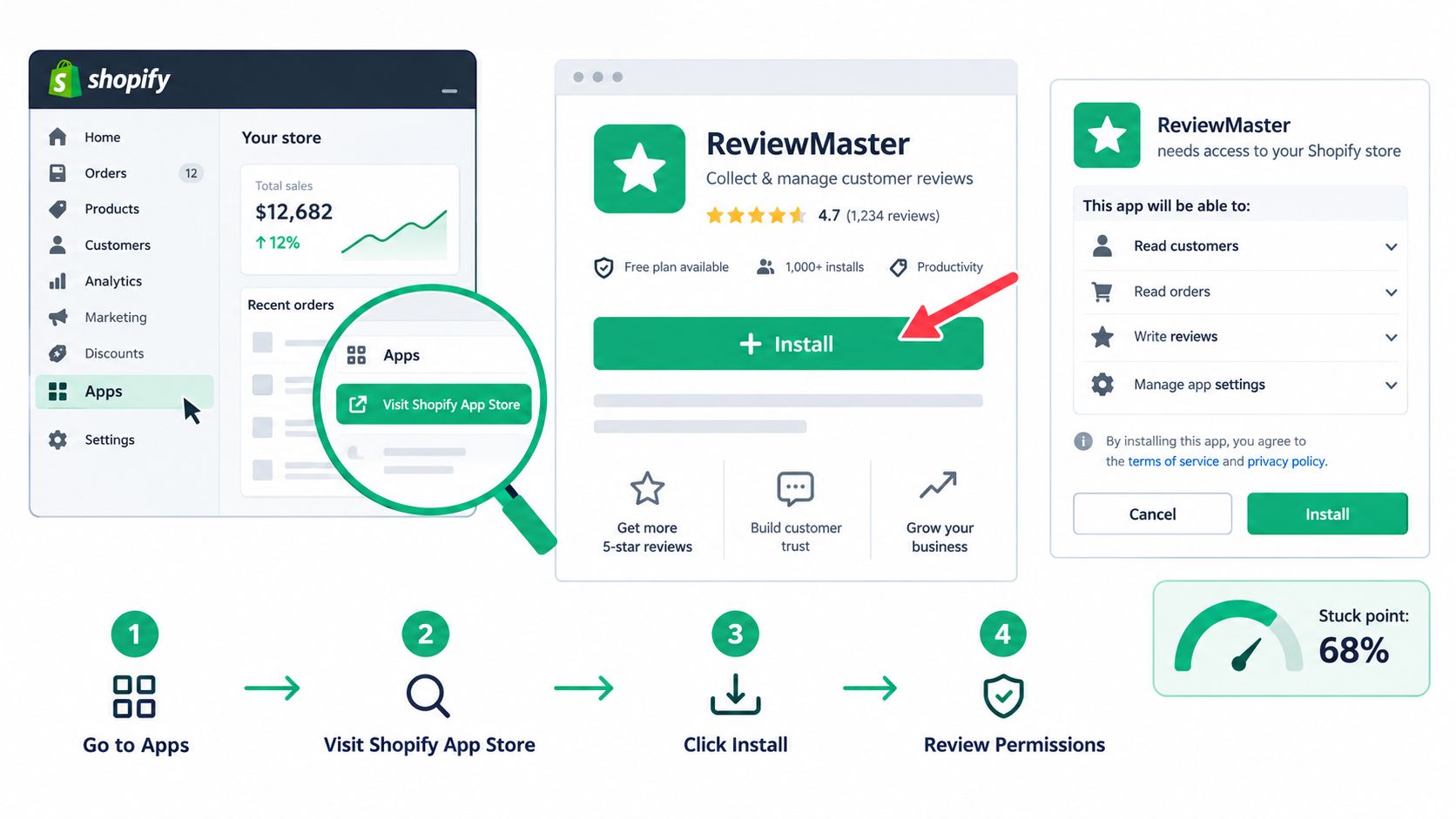
What you click and what to watch
Inside Shopify admin, open Apps from the left sidebar, then go to the Shopify App Store. Search for the app by name or browse by category, then click Add app.
That click often sends you to a page that looks slightly different from core Shopify admin. Merchants stop here more than they admit because the handoff feels unfamiliar. They think they've left Shopify, when really they're just entering the app's authorization flow.
Before you approve anything, verify three things on that install screen:
- Billing terms
- Trial details
- Which plan you're selecting
A lot of friction starts when a merchant assumes they installed a free version but started a trial on a higher tier. If you want a broader operational setup reference, this Shopify app onboarding guide from SelfServe is a useful example of the steps teams often need after the initial add-app click.
The consent screen matters more than the success screen
After billing review, Shopify shows the OAuth consent screen. The app requests access to resources such as products, orders, customers, or themes.
Read those scopes closely. If an app's purpose is narrow but the permissions are broad, pause and verify. Sometimes the app needs the access because of how Shopify's APIs are structured. Sometimes it's a sign the install deserves a second look.
The success screen only tells you the app can talk to Shopify. It doesn't tell you the app is configured, visible, or usable.
Once you click Install app on the consent screen, Shopify redirects you back into admin and usually opens the app dashboard. That's the point where many merchants close the tab. They've technically installed the app, but they haven't made it operational.
Three places merchants get stuck right here
- They ignore the trial clock. Then they forget when billing starts.
- They skim permissions. Then they're surprised by what the app can access.
- They stop at the redirect. Then they report the app as broken before activation is finished.
If you remember one thing from the install flow, remember this. OAuth is authorization, not deployment.
Configuring Permissions, Scopes, and Theme Embeds After Install
Shopify accepted the install. Now the app has to be made visible or functional in the surface where it's supposed to operate.
Review access before you troubleshoot behavior
Start inside Settings > Apps and sales channels and confirm the app appears as installed. If anything looks off after a scope change or reconfiguration, reopen the app from there and look for a reauthorization prompt.
Shopify also tracks installation as an operational metric inside the platform. Developer documentation shows app teams can view merchant-install counts in the Partner Dashboard and export install data as CSV, as summarized in Uptek's write-up on Shopify app statistics. That matters because install state is measurable, but a measured install still doesn't mean a merchant completed setup.
If your app touches storefront output, permissions are only half the job.
Turn on the theme embed
For theme-based apps, go to Online Store > Themes > Customize, then open App embeds under theme settings and switch the app on. Save the theme after enabling it.
This is the most common silent failure in Shopify app installation. The app is installed, the admin view looks healthy, and nothing appears live because the embed is still off. If the app offers a direct setup path, a walkthrough like this Shopify app integration guide shows the kind of post-install handoff merchants should expect.
If the app is supposed to render on the storefront and you haven't checked App embeds, you haven't started troubleshooting yet.
Checkout and app blocks are separate surfaces
A lot of merchants expect one toggle to cover everything. It won't.
Use the theme editor for storefront embeds and blocks. Use the checkout editor for checkout extensions or post-purchase placements. Some apps also need configuration inside their own dashboard, such as assigning display rules, syncing products, or enabling certain modules per market.
A few examples of tools that commonly need this second layer of setup are review widgets, upsell tools, subscription interfaces, and post-purchase portals such as SelfServe, which uses in-app configuration plus storefront placement for customer-facing workflows.
If the app still looks inactive after you save, clear cache and test in a fresh browser session before assuming the embed failed.
Verifying the App Actually Works on Your Storefront
A typical failure looks like this. The app says “installed,” the owner leaves the admin, opens the storefront, and decides the app is broken because nothing changed.
In practice, this section is where you confirm the second step of the install funnel happened. OAuth only grants access. The test is whether the customer-facing behavior shows up on the live store, on the right page, for the right visitor.
Test the live experience, not the admin view
Open the storefront in an incognito window or a second browser where you are not logged into Shopify. Admin sessions can hide problems with cached assets, draft theme previews, customer targeting, or extension placement.
Then test the exact surface the app is supposed to affect:
- Product page widget: check multiple products, not just one
- Cart tool: test both the cart drawer and full cart page
- Checkout extension: run a real checkout on a low-cost product or a test order method your finance team already uses
- Post-purchase or account feature: complete the full flow until the customer sees it
I usually test one product that should trigger the app and one that should not. That catches bad display rules fast.
Verify behavior, not just visibility
Seeing a widget load is only the first check. The app also needs to do its job.
If you installed a reviews app, confirm reviews populate on the intended products. If it is an upsell app, add the trigger product to cart and confirm the offer appears where the app says it should. If it is a subscription tool, make sure the purchase option can be selected and carried through checkout. For customer portal tools such as SelfServe, log in as a customer and confirm the account-side workflow is available, not just the admin configuration.
Installs get misread as failures. The app can be present on the page and still be unfinished because the rule set, product assignment, market setting, or extension placement is wrong.
Check the browser before you contact support
If the app still does not behave correctly, inspect the page first. That saves time and gives support something useful to work with.
- Open the browser console and look for script errors, blocked assets, and 404 requests
- Check the network tab to confirm the app's scripts, styles, or API calls load
- Review the app dashboard for sync status, onboarding warnings, or failed jobs
- Compare the live storefront to the published theme, not the theme you were editing in preview
For ongoing QA after launch, this app performance monitoring process for Shopify stores is a solid way to catch storefront regressions before customers report them.
Ask one question: did the intended customer action happen on the live store?
That check is stricter than “app installed,” and it is the one that matters.
Troubleshooting Common Post-Install Problems
A typical failure looks like this: the merchant approves the app, lands back in Shopify, sees the app in Admin, then checks the storefront and finds nothing. In a lot of cases, the install itself worked. Step two never happened. The theme embed stayed off, the app block was never added, or the checkout extension was not placed on the surface where it can render.
That gap is why post-install troubleshooting needs to follow the same two-step funnel as the install. First confirm the app connected to the store. Then confirm the app was fully activated on the surface it uses.
Start with the symptom and the surface
Post-install problems usually become clear once you match the symptom to the surface where the app should run. A missing product page widget points to the theme editor. A missing checkout element points to checkout customization. Blank recommendations or empty customer data usually point to the app dashboard, sync state, or setup rules.
Activation drop-off after OAuth is common, as noted earlier. Many merchants stop after approving access and assume the app is broken, when the issue is that the second half of setup never happened.
Common Post-Install Problems and Their Fixes
| Symptom | Likely Cause | Fix Location |
|---|---|---|
| App installed but nothing appears on the storefront | Theme embed is still off, or the app block was never added to the template | Theme editor |
| App asks for access again or stops syncing after changes | Scope mismatch or reauthorization needed | App permissions or app listing page |
| Widget breaks layout in header, cart, or product section | Theme conflict with existing sections or app blocks | Duplicate theme and theme editor |
| Checkout feature doesn't appear | Extension was not added in checkout customization, or the app is trying to render on a surface it does not support | Checkout editor |
| Data-dependent feature shows blank states | Initial sync, mapping, or rule setup was never completed | App dashboard |
| Metafield-based features fail silently | Missing metafield permissions or incorrect resource setup | App permissions and app settings |
| Merchant thinks install failed because charges appeared | Trial ended or billing approval converted to a paid plan | Billing and app subscription settings |
The checks that save the most time
I start with the surfaces Shopify can hide from you.
For storefront apps, open Online Store > Themes > Customize, then check App embeds first. If the app uses an app block, open the exact template where it should appear and confirm the block exists there, not just in a draft template. Merchants often test on a product page that does not use the template they edited.
For checkout apps, go to Settings > Checkout and open the checkout editor. If the extension is not placed there, OAuth approval will not make it appear on its own. This is one of the most common reasons an app looks installed but does nothing.
If those surfaces are configured, test for a theme conflict in a duplicate theme. Cart drawers, sticky add-to-cart bars, announcement apps, and heavily customized product sections are common collision points. A duplicate theme gives you a clean way to confirm whether the problem is the app, the theme, or the interaction between both.
Some issues are not setup mistakes. They are platform constraints. Legacy checkout or order-status script methods no longer apply in many store setups, so an app may require an extension-based surface instead of custom code. Developers also report install and reauthorization failures after scope changes, including 403 errors, in this Shopify Community discussion about app and checkout constraints.
If checkout behavior is missing, verify the extension surface before anything else. Storefront settings will not fix a checkout extension that was never placed.
First Week After Installation and Final Takeaways
The install day isn't the risky part. The first week is.
One onboarding benchmark notes that merchants generate 3 to 5 times the support volume in the first 7 days after install compared with the following 60 days combined, according to Zipchat's write-up on Shopify app merchant onboarding. That lines up with how most stores behave. Early configuration gaps create almost all the noise.
Use a week-one operator checklist:
- Check storefront render parity across the templates where the app should appear.
- Confirm the theme embed is still on after any theme edits or publishes.
- Verify checkout extension placement if the app touches checkout or post-purchase flows.
- Review webhook or sync health inside the app if that data is exposed.
- Inspect theme changes so no unwanted edits were left behind.
- Run one full live transaction end to end.
- Keep a simple install log with app name, install date, and any issues seen.
- Uninstall cleanly if unused instead of letting half-configured apps linger.
Shopify app installation gets simpler once you stop treating it as a single click and start treating it as an install-to-activation workflow.
If your team is installing apps that affect post-purchase operations, SelfServe is built for that reality. It gives Shopify merchants a customer-facing order editing and upsell workflow that still requires the same disciplined setup mindset covered here: approve permissions, place the right customer-facing surface, and verify the live experience end to end.