Shopify App Integration Guide for High-Volume Stores
A customer changes an address after the order has entered fulfillment. The storefront accepts the edit, but the warehouse still has the old destination. Meanwhile, the order-edit widget appears in English for a shopper browsing a translated store, and a promised upsell never reaches the fulfillment system. Support has to reconcile every system manually, while the customer waits for an answer.
That's the operational reality behind Shopify app integration for high-volume stores. Installing an app is the easy part. The difficult work is controlling what customers can change, keeping dynamic content localized, validating addresses before fulfillment, and making sure updates reach the 3PL or ERP without creating duplicate or contradictory records.
Why Shopify App Integration Matters for High Volume Stores
A post-purchase workflow can look simple to the shopper. They open an order page, correct a delivery detail, add a product, or request a cancellation. Behind that interaction, your support platform, Shopify order record, warehouse queue, inventory system, tax logic, notifications, and customer-facing language all need to stay aligned.
That's why integration should be treated as an operational control layer, not a collection of install buttons. A customer who enters an incomplete address creates a delivery risk. A customer who edits an order after a fulfillment hold has been released creates a warehouse exception. A customer who sees English-only interface text in a local market loses confidence even if the underlying order data is correct.
Shopify's app model has become central to platform extensibility. The Shopify App Store history records its launch on June 2, 2009, followed by an ecosystem of more than 2,000 apps by 2018, over 6,000 by 2021, and more than 10,000 by 2024. Independent 2026 measurements place the live or listed ecosystem in the low-to-mid 20,000s, depending on methodology, with reported snapshots ranging from 22,546 to 27,700 apps and more than one million reviews in one snapshot, as documented by Revenue Hunt's State of the Shopify App Economy.
Operational rule: Choose integrations based on the business event they control, not only the storefront feature they display.
For a high-volume merchant, success means customers can make approved changes without contacting support, address errors are caught before labels or fulfillment, translated experiences remain consistent, and every permitted edit has a visible downstream status. SelfServe fits that model by combining customer-managed post-purchase changes with merchant-defined permissions, multilingual widget behavior, address validation, upsell modules, product restrictions, order tagging, and cancellation approval flows.
Prerequisites and Installing from the Shopify App Store
Before installing, identify the people and systems that will own the rollout. A support lead may define which fields shoppers can edit, while operations decides when an order must become read-only. The fulfillment team needs to confirm how holds, label creation, warehouse release, and cancellation approval work in practice.
Use this pre-flight checklist before opening the App Store:
- Confirm staff access: The installing user needs permission to install apps and access the relevant order, theme, and customer areas. Limit configuration access to staff who understand fulfillment consequences.
- Identify the live theme: Record which theme is published and which templates customers use. A test theme can make an integration appear broken when the live storefront uses a different template.
- Review fulfillment timing: Decide when orders should stop accepting edits. Include label creation, warehouse release, partial fulfillment, and manual review states in the discussion.
- Define market coverage: List the languages and storefront markets that need post-purchase support. Translating the storefront alone won't guarantee that app-generated text is translated.
- Prepare test orders: Use representative products, shipping destinations, discounts, and fulfillment states. Don't validate only an unfulfilled, single-item order.
SelfServe installs from the Shopify App Store, works with most themes, and includes a 30-day free trial. Open the Shopify apps guide for merchants to review how app selection fits into a broader store stack, then install SelfServe from the App Store and approve the requested permissions.
Shopify recommends theme app extensions instead of directly injecting code into theme files. Its online-store app development documentation explains why the legacy Asset API approach can damage theme compatibility, introduce performance problems, and leave code behind after uninstall. A clean extension-based installation also makes ownership clearer when your agency, internal developer, and app vendor are troubleshooting the same storefront.
After installation, keep the app enabled in the development or preview workflow until the operational tests pass. Installing successfully only proves that authorization worked. It doesn't prove that the widget appears on the correct template or that a customer edit reaches fulfillment.
Configuring Permissions Edit Windows and Theme Embeds
The safest post-purchase setup starts with a strict question: what may the shopper change, and under which order conditions? Shipping address, contact details, delivery instructions, line items, cancellations, and upsells don't carry the same operational risk. Treat each field as a separate permission rather than enabling a broad “edit order” capability.
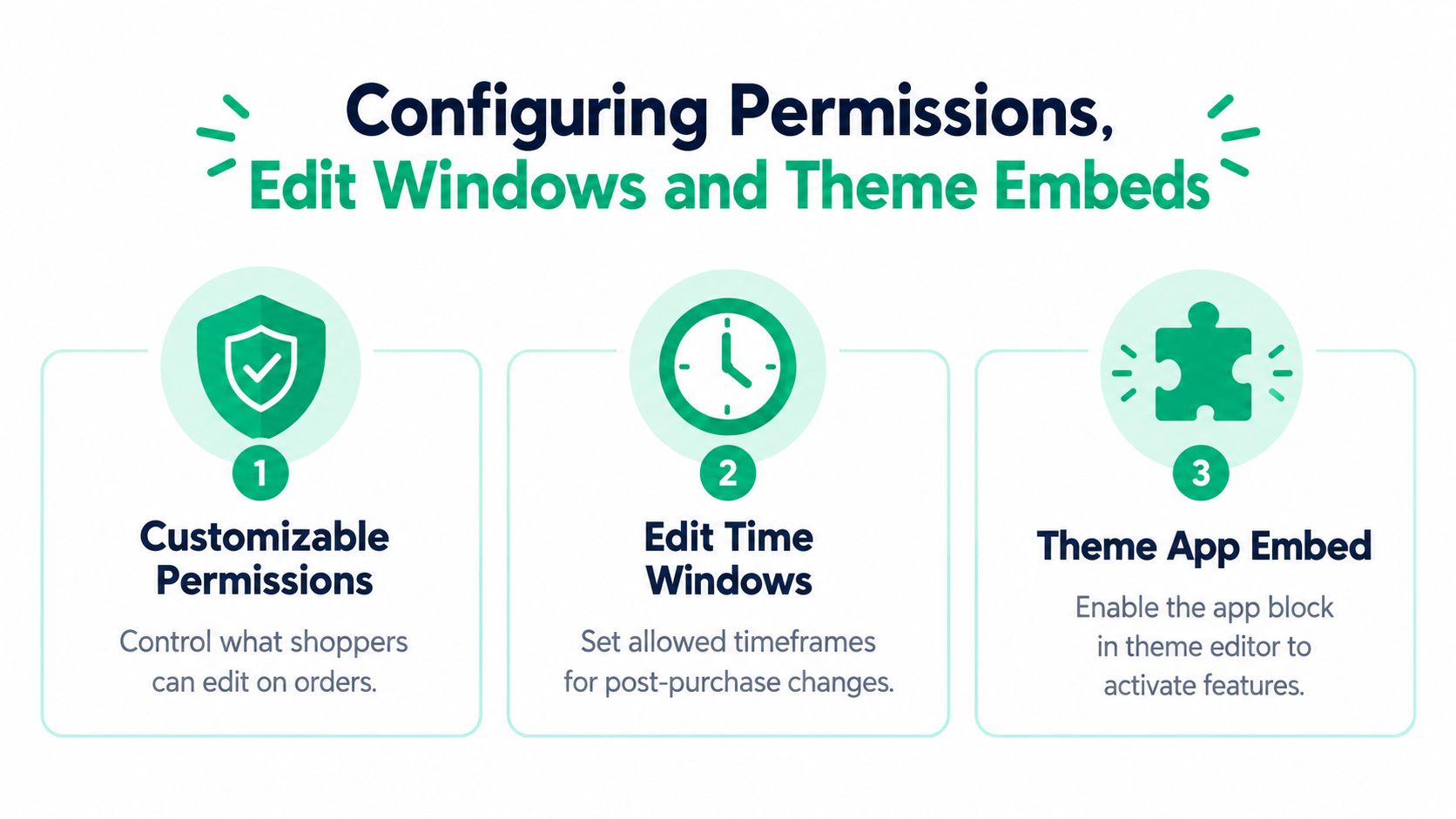
A practical permission model separates low-risk corrections from changes that affect inventory or warehouse execution:
- Contact corrections: Allow customers to fix information support teams can safely accept, provided the change doesn't alter fraud, tax, or identity controls.
- Shipping changes: Permit address edits only while the order remains operationally reversible. Require validation before accepting the new destination.
- Line-item changes: Restrict additions and substitutions by product, inventory status, collection, or fulfillment condition.
- Cancellations: Route cancellation requests into a manual approval queue when inventory, payment, or warehouse state requires review.
- Upsells: Define which products and collections can be added, and make sure the addition receives the tags or metadata required by downstream teams.
Edit windows should follow actual fulfillment milestones, not an arbitrary customer promise. An order that is technically unfulfilled may already have a pick task, a shipping label, or a warehouse reservation. Coordinate the customer-facing window with the 3PL and ERP owners so the app doesn't accept an edit after the warehouse has stopped listening for changes.
Practical rule: A customer edit is complete only when the operational system accepts it, not when the storefront displays a success message.
Theme activation is a separate task from installation. Shopify notes that app embed blocks are deactivated by default after installation. In Shopify admin, open the live theme in the theme editor, select Theme Settings, choose App embeds, and activate the SelfServe embed. Save the theme before testing the customer experience.
Use a deep link that opens the theme editor with the live theme preselected. Shopify's theme app extension UX guidance recommends a direct editor link along with screenshots, video, and written instructions. The link should identify the templates that support the embed, because a widget can be active globally while remaining absent from the product, customer-account, Thank You, or Order Status surface where shoppers need it.
For a visual walkthrough, use the following setup video:
The permission-based access control guide is useful when support, risk, and fulfillment teams need to agree on who can change what. Test each permission with an order in the relevant state rather than assuming that a single successful edit proves the full policy works.
Enabling Multilingual Support Address Validation and Built In Upsells
These features should be configured as one customer journey, not as unrelated toggles. A shopper may read a translated order page, correct a delivery address, and add a product in the same session. If one part of that journey switches back to English or accepts an ambiguous address, the experience feels broken and the operational risk moves downstream.
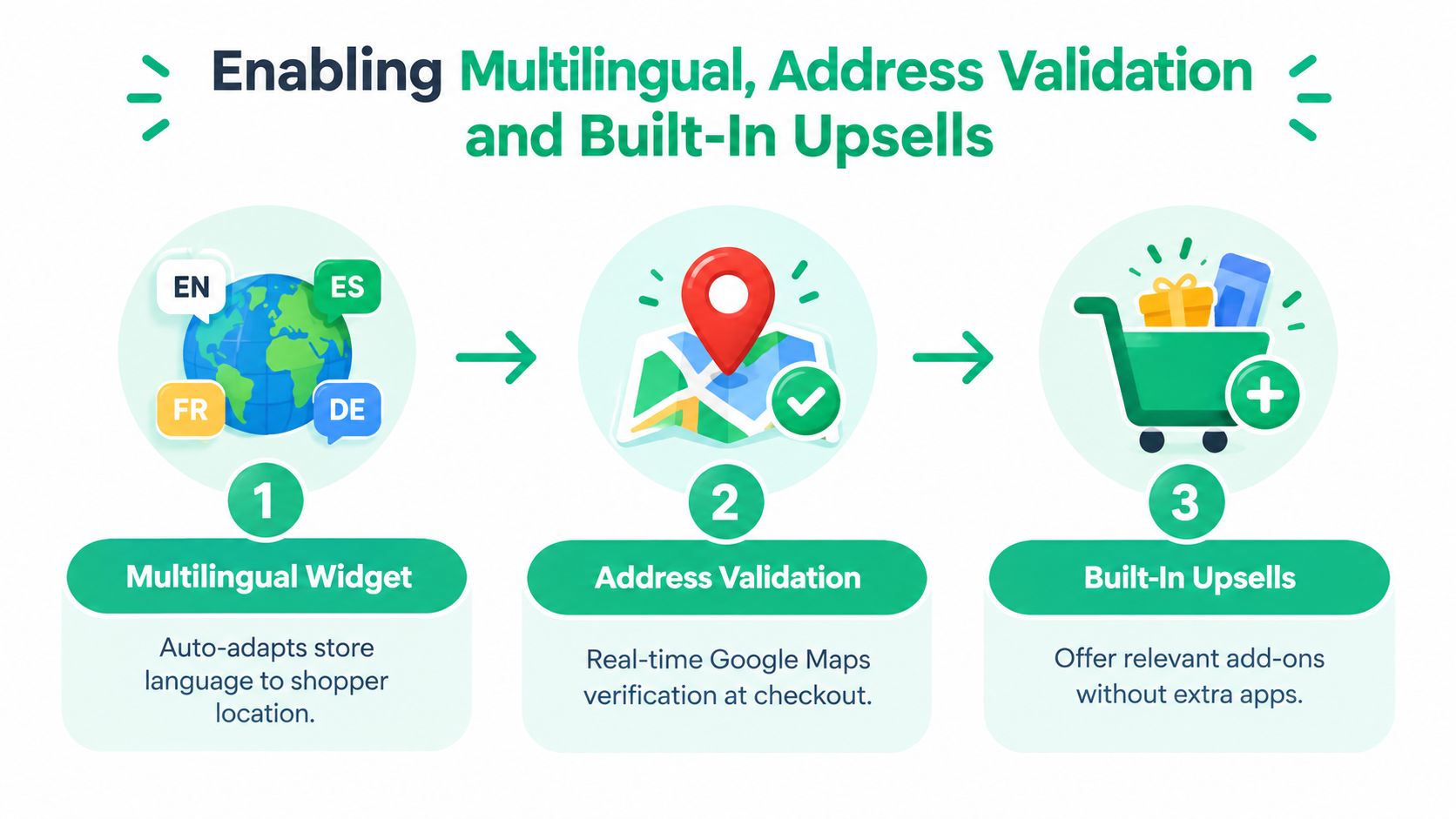
Start with language behavior. Shopify's localization and translation guidance supports multilingual storefront experiences, but app-injected content still requires explicit handling. Check the widget labels, validation messages, edit confirmations, cancellation instructions, upsell copy, and error states in every supported market. English-only leakage often survives because teams test the homepage and checkout but skip post-purchase surfaces.
SelfServe's widget automatically adapts to the shopper's language. That doesn't remove the need for review. Test a complete order-edit journey in each important locale, including an invalid address, a denied permission, an unavailable product, and a cancellation that enters manual review.
Address validation belongs before the fulfillment handoff. Enable real-time Google Maps address validation and autocomplete so shoppers can select a deliverable address instead of relying on free-form text. Review how the app handles apartment or unit details, regional address formats, and an address change after a shipping label has been created.
Upsells need the same operational discipline. Configure curated products or collections for the Thank You and Order Status pages, then apply product restrictions so customers can't add items that the warehouse, shipping method, or inventory policy can't support. Use order tagging to distinguish an approved post-purchase addition from the original order, and ensure the tag is visible to support and fulfillment teams.
A useful configuration sequence is:
- Language first: Confirm every customer-facing string and error state.
- Address second: Validate the destination before accepting a shipping edit.
- Commercial rules third: Define eligible upsells, product restrictions, and collection logic.
- Operational routing last: Apply tags and send cancellations or exceptions to the right approval queue.
The result should be a coherent flow. The customer sees a familiar language, receives a clear address suggestion, and gets relevant add-on choices. Operations receives a structured order event with enough context to decide whether fulfillment can proceed automatically or needs intervention.
Connecting 3PL and ERP and Testing Your Workflows
A storefront integration becomes an operations integration when an edit changes inventory, routing, fulfillment, or customer communication. Bring in the 3PL or ERP owner before launch, especially if the warehouse consumes Shopify orders through a connector, scheduled sync, event-driven workflow, or custom middleware.
Shopify enterprise guidance identifies siloed systems, ERP complexity, synchronization gaps, and inconsistent data quality as recurring integration problems in larger organizations, as described in Shopify's data integration challenges guide. A customer-facing success state can't compensate for a warehouse that never received the new address or added line item.
Map each event explicitly:
- The customer submits an address change.
- Shopify records the permitted order update.
- The integration sends the change to the 3PL or ERP.
- The warehouse places, maintains, or releases a hold according to its rules.
- Support can see the resulting status.
- The customer receives a message in the correct language.
For advanced routing, custom upsell logic, or complex fulfillment states, use the appropriate higher-tier integration and dedicated account support. The Shopify 3PL integration guide can help teams frame the warehouse connection before they commit to production behavior.
Use a test matrix that checks both the customer view and the operational system:
| Scenario | Expected Result | Where to Verify |
|---|---|---|
| Shipping address changed before fulfillment release | Valid address is accepted, order updates, and the warehouse receives the change | Customer order page, Shopify order, 3PL or ERP |
| Address change after label creation | Request follows the configured hold or approval path, with no silent overwrite | SelfServe queue, Shopify timeline, warehouse system |
| Customer adds an approved upsell | Eligible product is added and the order carries the required operational tag | Thank You or Order Status page, Shopify order, 3PL or ERP |
| Customer requests a restricted product | Addition is blocked with a clear localized message | Customer widget and support view |
| Customer requests cancellation | Request enters the correct approval queue and inventory remains controlled | Cancellation queue, Shopify order, inventory system |
| Shopper uses a supported non-English locale | Widget, errors, confirmations, and upsell copy remain translated | Localized customer journey and message logs |
Don't stop at a green API response. Compare line items, quantities, addresses, tags, fulfillment status, and timestamps across systems. Repeat tests after a partial fulfillment or warehouse hold, because those are the states where apparently harmless edits create real exceptions.
Troubleshooting and Best Practices That Keep Stores Running Smoothly
Most failures have a recognizable owner and a straightforward prevention habit. The problem is that teams often discover them through customer complaints instead of controlled tests.
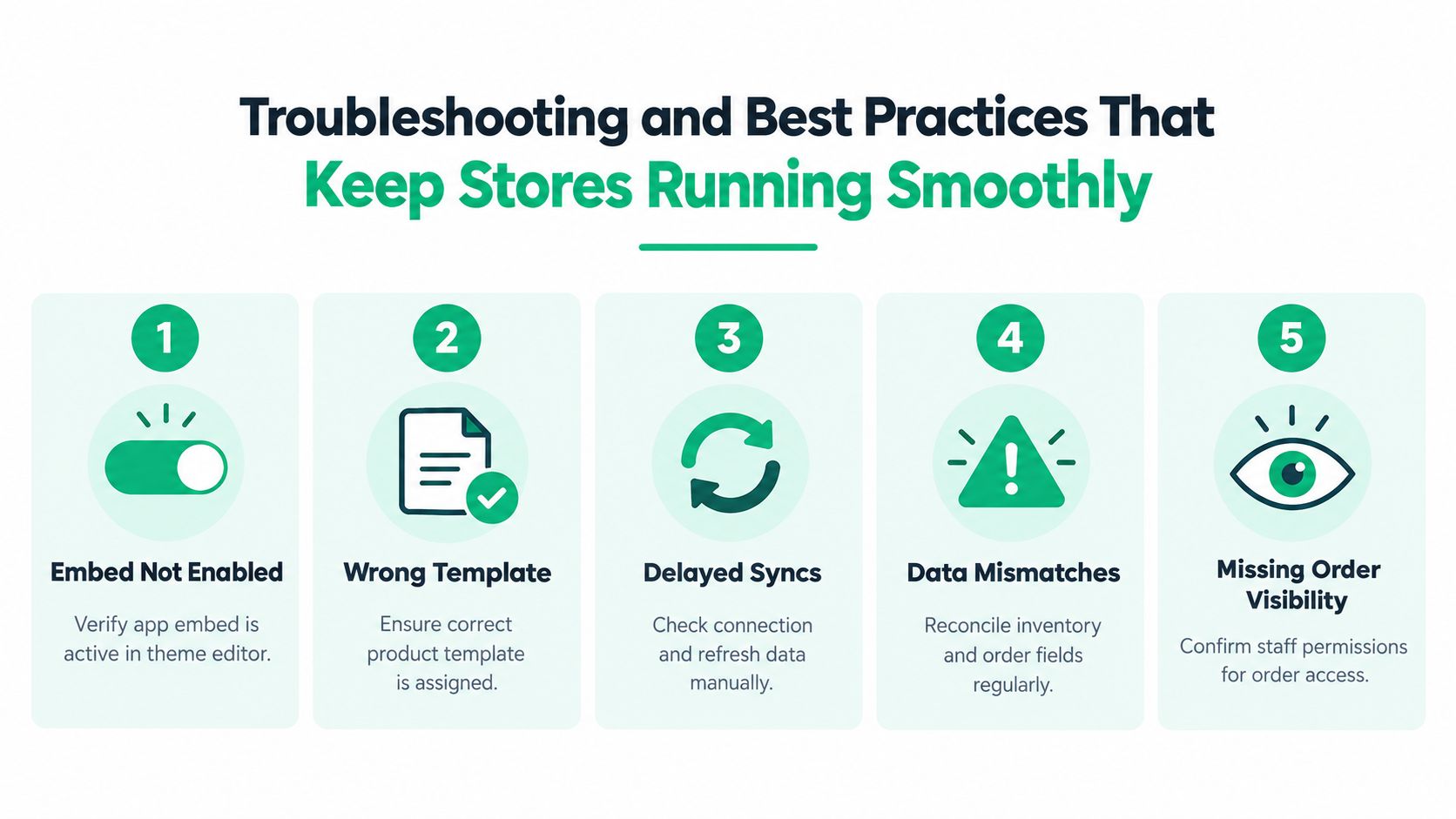
| Failure | Likely Cause | Fix and Prevention |
|---|---|---|
| Embed doesn't appear | The app embed remains inactive | Activate it under Theme Settings, App embeds, then test the published theme |
| Widget is missing on one surface | The wrong template is assigned or the section doesn't support the app block | Confirm the live template and supported section before changing code |
| Address update doesn't reach fulfillment | The warehouse connector ignores or delays the event | Check the integration event, apply an operational hold, and reconcile the order |
| Order data doesn't match | Field mapping or update sequencing differs between systems | Compare address, line items, tags, and status in every system |
| Support can't see the order state | Staff permissions or app visibility are incomplete | Grant the required order access and document the escalation path |
| Customer sees English text | App-generated content wasn't reviewed by locale | Test errors, confirmations, and upsells in each supported market |
| Cancellation creates inventory confusion | Requests bypass approval rules | Use a manual cancellation queue and confirm the inventory response |
Keep edit windows narrow enough to match real warehouse operations. Use approval flows for cancellations and risky address changes, automate order tagging where possible, and monitor exceptions rather than relying on customer reports. A short operational dashboard should show pending edits, rejected validations, unprocessed warehouse events, and orders that changed after fulfillment activity began.
The strongest integration is intentionally boring. Customers get clear choices, staff see the same order state, and the warehouse receives one reliable version of every approved change.
Review the workflow after theme releases, app updates, fulfillment-policy changes, and new market launches. Shopify app integration is not finished when the app is installed. It's finished when support, commerce, and fulfillment teams can trace a customer action from the widget to the final operational result without manual guesswork.
SelfServe gives Shopify and Shopify Plus teams controlled post-purchase editing, multilingual customer experiences, Google Maps address validation, built-in upsells, product restrictions, order tagging, and cancellation approval workflows. Visit SelfServe to connect those controls to your Shopify operations and start a 30-day free trial.