A Guide to Shopify Draft Orders for High-Volume Stores
Not every sale happens neatly through your online storefront. Sometimes, a customer calls you directly, you meet a potential client at a trade show, or a wholesale partner needs special pricing. For all those moments that happen outside the standard checkout flow, Shopify gives you Draft Orders.
Think of draft orders as your store's digital order pad, built right into the Shopify admin. They let you manually create a custom shopping cart for a specific customer, complete with unique products, special discounts, and tailored shipping, before sending it off as a payable invoice.
What Are Shopify Draft Orders and When to Use Them
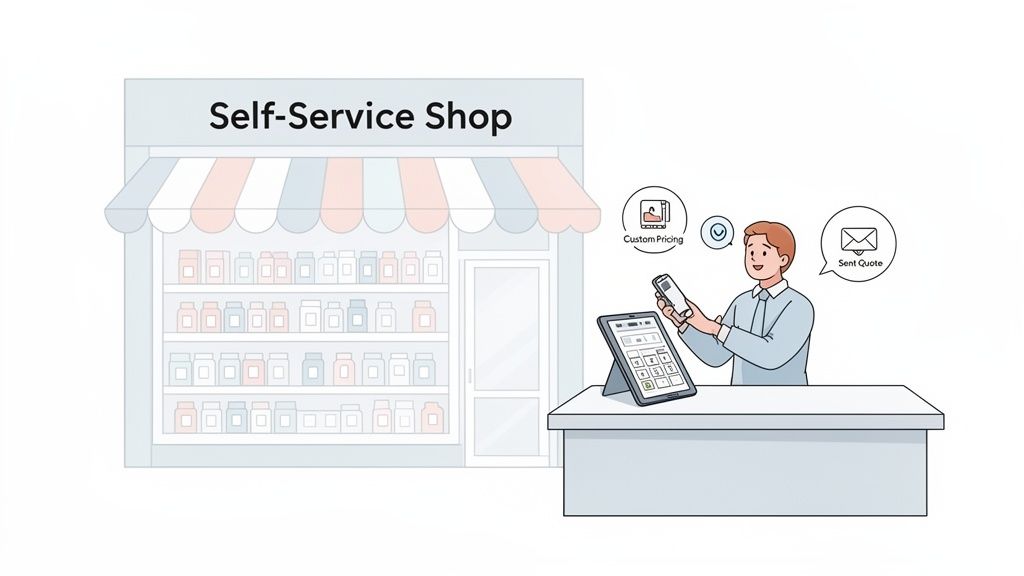
Let's use an analogy. Your regular Shopify store is like a self-service supermarket. Customers browse the aisles, fill their carts, and head to the checkout on their own. Shopify draft orders, on the other hand, are your personal sales counter.
This is where you, the merchant, step in to act as the sales associate. You're building the order for the customer, giving you the power to handle all the situations that don't quite fit the automated, one-size-fits-all online experience.
A draft order is basically a "pre-order" that you assemble in your Shopify backend. It doesn't become a real, confirmed sale until the customer receives the invoice you send and actually pays it. Until then, it's just a pending quote.
This is a critical distinction. It means you can propose a special deal or create a complex order for a client without it immediately affecting your inventory counts or sales reports. It's a completely risk-free way to put a potential sale on the table.
Why Draft Orders Are Essential for Modern Merchants
In a crowded market, simply having a great website isn't always enough. Flexibility is what sets you apart. If you only rely on your automated storefront, you're leaving money on the table. Draft orders are the tool that bridges that gap, opening up new ways to sell.
They are your go-to solution for handling sales that need a human touch. For instance, you'll find them indispensable for:
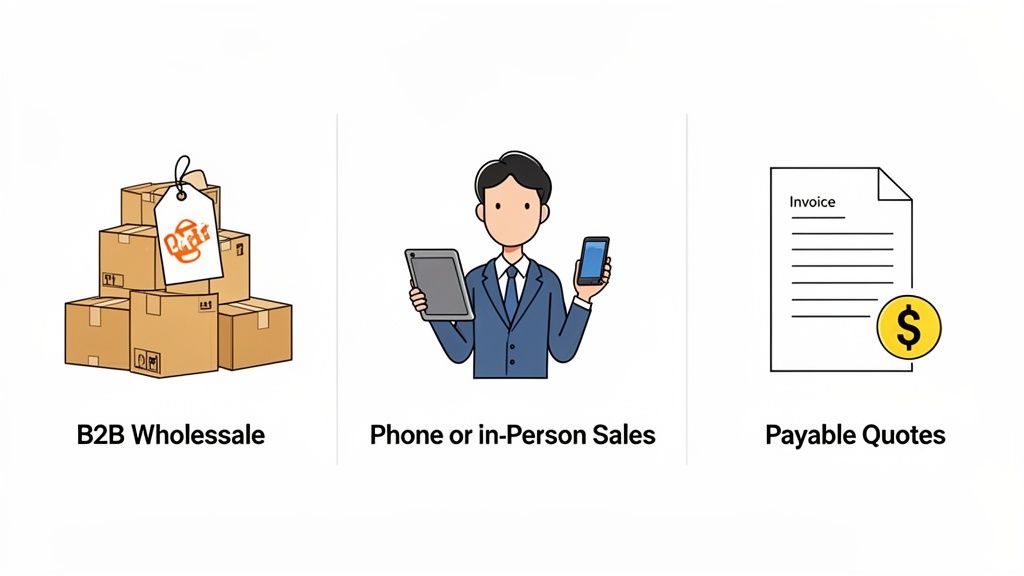
- Taking phone or in-person orders: A customer calls you ready to buy. Instead of telling them to go to the website, you can build their order right then and there, input their details, and even take their credit card information over the phone.
- Managing complex B2B or wholesale sales: Wholesale clients often need specific pricing tiers, volume discounts, or custom shipping rates that you don't offer to the general public. Draft orders let you build these large, customized orders with ease.
- Sending custom quotes: Have a high-value client who wants a unique product bundle or a one-time discount? You can create the perfect package as a draft order and send it to them as a professional, payable invoice.
- Collecting deposits or partial payments: Need to take a down payment for a custom-made item? A draft order can be set up to collect a deposit first, with the remainder due upon completion.
At the end of the day, whenever a sale requires your direct involvement, a Shopify draft order is the native tool built for the job. Mastering this feature allows you to offer a more personal, accommodating service that captures revenue you might otherwise lose.
Key Business Use Cases for Shopify Draft Orders
On the surface, a draft order seems like a simple tool for creating manual sales. But its real value comes to light when you see how it solves specific, often tricky, business problems. For many merchants, draft orders aren't just a plan B; they're a primary sales channel for any transaction that happens outside the standard website checkout.
Let's dig into the most common situations where this feature becomes a core part of your sales toolkit, helping you capture more revenue and offer a far better customer experience.
Selling to Wholesale and B2B Clients
If you've ever managed B2B sales, you know it's a different ballgame than selling directly to consumers. Your standard storefront checkout just can't handle the nuances of wholesale. B2B buyers need custom pricing, volume discounts, and often have specific payment terms, like Net 30. This is where a Shopify draft order is the perfect fit.
You can build the entire transaction by hand, applying unique line-item discounts that aren't public, adding tax exemptions, and more. Once you’ve built the order, you can email an invoice that your client can pay online with a credit card. Or, if they’re paying by bank transfer or check, you can simply mark it as paid later.
This approach allows you to run your wholesale and direct-to-consumer operations from a single Shopify account, avoiding the cost and headache of a separate B2B platform.
Think of a draft order as your tool for creating a bespoke purchase agreement for each B2B client. It lets you lock in everything from negotiated pricing on specific products to special shipping needs, all wrapped up in a professional, payable invoice.
This hands-on control is absolutely vital for building and maintaining strong wholesale relationships. It effectively turns your Shopify admin into a nimble B2B sales portal.
Taking Orders Over the Phone or In Person
Not every sale starts with a customer browsing your website. Sometimes, a deal closes over a phone call or during an in-person meeting at a trade show. For these high-touch sales, draft orders are your best friend. They make it incredibly simple to capture the order right then and there.
As you talk with the customer, you can build their cart for them directly in the Shopify admin. Once you've added their products and shipping details, you have two great options to close the sale:
- Send an invoice: Email the customer a secure link to the checkout page. This lets them review the order and enter their own payment details, which many people prefer for security.
- Accept payment immediately: If the customer is with you or gives you their card details over the phone, you can key in their credit card information directly into the draft order and finalize the transaction on the spot.
This process feels seamless to the customer and guarantees the sale is logged and tracked right alongside your online orders. It empowers your sales team to act as personal shoppers, guiding customers to the right products and closing deals without any friction.
By turning your Shopify admin into a virtual point-of-sale terminal, you ensure that no sale is ever lost just because it didn't happen through the website's shopping cart.
How to Create a Shopify Draft Order Step by Step
Alright, now that you have a good handle on why you'd use a draft order, let's get our hands dirty and walk through how to actually create one. The whole process happens right inside your Shopify admin, and it’s surprisingly straightforward. Think of it as building a custom sale from the ground up.
First things first, head over to the Orders section in your Shopify admin. Look to the top right corner for a big blue button that says Create order. This is your gateway for any sale you need to build manually.
Building the Order from Scratch
Clicking that button drops you onto a blank order page. This is your canvas. You'll see a few different sections that you'll work through to piece the order together.
Find or Create a Customer: The first thing you need to do is link the order to a person. You can search for an existing customer by their name or email. If they're brand new, no problem—you can create a customer profile on the fly by adding their contact details and shipping address right here.
Add Products to the Order: Next, you’ll browse your product catalog to pull in the items the customer wants. This is also where you can add a custom item—perfect for a one-off service or a unique product not listed in your store. Just give it a name, set a price, and tell Shopify whether it's taxable and needs to be shipped.
Apply Discounts and Adjust Pricing: This is where draft orders really shine. You can punch in an existing discount code or create a custom discount on the spot. Make it a fixed amount or a percentage, and apply it to a single item or the entire order. It's ideal for those special VIP deals or one-time accommodations.
Here's what that screen looks like once you start adding products and customer information.
As you can see, the interface keeps everything you need—the customer, their products, and payment details—all in one place to make the process quick and painless.
Finalizing the Draft Order
Once you've added all the products and layered in any discounts, a few final touches will get the order ready to go.
Pro Tip: Don't ignore the Tags and Notes sections in the bottom right. A simple tag like "Phone Order" or "B2B_Wholesale" makes it so much easier to filter and find these orders later. The Notes field is your internal scratchpad for adding context, like "Customer requested delivery after the 5th."
Last, you'll want to double-check the shipping and taxes. You can add a custom shipping rate or choose from one of your pre-configured options. Taxes are usually calculated automatically, but you can override them if necessary.
With everything in place, you have three ways to proceed:
- Send invoice: This is the most common choice. It shoots an email to the customer with a link to a secure checkout page where they can pay with their preferred method.
- Accept payment: If you have the customer on the phone, you can take their credit card details and process the payment immediately.
- Save draft: Not quite ready to pull the trigger? Just save the order as a draft. You can always come back to it later to make changes or finalize it.
2. Draft Orders Versus Other Shopify Workflows
Knowing when to use a draft order is just as important as knowing how to create one. Shopify gives you a whole toolbox for making sales, and draft orders are just one specific tool. Picking the right one for the job is what separates a smooth operation from a chaotic one.
It really boils down to this: are you reacting to a customer's action, or are you creating an opportunity from scratch?
When a shopper loads up their cart and then vanishes, that’s an abandoned checkout. Chasing them down with an automated email is a reactive, marketing-led move. A Shopify draft order, on the other hand, is a proactive, sales-led move. You're the one initiating the sale, usually after a direct conversation or a special request.
Draft Orders vs. Abandoned Checkouts vs. Online Orders
It's easy to get these different order types mixed up, but they serve very different purposes. An abandoned checkout is a potential sale that stalled out on its own. A standard online order is the ideal self-service path. A draft order is your manual intervention tool.
This table breaks down the key differences:
In short, draft orders are for sales that happen outside your standard website checkout. They’re for closing deals you've personally negotiated over the phone, via email, or for custom B2B arrangements—sales that would never have made it through the regular online funnel.
This simple flowchart helps visualize where draft orders fit into the bigger picture.
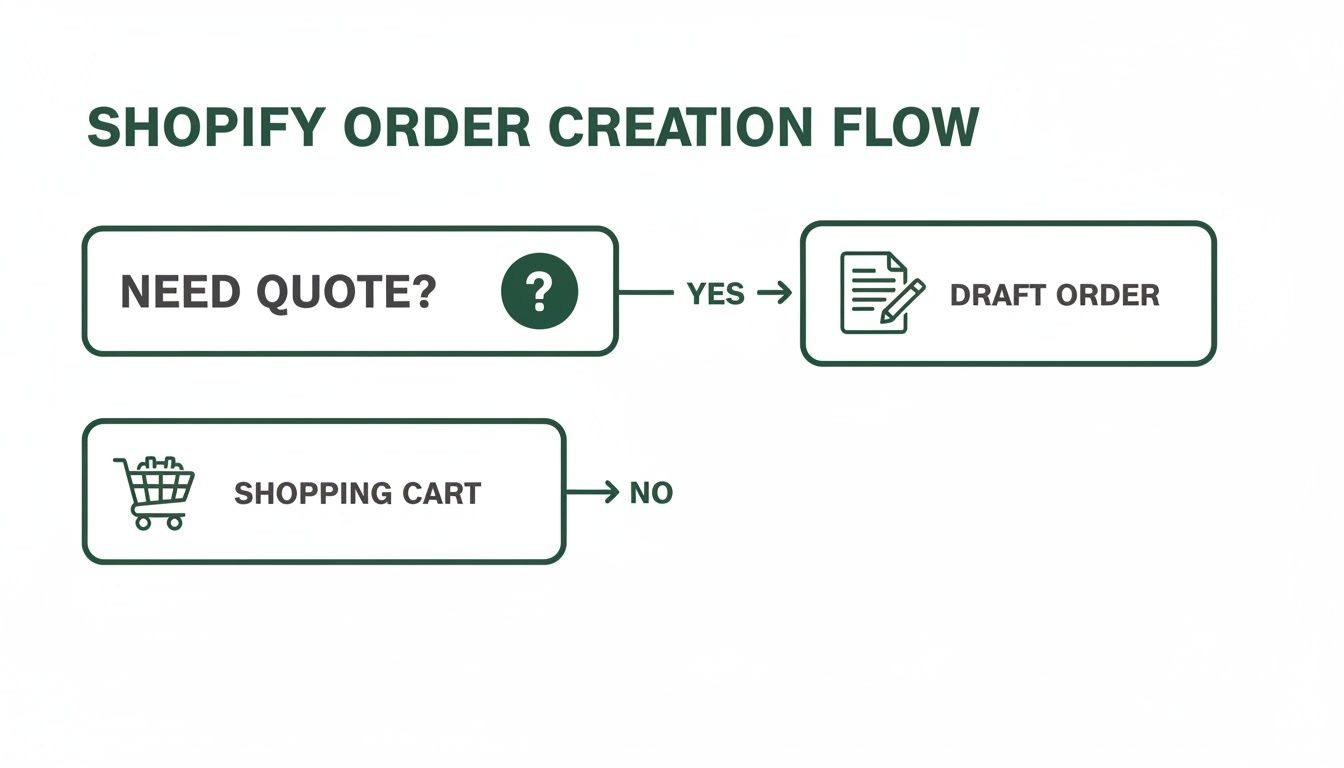
As you can see, if a customer needs a special quote or has a complex request, a draft order is your go-to. For everyone else, the standard shopping cart experience is the way to go.
Native Draft Orders vs. B2B Apps
As your B2B sales grow, you might start feeling the limitations of using draft orders alone. They’re fantastic for the occasional wholesale order, but if you're managing dozens of B2B clients with different pricing tiers and payment terms, the manual process can quickly become a bottleneck.
This is the point where you should consider specialized B2B apps or a more capable self-service customer portal to work alongside your existing process.
- Shopify Draft Orders: Perfect for low-volume, high-touch B2B deals where you're building every order by hand. They're built-in, free, and give you total flexibility for one-off arrangements.
- Specialized B2B Apps: Built for handling wholesale at scale. These tools automate everything by creating a separate, password-protected storefront where your B2B clients can log in, see their pre-set custom pricing, and place orders themselves.
The decision really comes down to volume. If you find your team manually creating more than a handful of draft orders for wholesale clients every single day, it’s probably time to look for a more automated system. This gets you out of the business of data entry and back into the business of building client relationships.
Common Pitfalls and How to Avoid Them
Shopify draft orders are a fantastic tool, but they come with a few landmines. Because they're a manual process, it’s easy to create a real mess for your operations team if you’re not careful. Knowing what to watch out for is the best way to avoid costly mistakes and keep your business running like a well-oiled machine.
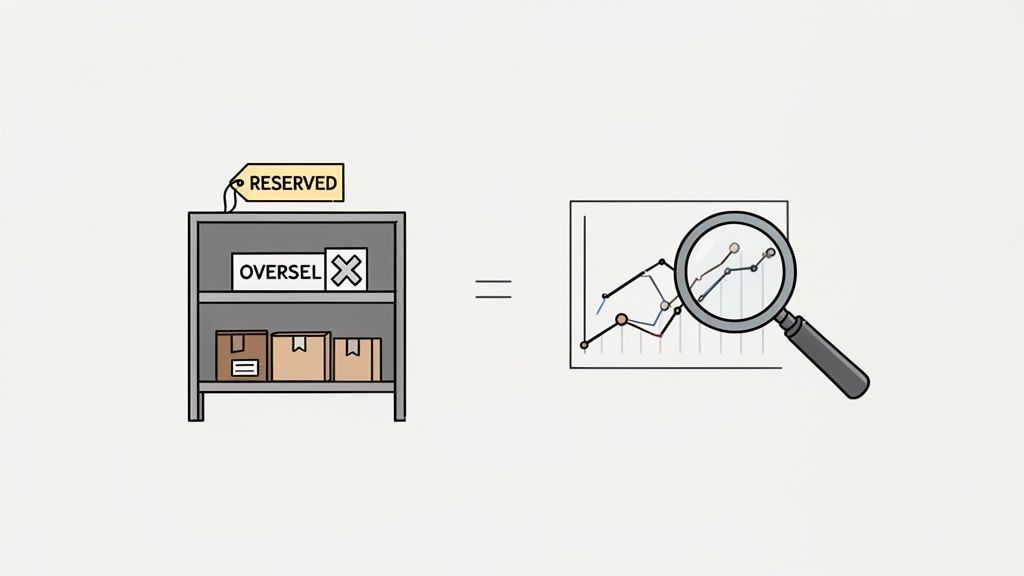
The most common trap is all about inventory. When you create a draft order, the items are not automatically pulled from your available stock. This is a huge deal. It can easily lead to you selling the same popular item twice—once to a customer on your website and again to the person you created the draft order for.
The Inventory Reservation Trap
So, how do you prevent overselling? You have to remember to use the Reserve items function every single time you create a draft. This puts a temporary hold on the stock, giving your customer a window to complete their payment.
But here's where it gets tricky: if the reservation period expires before the customer pays, those items go right back into your available inventory. The risk of overselling is back on the table.
A draft order is just a proposal until it's paid. Think of inventory reservation as putting an item on hold for a customer at the sales counter; it's not truly sold until their payment goes through and the draft becomes a finalized order.
This distinction is everything. Your team needs a rock-solid process for tracking these reservations and following up with customers to get payments in before stock is released. For high-demand products, this manual back-and-forth can quickly become a serious bottleneck.
Hidden Impacts on Analytics and Fulfillment
Inventory isn't the only thing draft orders can throw off. They can also silently sabotage other parts of your business, starting with your analytics. Since these orders are created by hand in the admin, they completely bypass Shopify's standard marketing attribution. A sale that came from a specific Facebook ad or email campaign won't get the credit it deserves in your reports.
You'll need a workaround to track these sales properly. A few simple solutions include:
- Using UTM parameters: Manually paste any tracking details into the customer notes or order tags.
- Creating specific discount codes: You can tie unique codes to your campaigns, so you can easily trace their use back to manual orders.
- Leveraging order tags: This is a must. Apply tags like "Phone-Sale" or "B2B-Order" to easily segment and analyze these sales down the road.
Finally, don't forget about your fulfillment. If you work with a 3PL or have a warehouse team that relies on automated triggers from online sales, they might miss your draft orders entirely. Clear communication and a consistent tagging system are the only way to make sure these manually created sales get picked, packed, and shipped without a hitch. And when issues pop up after shipping, like returns, they'll need special handling too—you can learn more in our guide on how to process a refund on Shopify.
Scaling Your Operations Beyond Basic Draft Orders
Let's be honest, Shopify draft orders are a fantastic tool for one-off manual sales. But they have a ceiling. Creating every order by hand, double-checking inventory, and chasing down payments is fine when you're managing a few custom requests. It completely falls apart at scale.
So, at what point does this handy feature start holding your business back? The tipping point usually comes when your team is spending more time on tedious data entry for wholesale clients or fixing typos from phone orders than they are on tasks that actually grow the business. If that sounds familiar, it's a sure sign you've outgrown the basic workflow and need a smarter approach.
Empowering Customers with Post-Purchase Control
Instead of your team handling every single request manually, what if you could give customers the power to safely manage their own orders after they've already paid? This is the fundamental shift in thinking that unlocks real scale, often powered by specialized third-party apps. These tools plug into Shopify and give your customers a secure portal to make changes you've approved.
Imagine a customer being able to:
- Fix their own shipping address within an hour of placing an order, preventing a costly mis-shipment before it ever leaves the warehouse.
- Update their email or phone number without creating a support ticket.
- Add a last-minute upsell item to their paid order before it's fulfilled.
This isn't about giving up control; it's about being smart with your resources. Customers get the instant gratification of solving their own problems, which they love, and your support team is freed from a mountain of repetitive, low-value tickets. Digging into how you can streamline your fulfillment is a huge piece of this puzzle, and you can learn more by reading up on third-party logistics software.
The goal is to automate the small stuff so your team can focus on what matters. By setting up a self-service system, you let customers handle simple post-purchase edits themselves, all within the rules you define. You’re not losing oversight; you’re just delegating the busywork.
By layering automated, self-service tools on top of the native flexibility of Shopify's platform, you create a system that can truly grow with you. You get the best of both worlds: the ability to handle high-touch custom sales and the efficiency to manage a high volume of post-purchase adjustments without overwhelming your team.
A Few Lingering Questions About Draft Orders
As you start working with draft orders, a few practical questions will inevitably come up. It's a powerful feature, but some of the finer points can be tricky. Let's clear up some of the most common uncertainties merchants run into.
Do Shopify Draft Orders Affect My Store Conversion Rate?
Good news: no, they don't. Your store's conversion rate is based on what happens on your public-facing website—people visiting, adding to cart, and checking out.
Since Shopify draft orders are created in the background by you, they're completely separate from that public traffic. Think of them as happening 'behind the curtain.' Shopify keeps the analytics for these manual sales separate, so your website performance metrics stay clean and accurate.
Can I Use Discount Codes in a Draft Order?
Absolutely. You can apply any of your existing discount codes right into the draft order, which is perfect for when a customer calls in and wants to use a promotion they saw online.
What's even better is that you aren't limited to pre-made codes. You can create a custom discount right then and there—either as a specific dollar amount or a percentage. This can be applied to a single product or the whole order, giving you the power to create special, one-off deals on the fly.
Key Takeaway: Draft orders give you complete pricing flexibility. You can use standard discount codes or invent a unique deal for a specific customer, making them ideal for negotiated sales or VIP treatment.
What Happens to Inventory When I Create a Draft Order?
This is a critical point, so pay close attention. Simply creating a draft order does not pull the items from your inventory. This is a common pitfall that can easily lead to overselling if you aren't careful.
To hold the stock, you have to manually click the Reserve items button within the draft. This puts a temporary hold on the inventory, giving your customer time to complete the payment. The inventory is only officially deducted from your available count once the customer pays the invoice and the draft becomes a final, paid order.
Can a Customer Pay for a Draft Order with a Gift Card?
Yes, they can. When you send the invoice from a draft order, the customer receives a link to a secure Shopify checkout page.
This page works just like your normal checkout. They can enter a gift card code, a discount code, and pay with any of the payment methods you've enabled. It’s a familiar and seamless experience for them.
Ready to reduce support tickets and give customers more control? SelfServe allows your customers to edit their own shipping details, add upsells to paid orders, and fix their own mistakes, all within rules you define.